Microsoft Word and Transkriptor logos connected by a dotted line, illustrating the seamless integration between the two platforms.

Microsoft Word Integration with Transkriptor

Integrate Transkriptor with Microsoft Word to automatically save your meetings and transcriptions as polished, ready-to-share Word documents. Every transcription becomes its own formatted .docx file — neatly organized in a dedicated folder on your OneDrive.

How to Integrate with Microsoft Word?

Follow these simple steps to integrate Transkriptor with Microsoft Word and streamline your transcription workflow.

A screenshot of the Transkriptor dashboard highlighting the "Integrations" menu item with an arrow pointing to it.
Microsoft permissions requested for Transkriptor, showing an email and a list of requested accesses like full file access and profile reading.
A Microsoft permissions requested pop-up for Transkriptor, showing the app would like full access to files, profile, and data.
A Microsoft admin approval screen for Transkriptor, showing a message about granting permissions.
Microsoft Word settings for Transkriptor showing options to include audio link, summary, and transcript link with a cursor clicking save.
Screenshot of Transkriptor showing an integration with Microsoft Word to auto-save transcripts.
A Microsoft Word welcome screen showing a recently opened document titled "Customer Interview - Acme Corp" linked to Transkriptor, along with various document templates.

Key Benefits of Transkriptor + Microsoft Word Integration

Automatic Document Creation: Every completed transcription or meeting is automatically saved as a formatted Word document (.docx) — no manual exports, no copy-pasting from one tool to another.

Organized in One Folder: All your transcription documents are saved to a dedicated Transkriptor folder on your OneDrive, so you always know where to find them and your other files stay untouched.

Polished, Ready-to-Share Format: Each document includes a clear title, date, type, and structured sections for summary and links — making it ready to share with clients, teammates, or stakeholders without any formatting work.

Flexible Content Control: Choose exactly what gets included in each document — summaries, transcript links, and audio links can each be toggled on or off to match your workflow.

How to Set Up Microsoft Word Integration in Transkriptor

Connect Microsoft Word

Go to the Integrations tab in your Transkriptor dashboard.
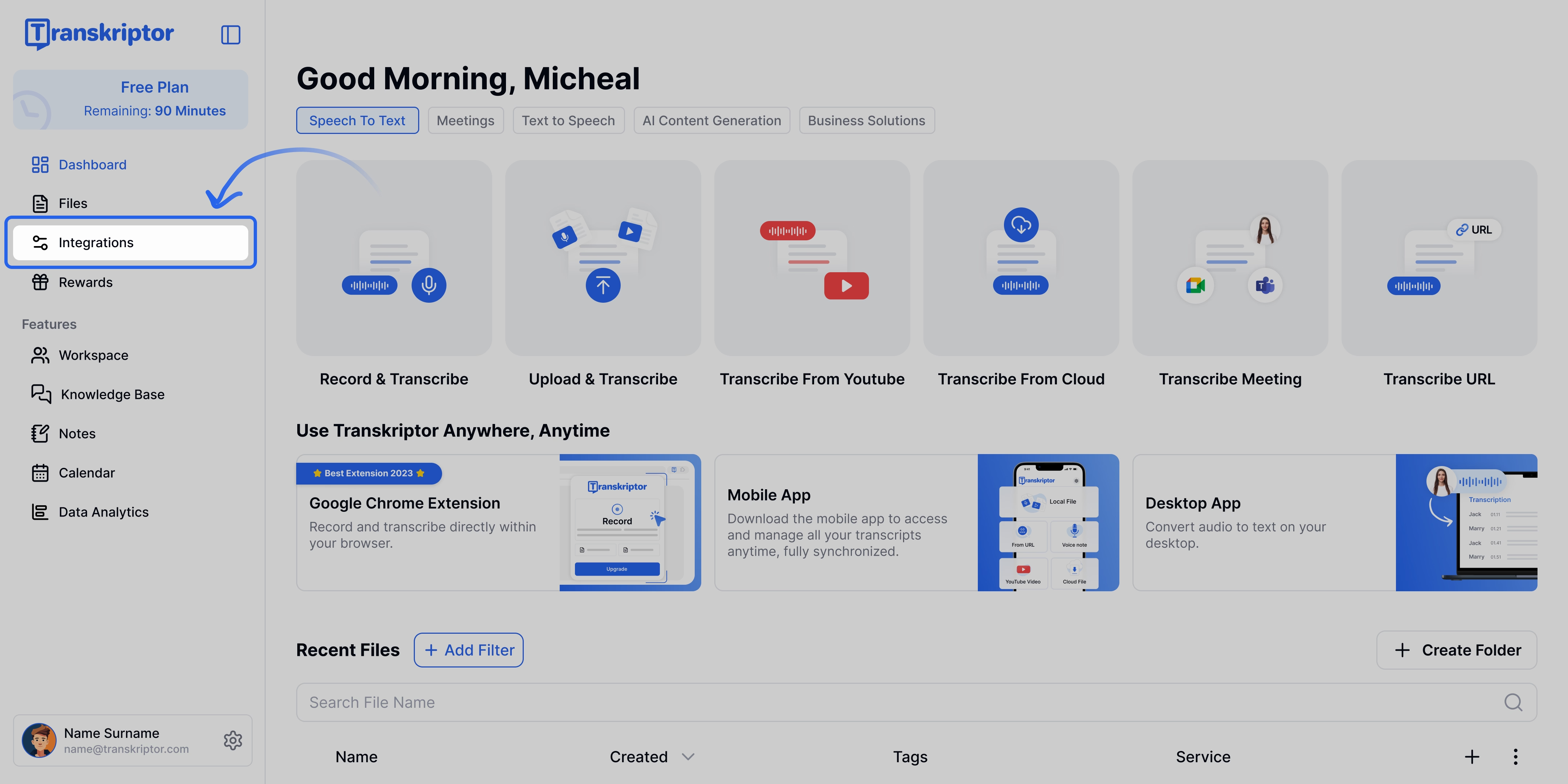
A screenshot of the Transkriptor dashboard highlighting the "Integrations" menu item with an arrow pointing to it.
The Transkriptor dashboard with the "Integrations" menu item highlighted.

Find Microsoft Word and select it.

Microsoft permissions requested for Transkriptor, showing an email and a list of requested accesses like full file access and profile reading.
Microsoft permissions requested for Transkriptor integration.

Click Connect, then sign in with your Microsoft account and approve the required permissions. Transkriptor will request access to your Word documents so it can create and save your transcription files.

A Microsoft permissions requested pop-up for Transkriptor, showing the app would like full access to files, profile, and data.
Transkriptor seeks Microsoft permissions for file and data access.

Admin Approval (If Required)

If you're using a Microsoft account managed by your organization, you may see a "Need admin approval" screen after granting permissions. This is a standard Microsoft security step for company-managed accounts — Transkriptor needs your IT admin's consent before it can access organization resources.

Simply share the request with your admin, or if you have admin access, click "Have an admin account? Sign in with that account" to approve it yourself. Once approved, you'll be redirected back to Transkriptor to complete your setup.

A Microsoft admin approval screen for Transkriptor, showing a message about granting permissions.
Granting Transkriptor access requires Microsoft admin approval.

You'll be redirected back to Transkriptor, where you can finalize and configure your integration settings.

Microsoft Word settings for Transkriptor showing options to include audio link, summary, and transcript link with a cursor clicking save.
Configure Transkriptor settings for Microsoft Word to auto-save transcripts and more.

You're Connected!

Screenshot of Transkriptor showing an integration with Microsoft Word to auto-save transcripts.
Seamlessly integrate Transkriptor with Microsoft Word to auto-save your transcripts.

See Your Transcriptions in Word

That's it — your integration is live. From now on, every completed transcription or meeting will be saved as its own formatted Word document in the Transkriptor folder on your OneDrive, complete with a structured layout and the content you've chosen to include.

A Microsoft Word welcome screen showing a recently opened document titled "Customer Interview - Acme Corp" linked to Transkriptor, along with various document templates.
This image displays the Microsoft Word welcome screen, highlighting a Transkriptor-linked document.

Configure the Microsoft Word Integration

When a transcription or meeting is completed, Transkriptor automatically creates a formatted Word document and saves it to your Transkriptor folder. Each transcription or meeting generates its own separate document, with a clear title, date, and type (Meeting or Transcription) at the top. You can customize what else gets included through the settings below.

Include Summary

Enabled by default. When turned on, the AI-generated summary is added as a dedicated section inside the Word document, giving readers an instant overview before diving into the full transcript. If you don't need summaries in your documents, you can turn this off.

Include Transcript Link

Enabled by default. When turned on, a clickable link to download the full transcript is added under a Links section in the document, so you can access the complete transcription with a single click — even when you're sharing the document with someone else.

Include Audio Link

Enabled by default. When turned on, a clickable link to the original audio or video recording is added under the Links section, allowing you or your reader to revisit the source material whenever context is needed.

Frequently Asked Questions

Once connected, every completed transcription or meeting is automatically saved as a formatted .docx file in a Transkriptor folder on your OneDrive. Each transcription generates its own separate document, complete with a title, date, type, and the content you've enabled in your settings.

All transcription documents are saved in a dedicated Transkriptor folder on your OneDrive. You can open them from Word for the web, desktop, or mobile — the same way you'd access any other Word file.

Every document includes a title, date, and type (Meeting or Transcription) at the top. Beyond that, it can also include the AI-generated summary, a transcript download link, and an audio or video link — depending on which options you've enabled.

Yes. Each option — Include Summary, Include Transcript Link, and Include Audio Link — can be toggled on or off independently in your integration settings.

Yes. Every transcription or meeting generates its own separate Word document, so your files stay organized and easy to share individually without bundling unrelated content together.

Absolutely. Once saved, each document is a regular Word file, so you can edit, format, comment, and collaborate on it just like any other .docx document.

Turn Every Meeting Into a Polished Word Document