
Key Benefits of Transkriptor + Microsoft Excel Integration
Automatic Row Logging: Every completed transcription or meeting is automatically saved as a new row in your Transkriptor Transcriptions Excel workbook — no manual exports, no copy-pasting.
Centralized Transcription Library: All your transcriptions live in one Excel file, making it easy to search, filter, sort, and analyze your meeting data alongside the rest of your spreadsheets.
Flexible Data Inclusion: Choose exactly what gets saved to each row — AI-generated summaries, transcript links, and media links can each be toggled on or off to match your workflow.
Seamless Excel Access: Open, edit, and collaborate on your transcription workbook from any device using Excel for the web, desktop, or mobile — your data stays in sync wherever you work.
How to Set Up Microsoft Excel Integration in Transkriptor
Connect Microsoft Excel;
Go to the Integrations tab in your Transkriptor dashboard.
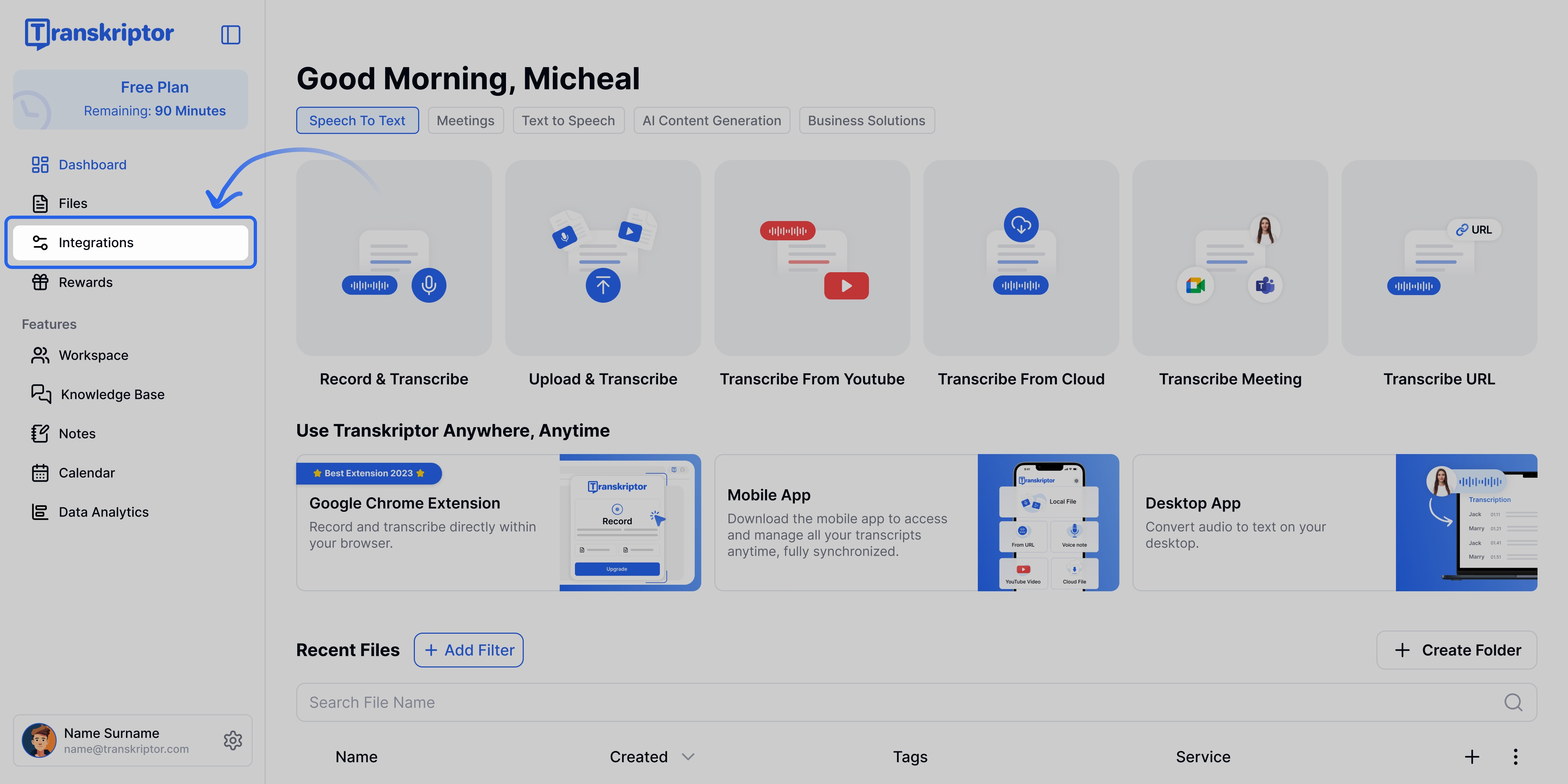
Find Microsoft Excel and select it.

Click Connect, then sign in with your Microsoft account and approve the required permissions. Transkriptor will request access to your Excel files so it can create and update your transcription workbook.

Admin Approval (If Required)
If you're using a Microsoft account managed by your organization, you may see a "Need admin approval" screen after granting permissions. This is a standard Microsoft security step for company-managed accounts — Transkriptor needs your IT admin's consent before it can access organization resources.
Simply share the request with your admin, or if you have admin access, click "Have an admin account? Sign in with that account" to approve it yourself. Once approved, you'll be redirected back to Transkriptor to complete your setup.

You'll be redirected back to Transkriptor, where you can finalize and configure your integration settings.

You're Connected!

See Your Transcriptions in Excel
That's it — your integration is live. From now on, every completed transcription or meeting will appear as a new row in the Transkriptor Transcriptions workbook in your Excel files, complete with summaries and links based on your settings.

Configure the Microsoft Excel Integration
When a transcription or meeting is completed, the result is automatically saved as a new row in the Transkriptor Transcriptions workbook in Excel. You can customize what gets included in each row through the settings below.
Include Summary
Enabled by default. When turned on, the AI-generated summary of your transcription or meeting is added to the row, giving you instant context without opening the full transcript. If you don't need summaries in your spreadsheet, you can turn this off.
Include Transcript Link
Enabled by default. When turned on, a downloadable link to the full transcript is added to the row, so you can access the complete transcription directly from Excel with a single click.
Include Media Link
Disabled by default. When turned on, a link to the original audio or video recording is included in the row, allowing you to revisit the source material whenever you need to verify a quote or replay a moment.


