
Key Benefits of Transkriptor + Aircall Integration
Automatic Call Transcription: Every completed Aircall call is automatically transcribed and saved to your Transkriptor account. No manual uploads needed—your conversations are documented the moment they end.
Voicemail Transcription: Voicemails are also transcribed automatically, so you never miss important messages even when you can't listen. Read through voicemail content instantly without playing audio.
Complete Call Archive: Build a searchable database of all your phone conversations, making it easy to reference past discussions, verify details, or review customer interactions whenever needed.
Enhanced Team Collaboration: Share call transcripts with team members who weren't on the call, enabling better coordination and ensuring everyone has access to important conversation details.
How to Set Up Aircall Integration in Transkriptor
Easily connect your Aircall account to Transkriptor in just a few steps to automatically transcribe all calls and voicemails.
Connect Aircall
Go to the Integrations tab in your Transkriptor dashboard.
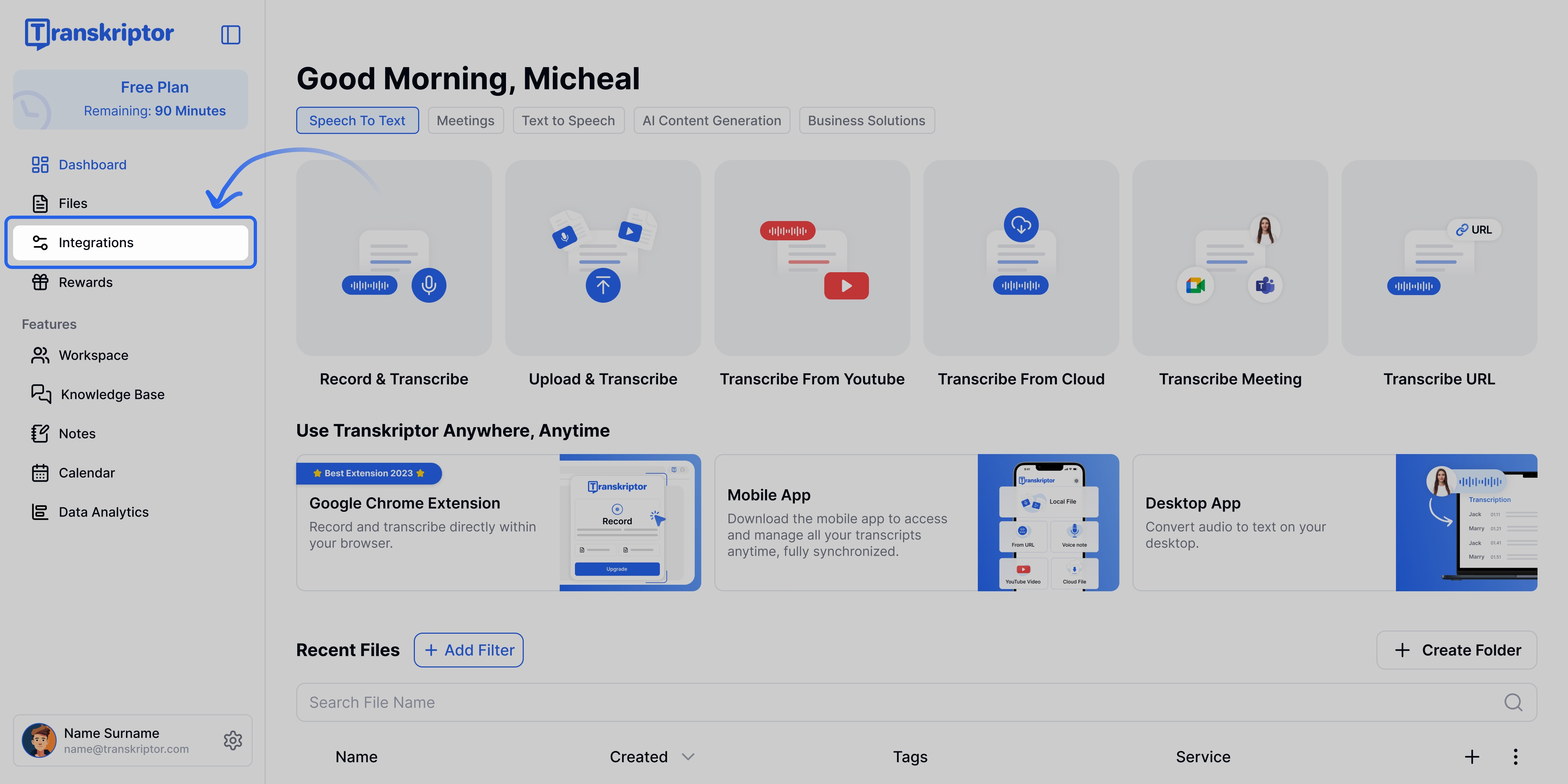
Explore Transkriptor integrations for seamless transcription workflows. Find Aircall and click connect.

Seamlessly integrate Aircall with Transkriptor for automatic transcription. Authorize Transkriptor to access your Aircall account.

Grant Transkriptor access to your Aircall account for seamless integration.
You'll see an authorization screen with Transkriptor branding. Click Authorize to grant the necessary permissions for call and voicemail transcription.Select Your Phone Numbers: After authorization, you'll be prompted to choose which Aircall phone numbers you want to transcribe.

A screen within Transkriptor for selecting numbers during Aircall integration.
Select the specific numbers you want to enable for automatic transcription. You can choose one or multiple numbers based on your needs (e.g., sales line, support line, main office number).
The Transkriptor "Add numbers" interface, displaying options for UK and US phone numbers. 
Transkriptor users select US numbers for integration. You'll be redirected back to Transkriptor where you can finalize and configure your integration settings.

Configure Aircall integration settings within Transkriptor. You're connected! All calls and voicemails from your selected numbers will be automatically transcribed and appear in your Transkriptor account.

Transkriptor integration page showcases Aircall and other popular tool integrations. 
Easily manage and access Aircall customer support transcriptions within Transkriptor.
Configure the Aircall Integration
Aircall integration allows you to control which phone numbers are transcribed and customize your transcription preferences.
Main Settings
Transcription Language: Select the default language for transcribing your Aircall calls. Transkriptor supports 100+ languages for accurate transcription of international calls.
Enable Voicemail Transcription: Automatically transcribe voicemails left on your Aircall numbers, converting audio messages into readable text for quick review.
Select Phone Numbers
Choose which Aircall phone numbers should have automatic transcription enabled:
Individual Lines: Select specific phone numbers (e.g., sales line, support line, personal business line)
Multiple Numbers: Enable transcription for multiple phone numbers simultaneously
Flexible Management: Add or remove numbers from transcription at any time through the settings
You can manage which numbers are being transcribed directly from the integration settings, giving you full control over what gets documented.
Transcription Settings
Automatic Processing: All calls from selected numbers are transcribed immediately after they end, with no manual action required.
Voicemail Handling: When voicemail transcription is enabled, messages are transcribed and appear alongside your call transcripts for unified access.
Transcription Access: All transcripts are stored in your Transkriptor account, where you can search, edit, share, or export them as needed.
How to Disconnect from the Integration
After connecting Aircall to Transkriptor, you can click the three-dot icon to either change settings or disconnect the integration.
When you disconnect, Transkriptor will stop transcribing calls and voicemails from Aircall. Previously created transcripts will remain in your Transkriptor account with full access.
Transcript Organization
Once Aircall integration is enabled, Transkriptor automatically organizes your call transcripts for easy access and management.
Call Identification: Each transcript is labeled with the phone number, date, time, and duration for easy identification.
Searchable Content: All transcripts are fully searchable, allowing you to quickly find specific conversations, topics, or customer names.
Chronological Organization: Transcripts are organized by date and time, making it easy to track conversation history and follow up on previous calls.
Voicemail Separation: Voicemail transcripts are clearly marked and separated from regular calls for organized message management.
This structure ensures your call documentation is well-organized, accessible, and ready for review whenever you need it.

