Key Benefits of Transkriptor + Microsoft SharePoint Integration
Enterprise-Grade Document Management: Automatically organize meeting transcripts in SharePoint document libraries with proper version control, metadata, and permissions for complete governance.
Organization-Wide Accessibility: Make meeting documentation searchable and accessible across your entire organization through SharePoint's powerful enterprise search capabilities.
Seamless Microsoft 365 Integration: Work within your existing Microsoft ecosystem with automatic synchronization to Teams channels, OneDrive, and other Microsoft 365 applications.
Compliance and Security: Leverage SharePoint's enterprise security features including data loss prevention, retention policies, and audit logs to maintain regulatory compliance.
How to Set Up Microsoft SharePoint Integration in Transkriptor
Easily connect your SharePoint sites to Transkriptor in just a few clicks to automatically save transcripts, summaries, and audio files to your document libraries.
Connect Microsoft SharePoint
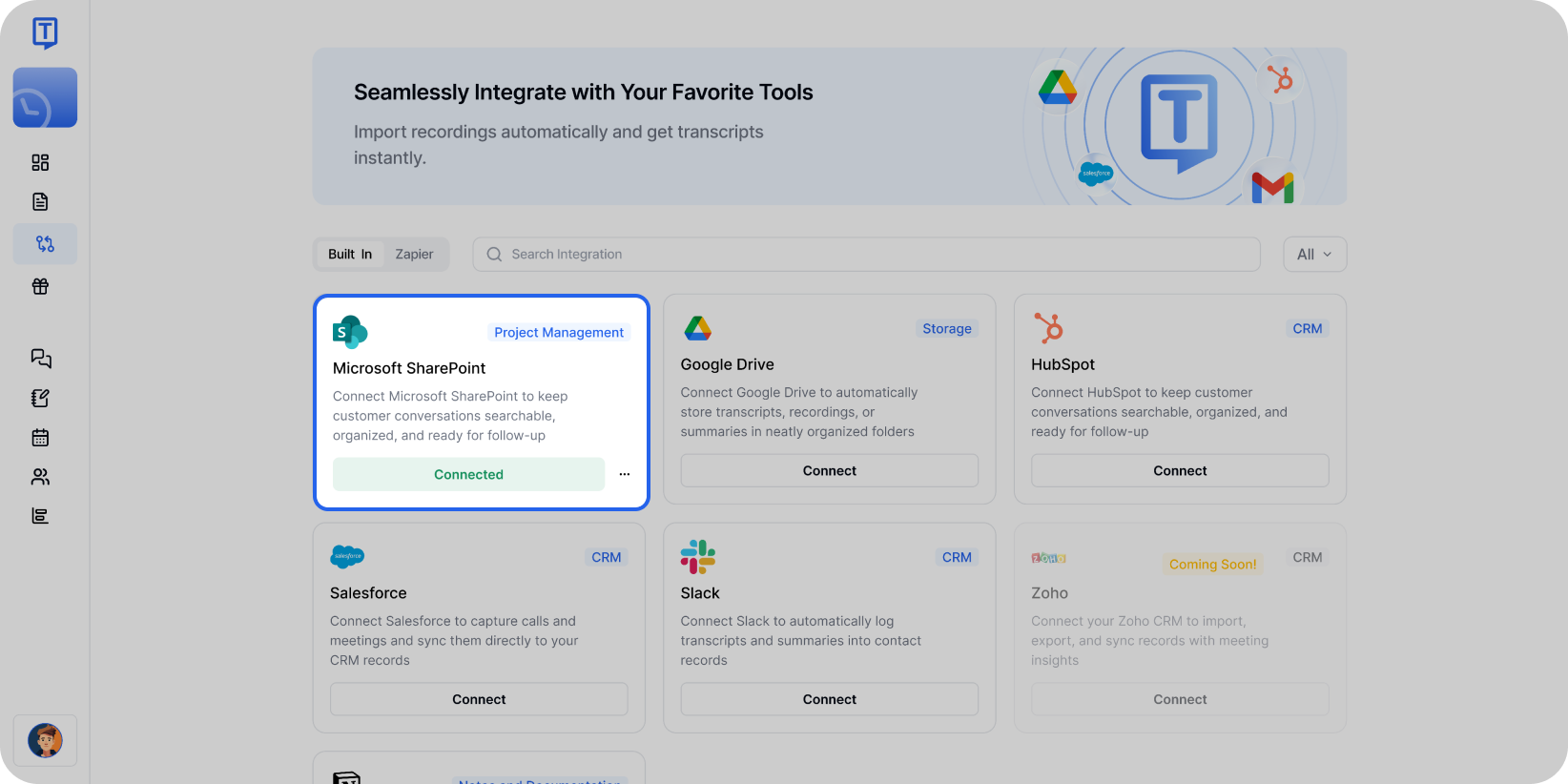
Go to the Integrations tab in your Transkriptor dashboard. Find Microsoft SharePoint and select it.
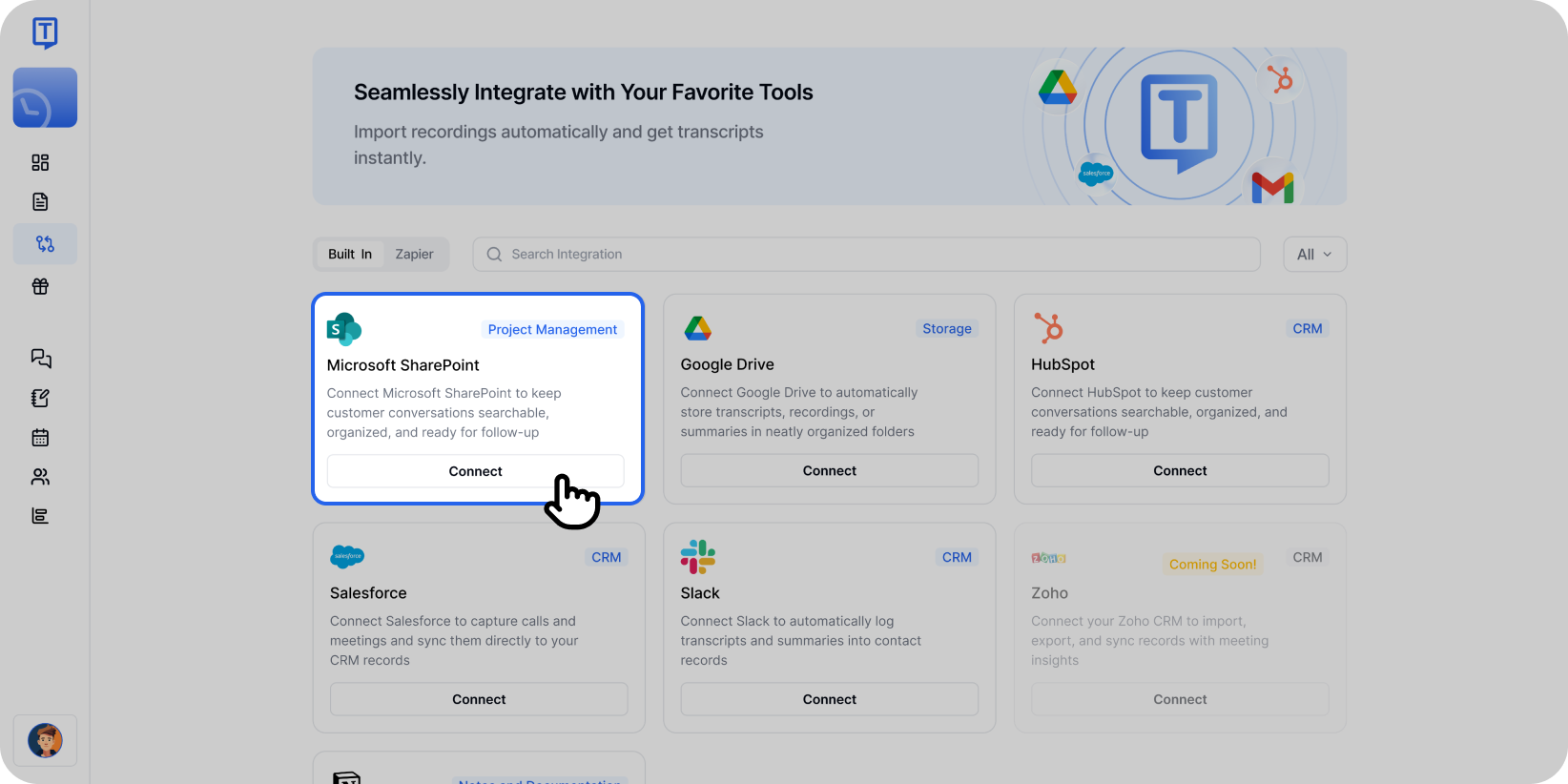
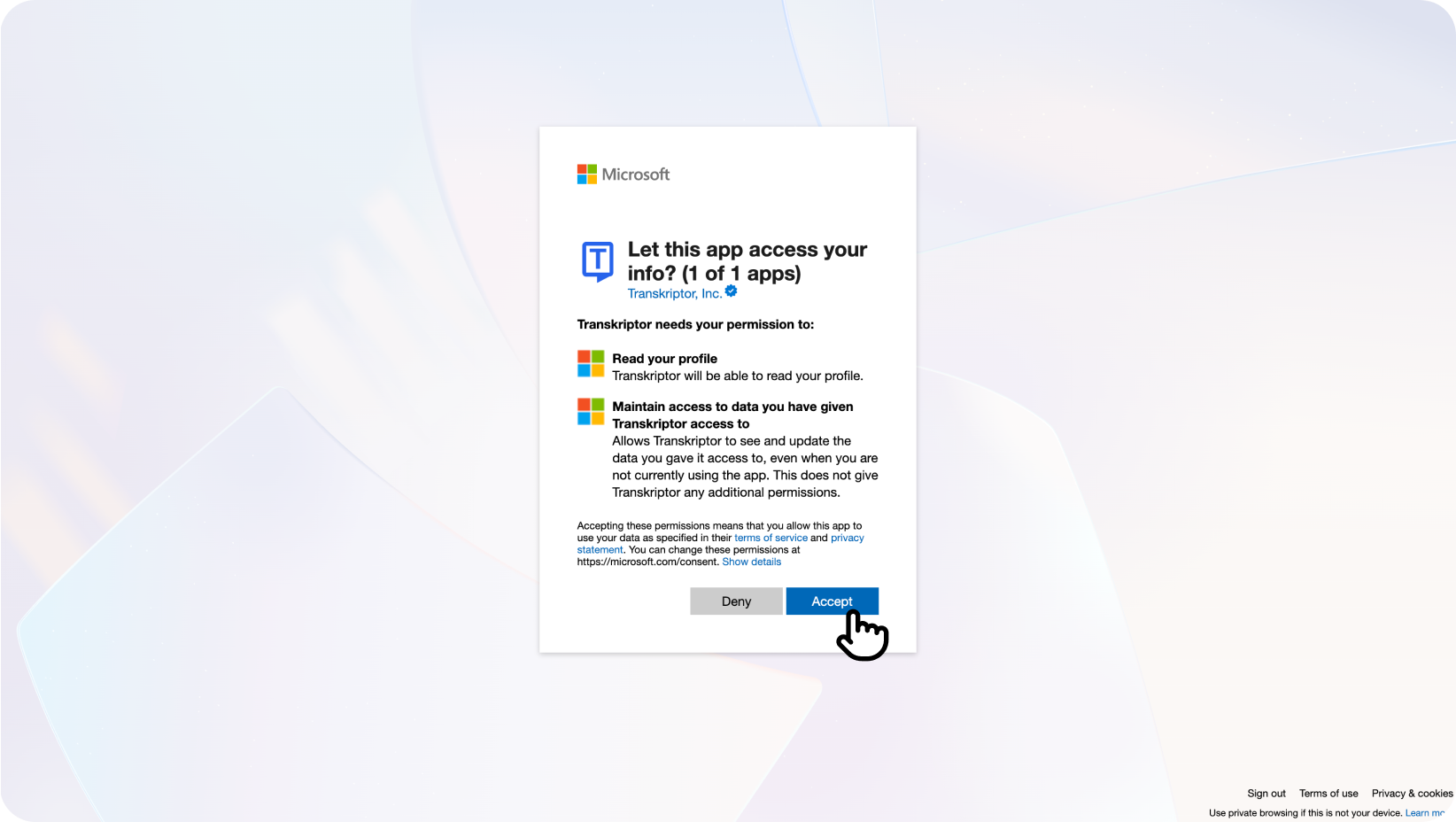
Select Microsoft SharePoint from the integrations page to begin connecting your account. Click Connect, then sign in with your Microsoft 365 account and approve the necessary permissions.
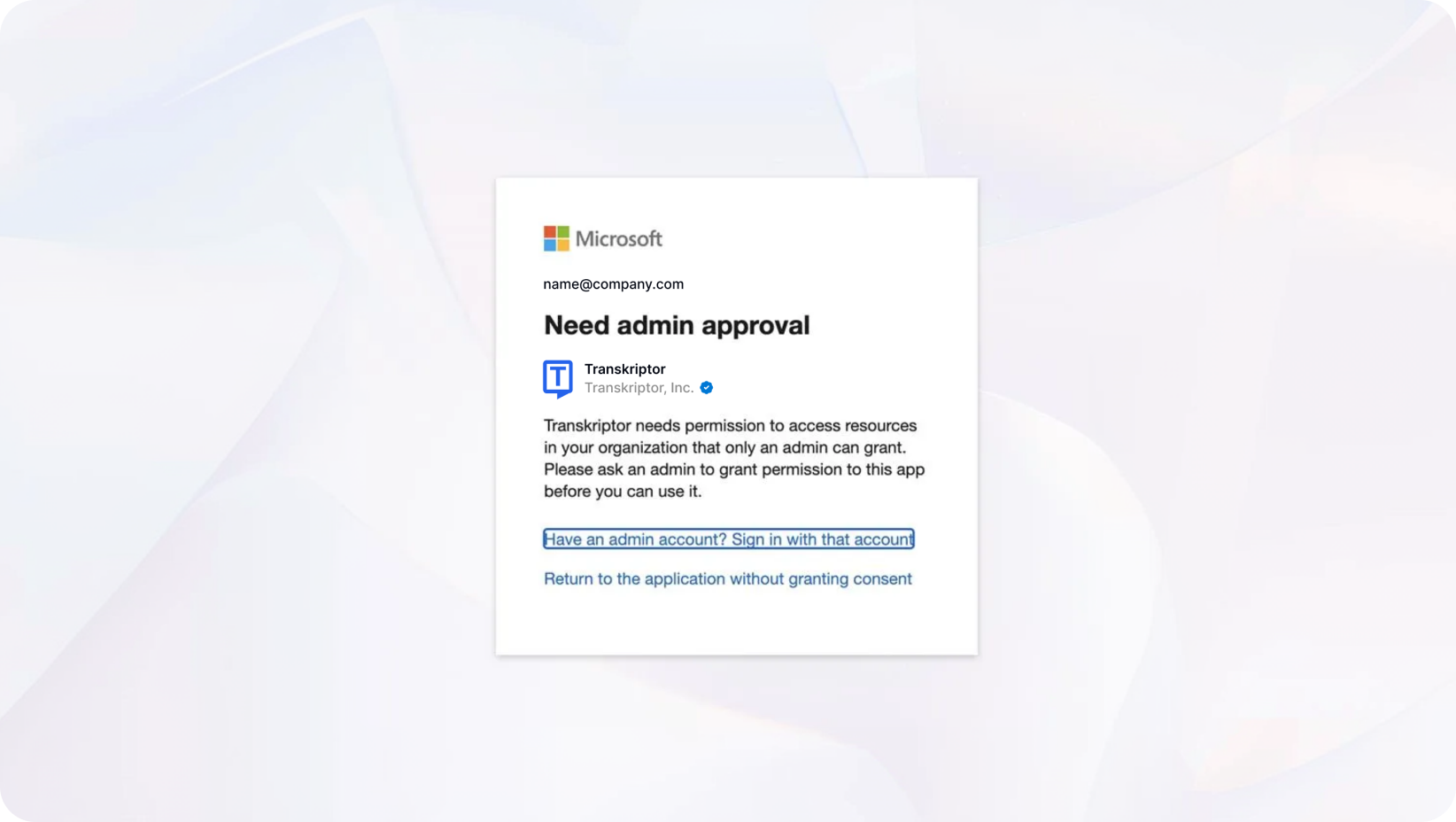
Note for Workspace Email Users: If you're using a workspace or organization email, you may see an "Admin approval required" message. In this case, your organization's admin needs to grant consent:
Navigate to Azure Portal → Enterprise Applications → Transkriptor → Permissions
Click "Grant admin consent" to authorize Transkriptor for your organization
After granting consent, return to Transkriptor and click Connect again to complete the setup
If you encounter similar permission issues, you can refer to the troubleshooting resources provided in the Microsoft error message or contact our support team for additional assistance.
You'll be redirected back to Transkriptor where you can finalize and configure your integration settings.
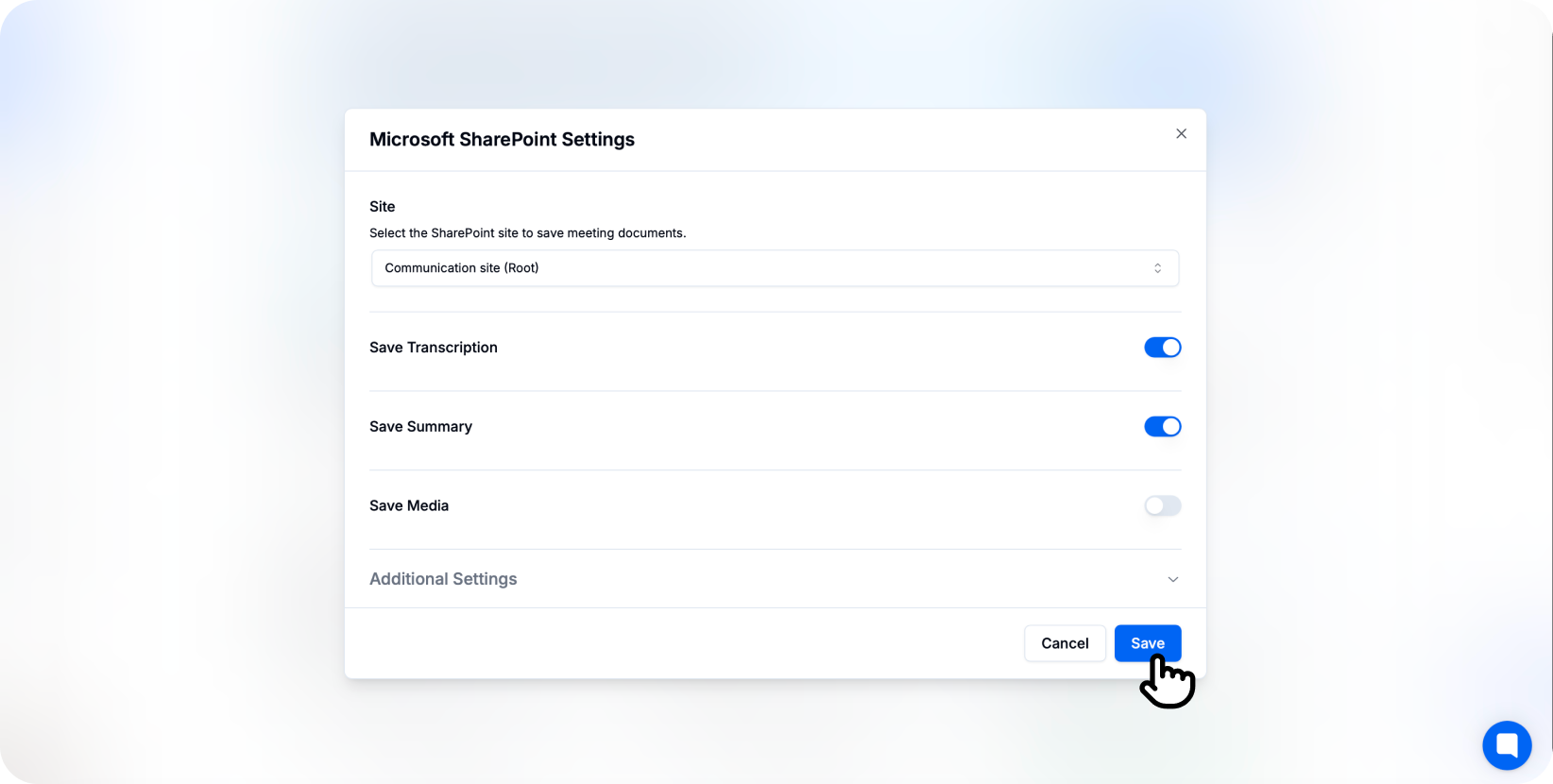
You’re connected.
Once connected, transcripts will appear in your chosen SharePoint document library including summaries.
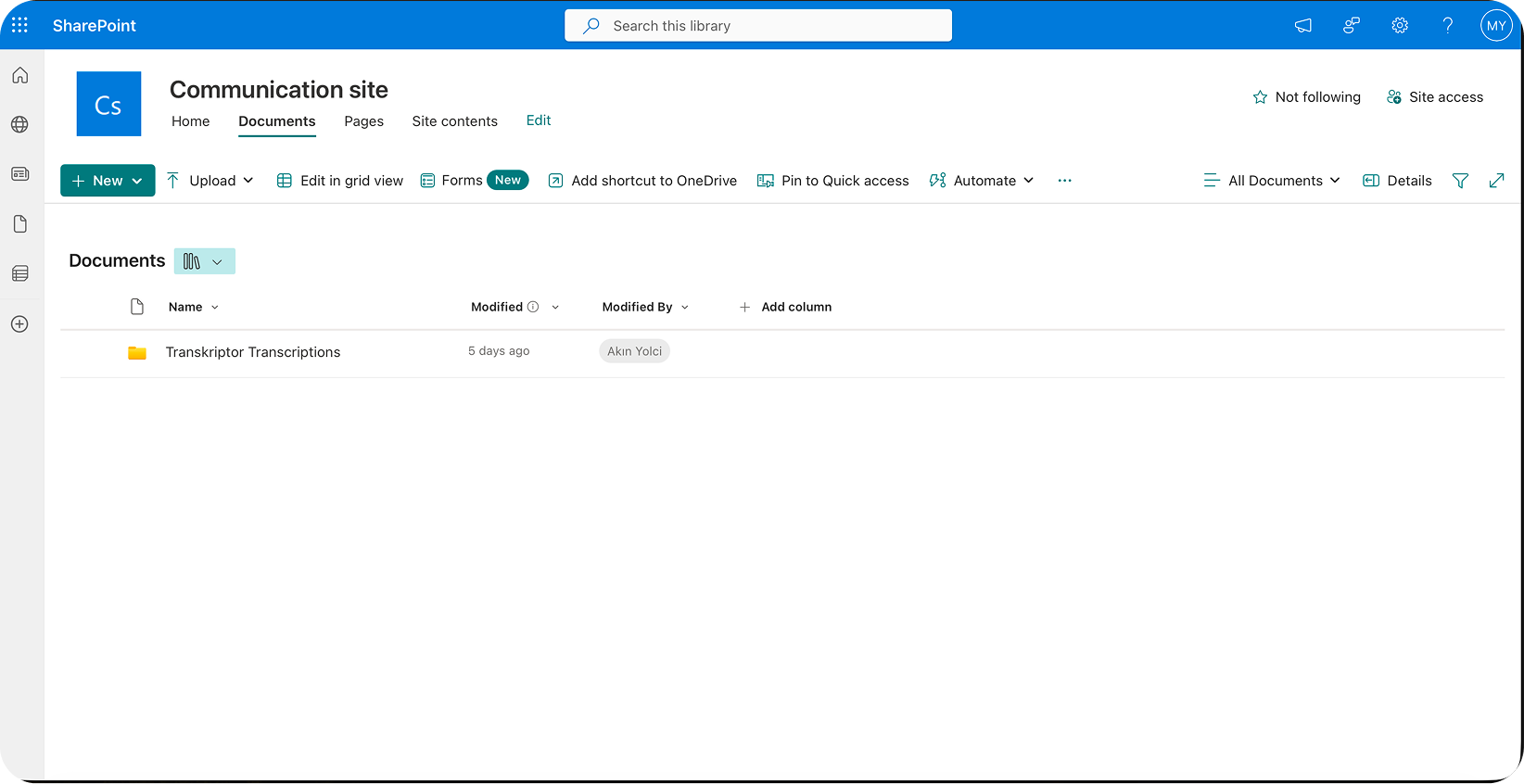
Configure the Microsoft SharePoint Integration
Microsoft SharePoint integration allows you to control how and where Transkriptor saves files in your organization. Customize site selection, library organization, and automation preferences to fit your enterprise needs.
Main Settings
Select SharePoint Site: Choose the SharePoint site where you want to save Transkriptor files (e.g., Company Intranet, Team Sites, Department Sites).
Auto-Save Files: Toggle this on to automatically upload transcripts to SharePoint immediately after meetings end. When turned off, you can review and manually save files from the Transkriptor editor.
Include AI Summary: Enable this option to save a separate summary document alongside the full transcript for quick executive review.
Metadata Tagging: Automatically populate SharePoint metadata fields with meeting information for enhanced searchability and organization.
Choose Your SharePoint Library and Folder
Select the specific document library and folder structure where Transkriptor should save meeting files.
Document Libraries: Select from available libraries (e.g., Documents, Meeting Records, Shared Documents)
Folder Structure: Choose or create folder hierarchies (e.g., /Meetings/2026/January, /Departments/Sales/Meetings)
Content Types: Apply SharePoint content types for consistent metadata and organization
Auto-created Folders: Automatically create dated or project-based subfolders
You can also configure different libraries and folders for different meeting types or departments directly from the integration settings.
Content Preferences
Include Full Transcript: Save the complete word-for-word transcription as a document file to SharePoint.
Include Summary Only: Save just the AI-generated summary with key points and action items as a separate file.
Include Meeting Metadata: Populate SharePoint columns with meeting details such as date, duration, participants, and organizer.
Include Audio File: Upload the original audio or video recording alongside the transcript for archival and reference.
Include Speaker Labels: Ensure speaker identification is included in the saved transcript file for clarity.
Include Timestamps: Add timestamp markers throughout the transcript file to help navigate to specific conversation points.
How to Disconnect
After connecting Microsoft SharePoint to Transkriptor, you can click the three-dot icon to either change settings or disconnect the integration.
When you disconnect, Transkriptor will stop saving files to SharePoint. Previously saved files will remain in your SharePoint document libraries and can be accessed normally.
Document Organization in SharePoint
Once Microsoft SharePoint integration is enabled, Transkriptor automatically organizes files for enterprise-grade management and discoverability.
Library Structure: Files are organized according to your chosen hierarchy aligned with organizational structure and information architecture.
Metadata Properties: Each file includes comprehensive metadata (meeting date, participants, department, project) for powerful search and filtering.
File Naming: Files follow organizational naming conventions for consistent identification across the enterprise.
Content Types: Documents are tagged with appropriate SharePoint content types for automated workflow and retention policies.
Version History: All edits and updates are tracked with full version control for audit and compliance purposes.
Teams Integration: When saved to SharePoint sites connected to Teams, files automatically appear in channel file tabs.
This structure ensures your organization can maintain comprehensive meeting documentation that meets enterprise governance and compliance requirements.