Key Benefits of Transkriptor + Zoho Integration
Automatic Meeting Transcription and Logging: Transkriptor automatically records and logs meeting transcripts and summaries under the relevant Zoho Leads, Contacts, and Deals, keeping all communication organized and accessible.
Smart Lead Creation: New meeting participants who are not yet in your CRM can be automatically added as new Leads, ensuring no potential customer is missed.
Enhanced Follow-ups: Automatically generate follow-up email links and capture key discussion points, helping your sales and customer success teams stay proactive and aligned.
Seamless Workflow Integration: Transkriptor integrates smoothly with Zoho CRM, syncing insights from Google or Microsoft Teams Calendar meetings to eliminate manual updates and boost productivity.
How to Set Up Zoho Integration in Transkriptor
Connect Zoho
Go to the Integrations tab in your Transkriptor dashboard
Find Zoho and select it
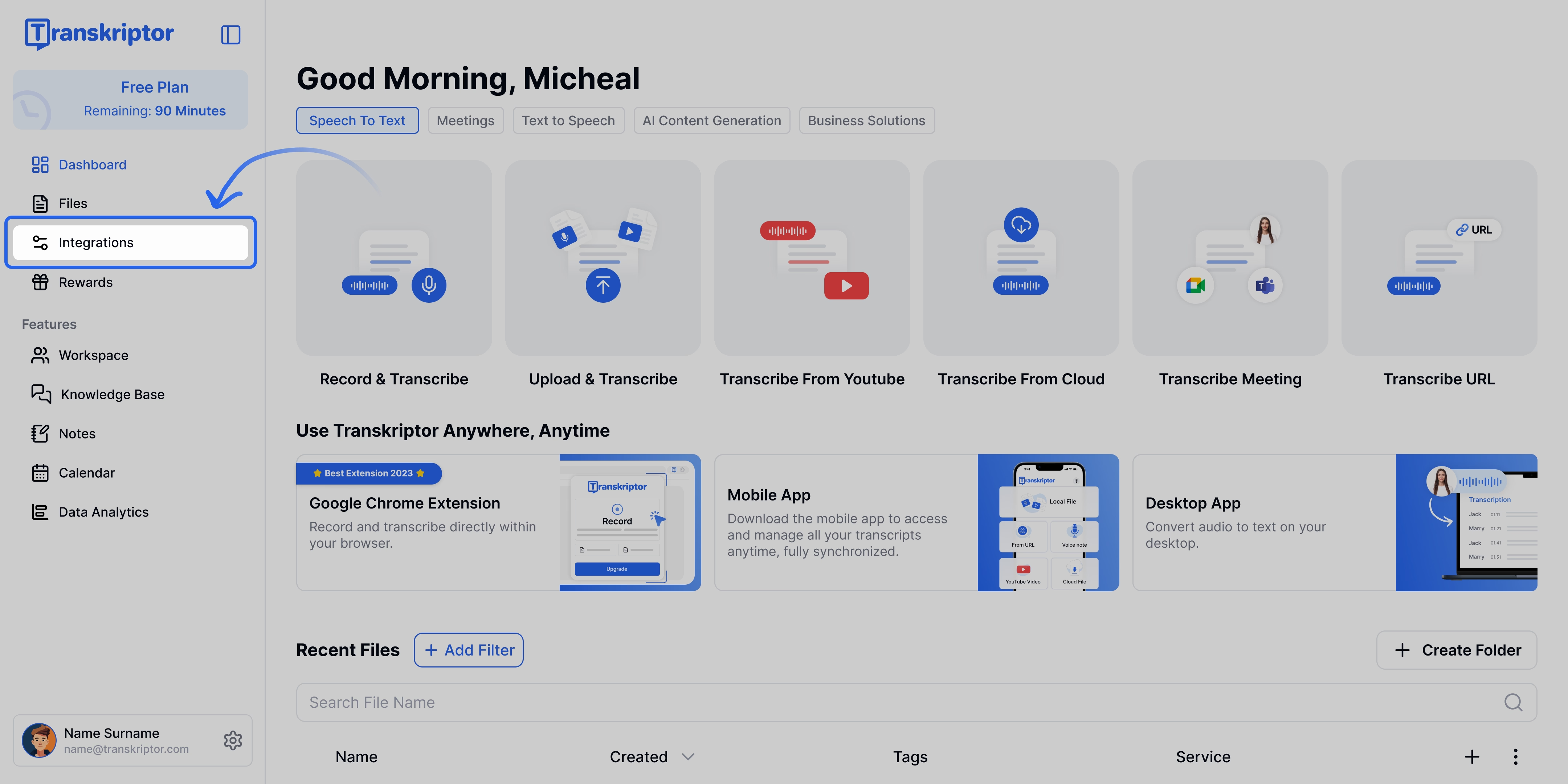
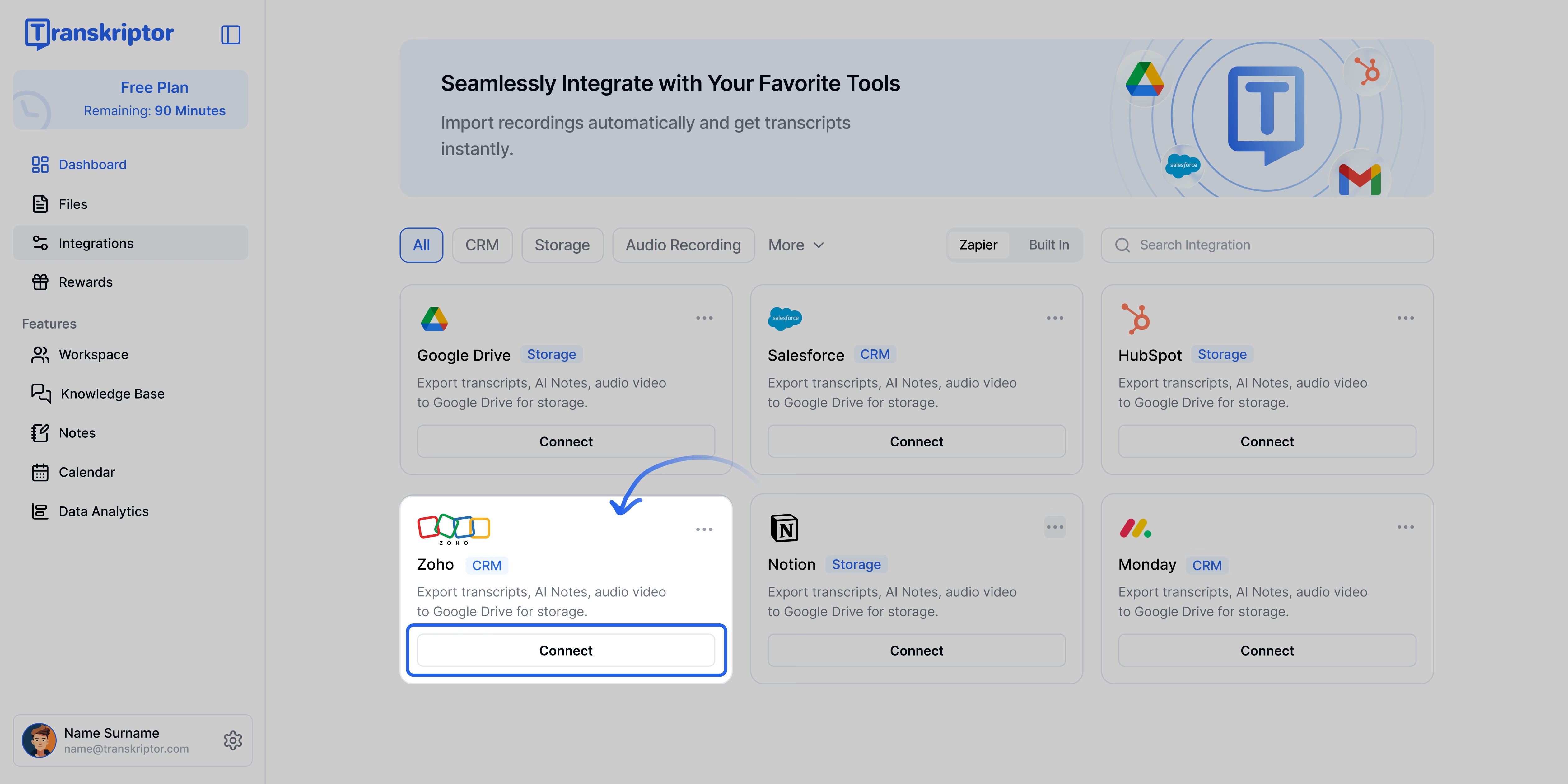
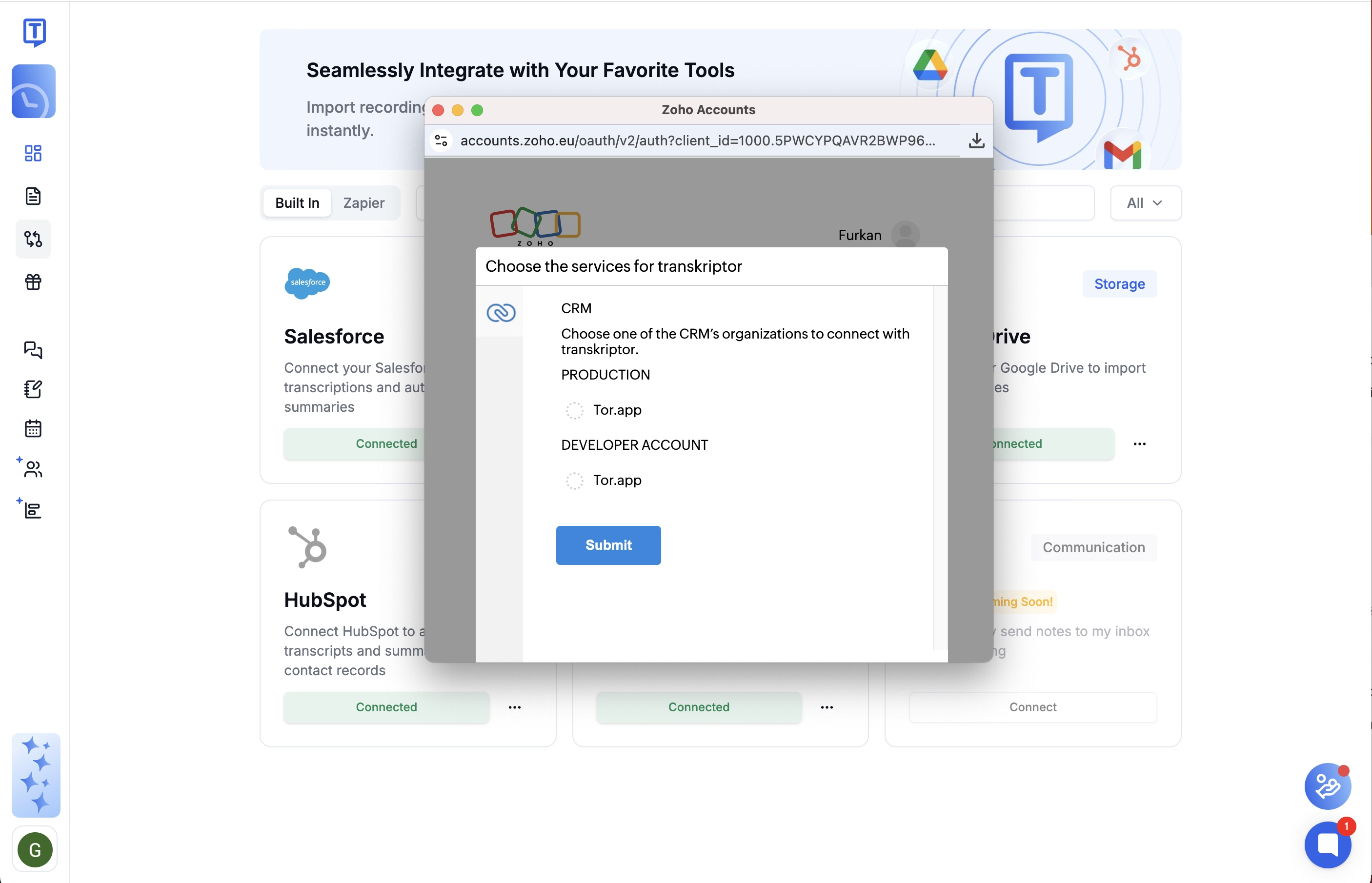
Click Connect, then sign in with your Zoho account and approve the required permissions
You’ll be redirected back to Transkriptor where you can finalize and configure your integration settings.
Configure the Zoho Integration
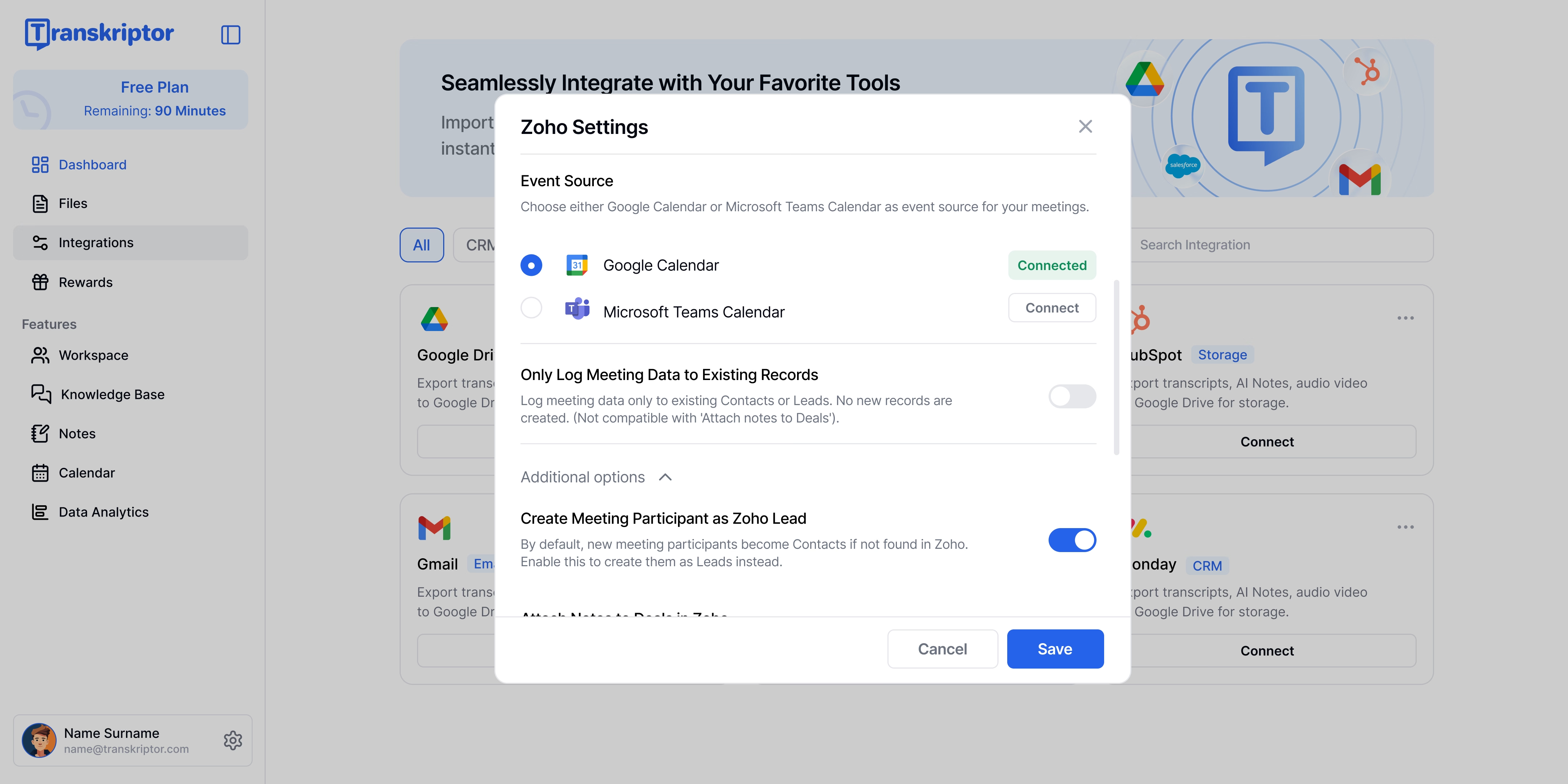
Transkriptor’s Zoho CRM integration, you can easily customize how meeting data is captured and organized. Connect your Google or Microsoft Teams Calendar to automatically sync upcoming meetings. Choose to log information only to existing Contacts or Leads, or allow Transkriptor to create new Leads when participants are not found in Zoho. You can also attach meeting summaries to related Deals, apply custom summary templates, and enable automatic follow-up email links. These settings help you tailor the integration to your workflow while keeping your CRM clean, structured, and up to date.
Event Source
Choose where Transkriptor should pull your meeting data from. You can connect either your Google Calendar or Microsoft Teams Calendar to automatically sync upcoming meetings. Once connected, Transkriptor will use this event source to identify and transcribe your meetings, ensuring that every session is accurately logged in Zoho CRM.
Only Log Meeting Data to Existing Records
Enable this option if you want Transkriptor to log meeting data only to existing Contacts or Leads in your Zoho CRM. When turned on, no new records will be created. This is ideal if you prefer to maintain tighter control over your CRM data structure and avoid adding new entries automatically.
Additional Settings
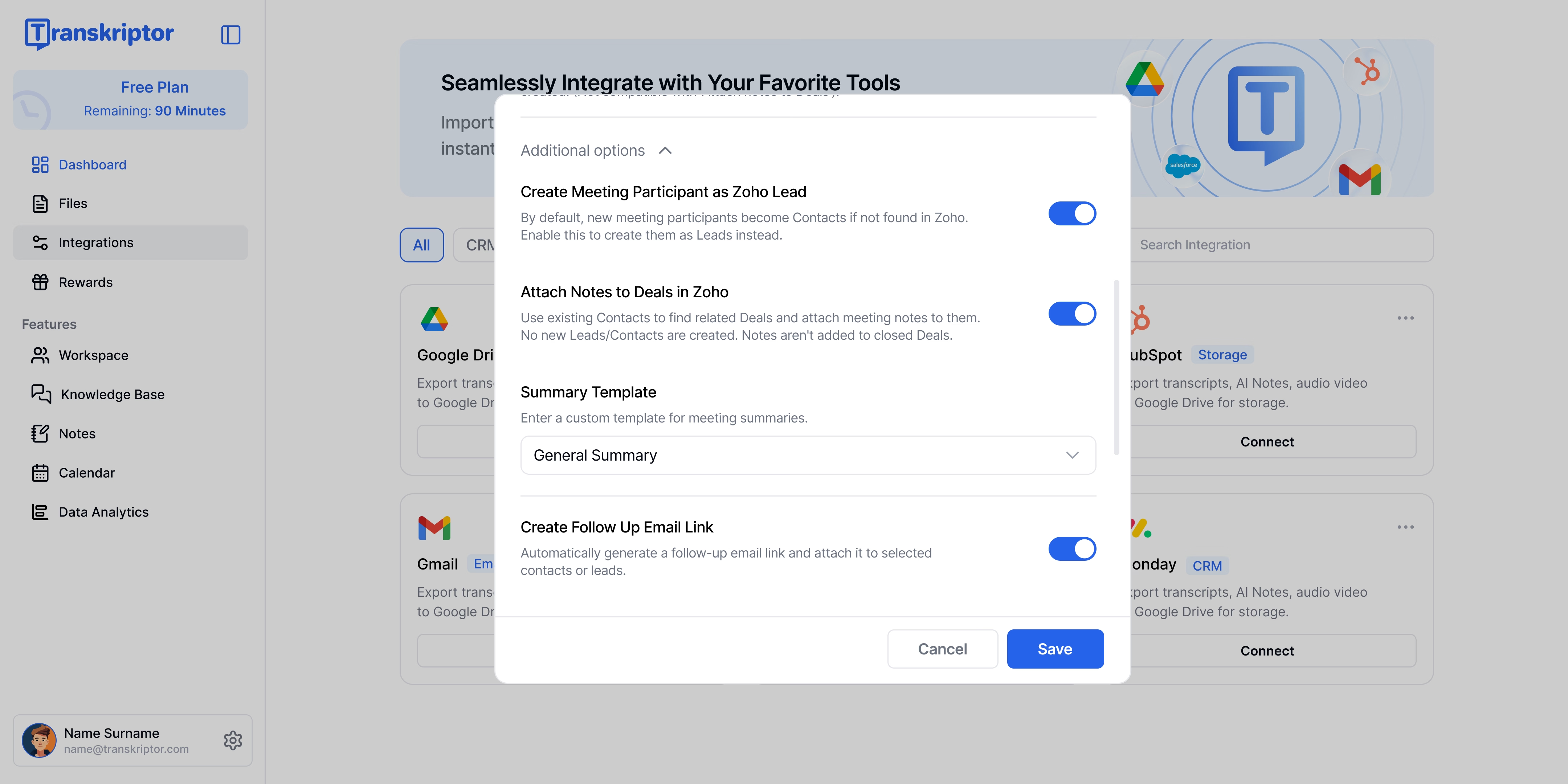
Additional Settings section allows you to customize how Transkriptor manages meeting participants, notes, summaries, and follow-ups in Zoho CRM. These options help you tailor the integration to your team’s workflow and ensure that all meeting data is organized, actionable, and easy to track.
Create Meeting Participant as Zoho Lead
When this option is enabled, new meeting participants who are not already in your Zoho CRM will automatically be added as Leads. If this setting is turned off, they will be created as Contacts instead. This feature ensures that every new prospect or participant from your meetings is properly captured in your CRM.
Attach Notes to Deals in Zoho
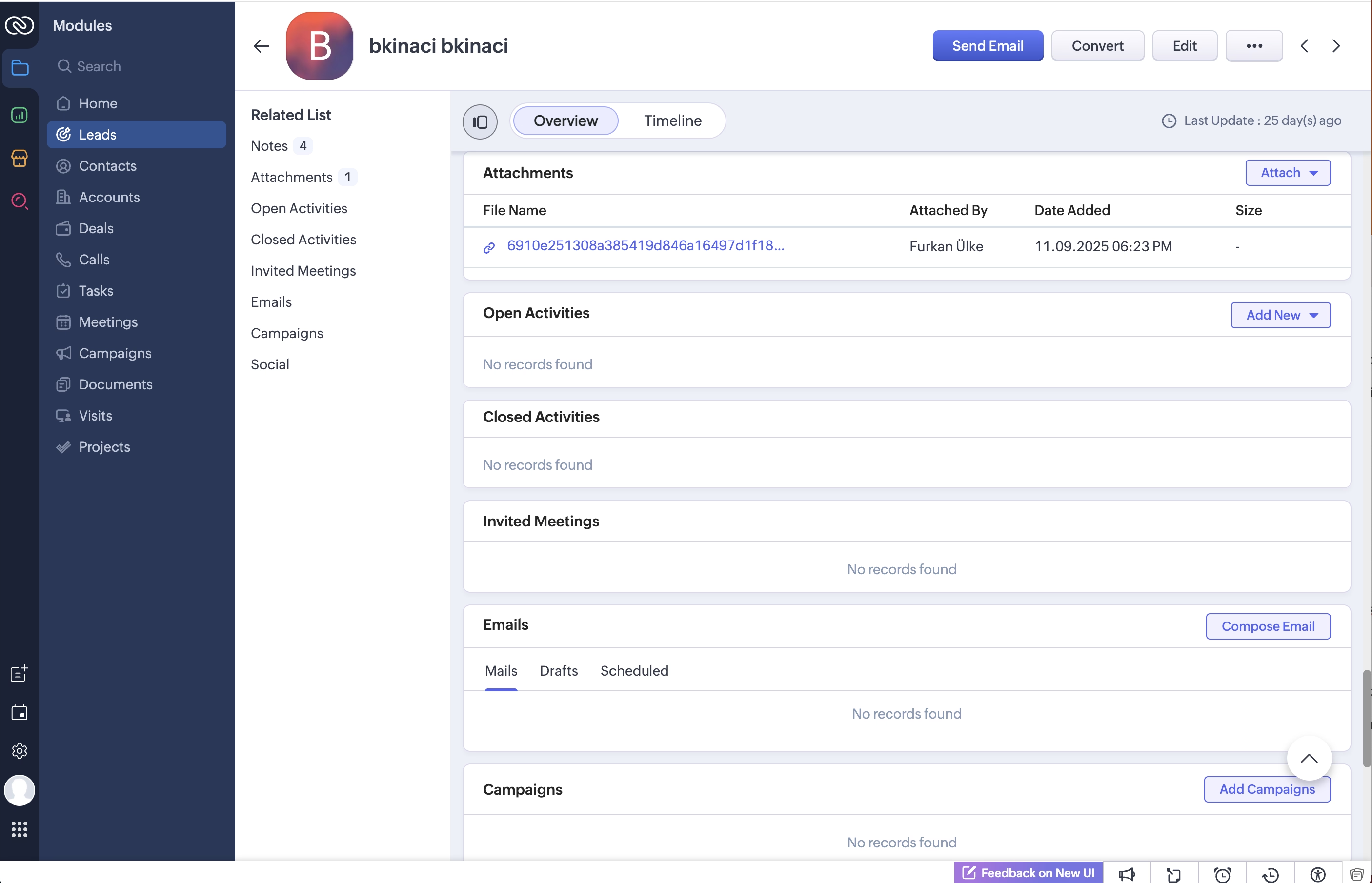
Enable this setting to automatically link meeting notes to related Deals in Zoho CRM. Transkriptor uses existing Contacts to identify the associated Deals and attaches the meeting notes to them. Notes are not added to closed Deals, helping you maintain a clean and relevant CRM record.
Summary Template
This option allows you to define a custom template for meeting summaries. You can choose or create a format that best fits your workflow, ensuring that all summaries follow a consistent structure across your team.
Create Follow Up Email Link
When enabled, Transkriptor automatically generates a follow-up email link after each meeting. This link is attached to the relevant Contacts or Leads, making it easy for your team to send timely follow-ups and maintain smooth communication.