Key Benefits of Transkriptor + Trello Integration
Centralized Project Documentation: Store all meeting transcripts and summaries as card attachments or descriptions in relevant Trello boards, keeping project context accessible.
Searchable Meeting History: Every transcript becomes part of your Trello workspace, making it easy to search and reference past discussions within your project management flow.
Customizable Card Organization: Choose which boards and lists receive transcript cards, control card labels and formatting, and set up automation rules to match your team's project workflow.
How to Set Up Trello Integration in Transkriptor
Easily connect your Trello workspace to Transkriptor in just a few clicks to automatically create cards with transcripts, summaries, and meeting insights.
Connect Trello
Go to the Integrations tab in your Transkriptor dashboard. Find Trello and select it.
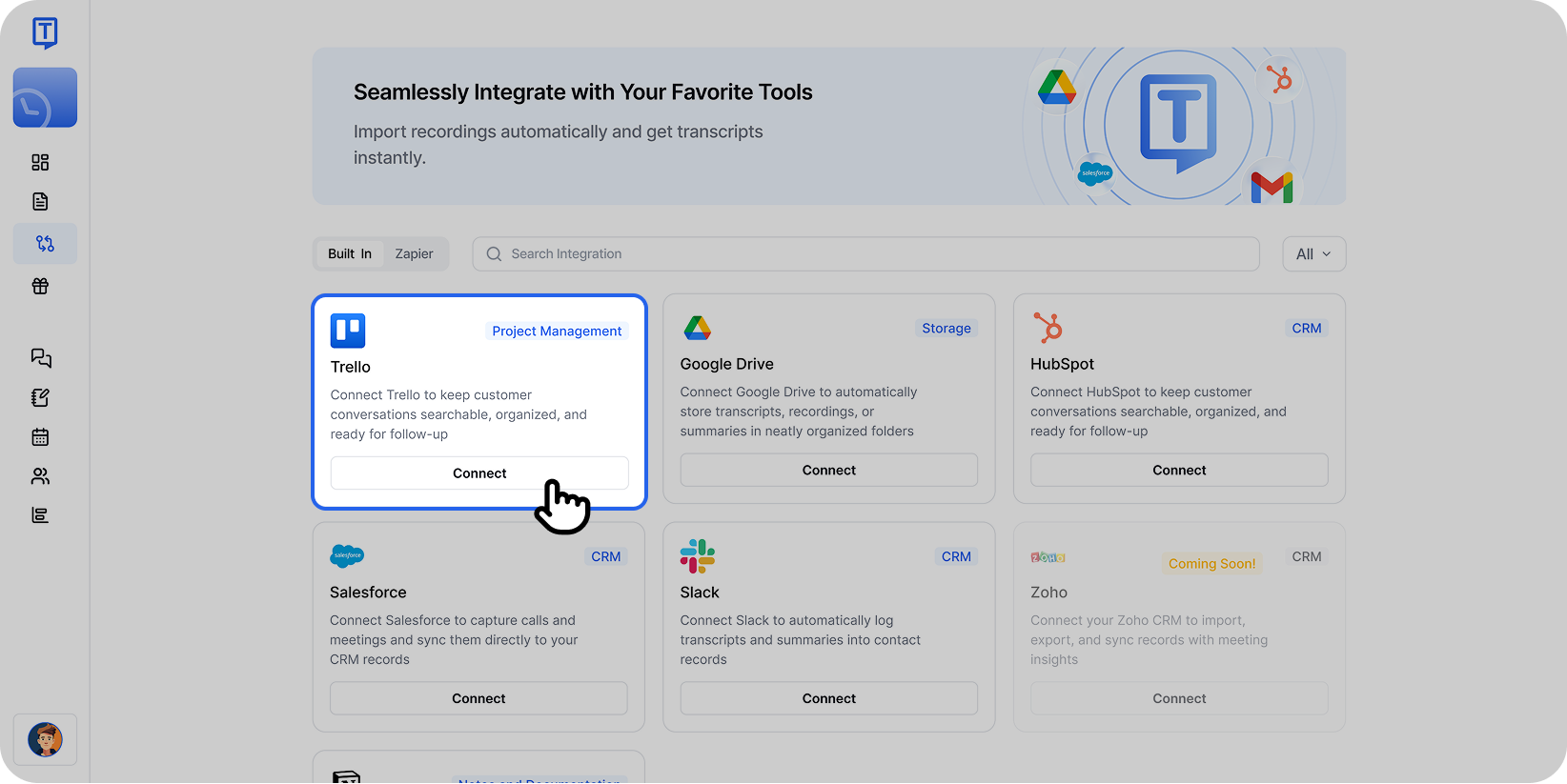
Select Trello from the integrations page to begin connecting your account. Click Connect, then sign in with your Trello account and approve the necessary permissions.
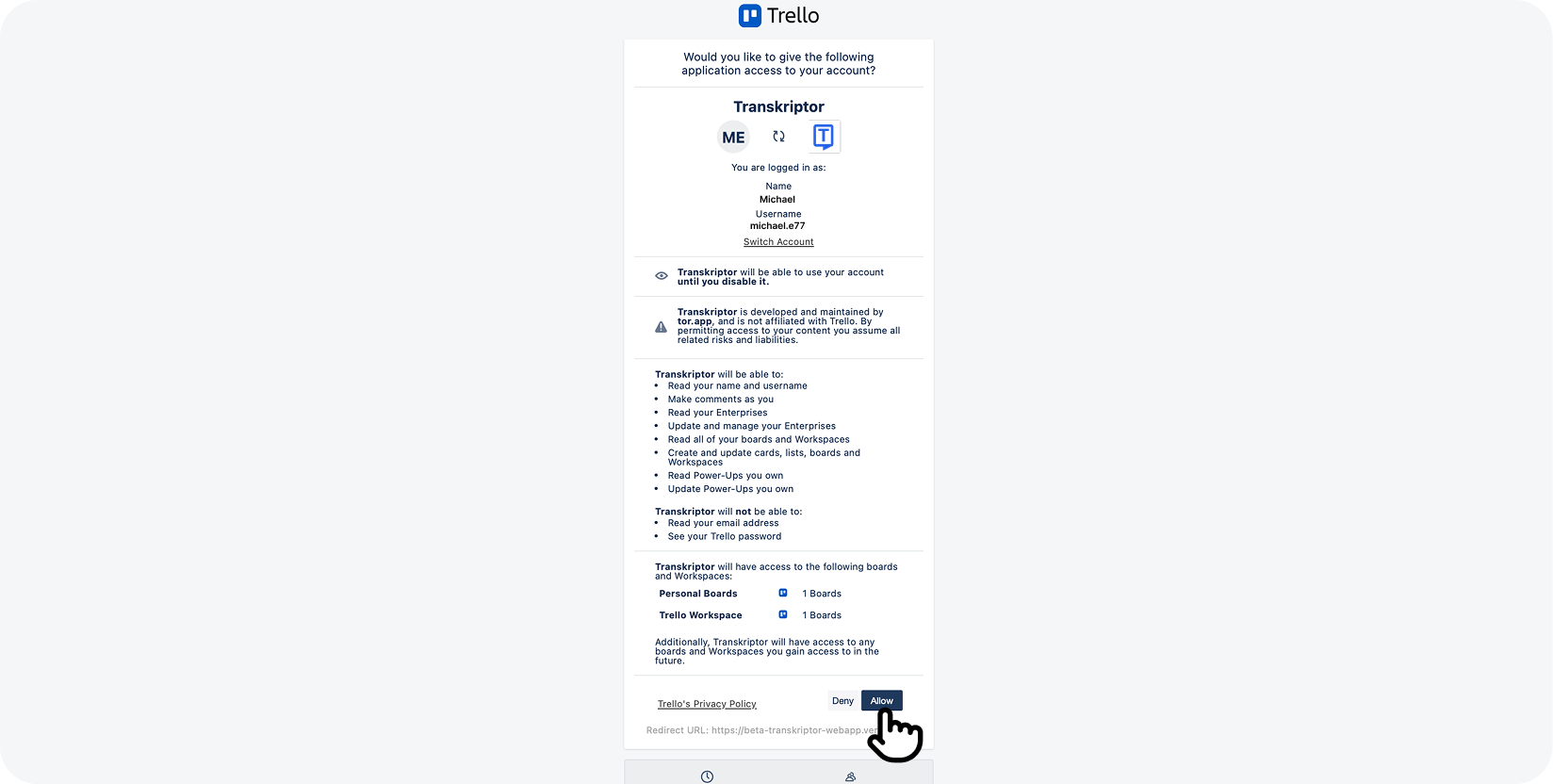
Allow Transkriptor to access your Trello account by clicking the Allow button. You'll be redirected back to Transkriptor where you can finalize and configure your integration settings.
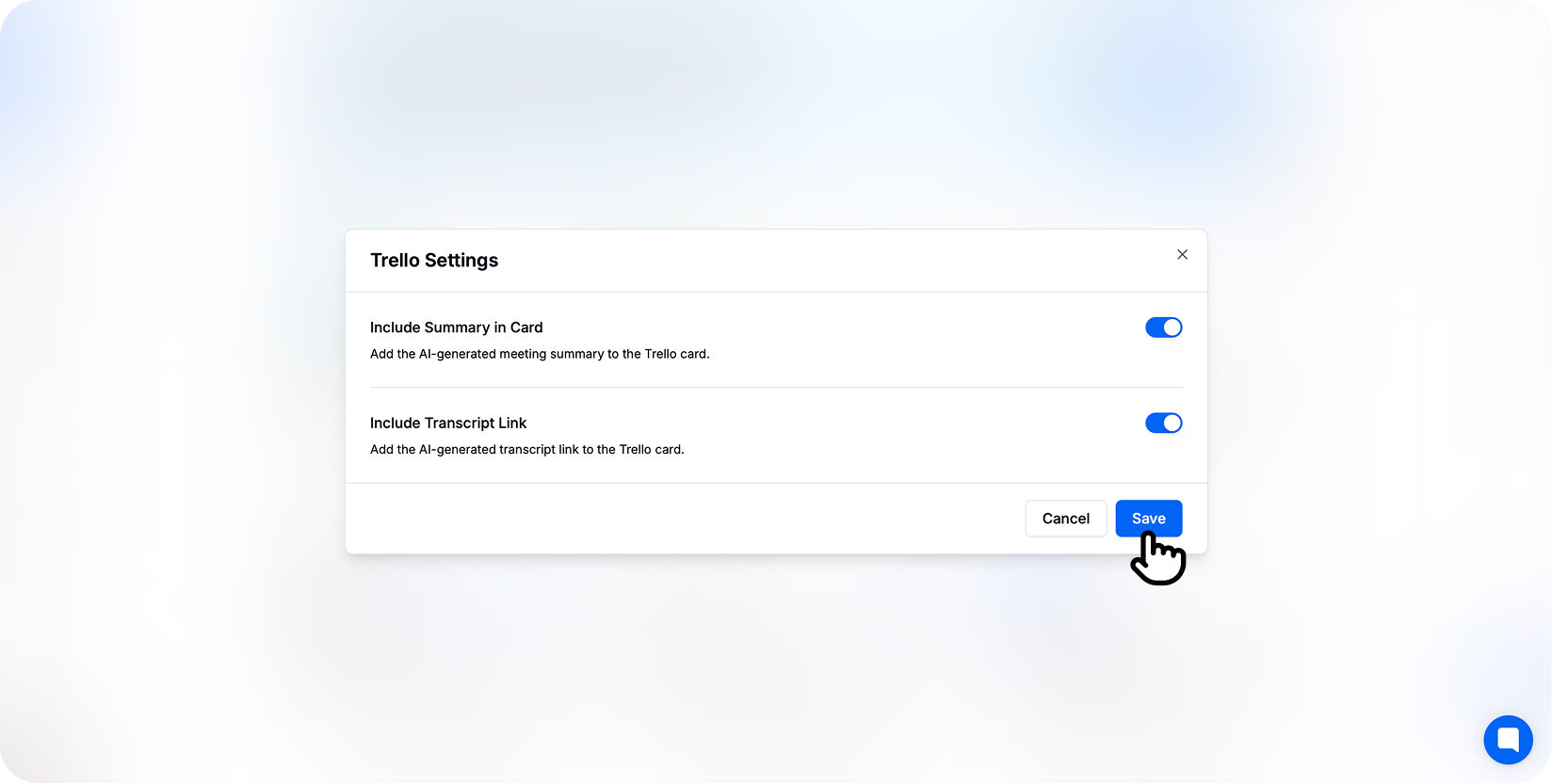
Configure your Trello integration settings and choose what content to include in cards. You’re connected!
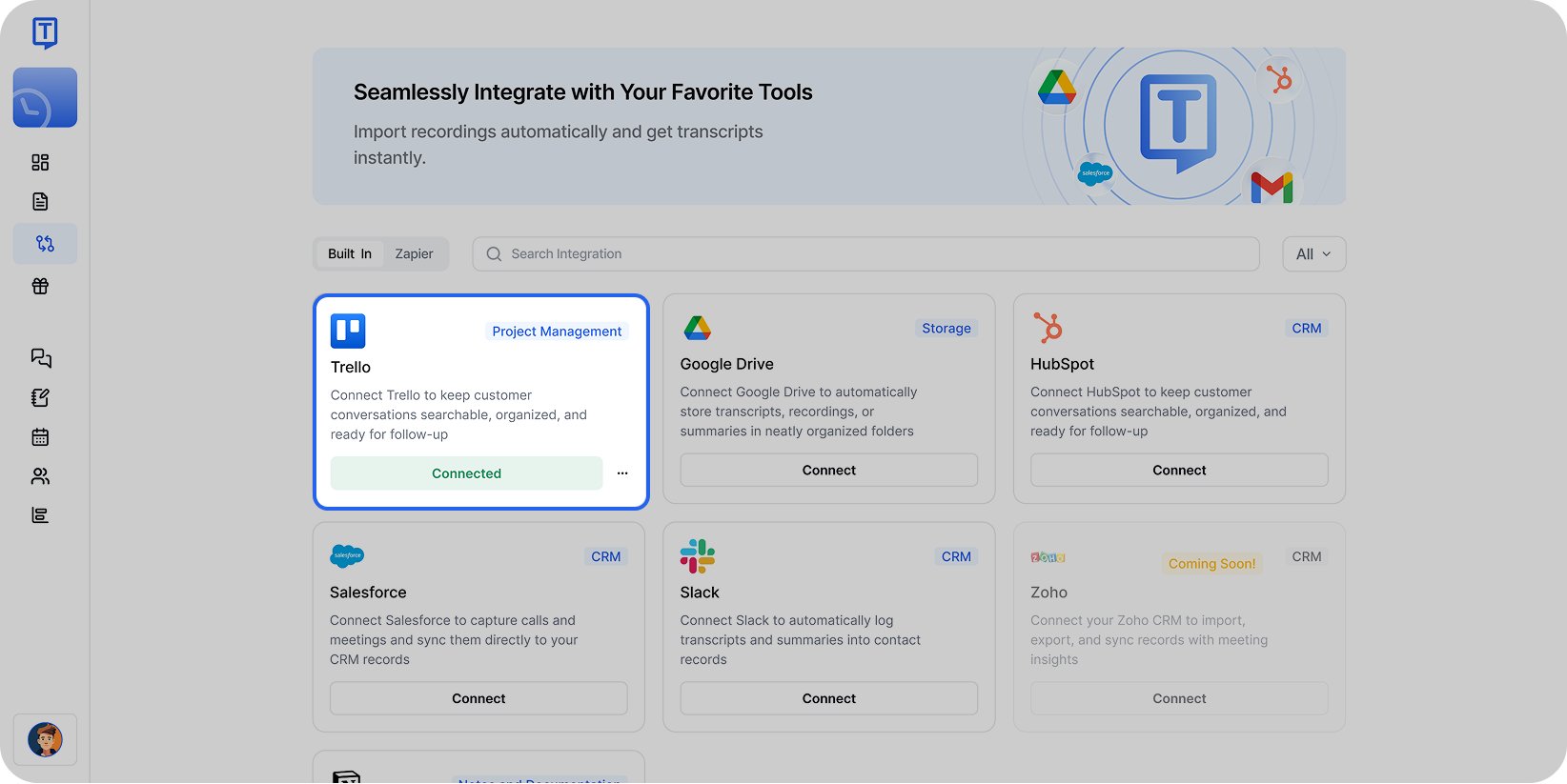
Once connected, your Trello integration is active and ready to auto-create cards. Once connected, transcripts will appear as cards in your chosen Trello board including summaries and action items.
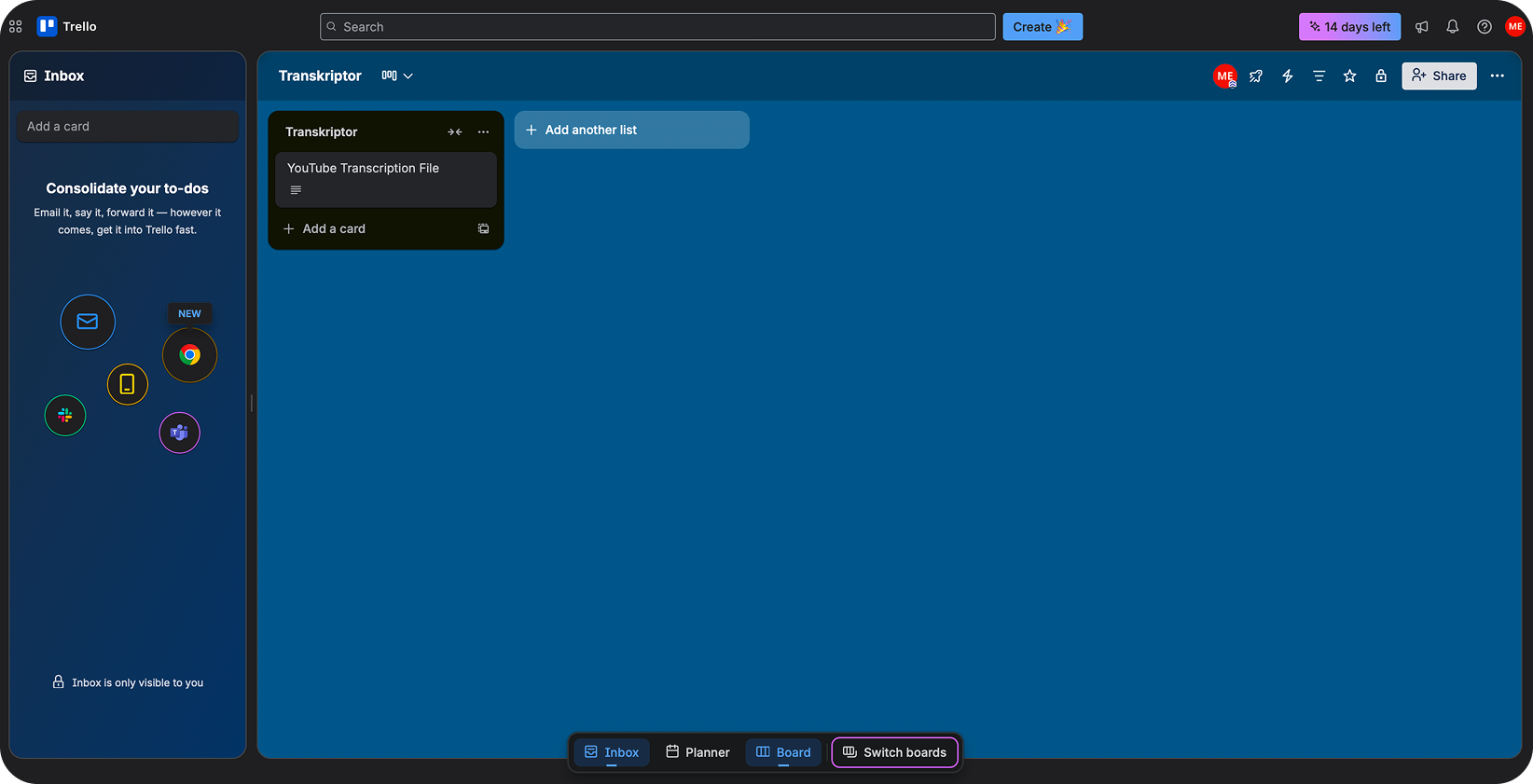
Transcripts automatically appear as cards in your designated Trello board and list.
Configure the Trello Integration
Trello integration allows you to control how and where Transkriptor creates cards in your workspace. Customize board selection, card format, and automation preferences to fit your team's needs.
Main Settings
Select Workspace: If you're part of multiple Trello workspaces, choose the one where you want to create Transkriptor cards.
Auto-Create Cards: Toggle this on to automatically create Trello cards immediately after meetings end.
Include AI Summary: Enable this option to include an AI-generated summary in the card description, giving your team quick context before reading the full transcript.
Choose Your Trello Board and List
Select the specific board and list where Transkriptor should create meeting cards.
Boards: Select from your available Trello boards (e.g., Team Meetings, Project Alpha, Client Calls)
Lists: Choose the target list within the board (e.g., To Review, Meeting Notes, Action Items)
Custom Labels: Apply color-coded labels to cards for easy categorization
You can also configure different boards and lists for different meeting types directly from the integration settings.
Content Preferences
Include Full Transcript: Attach the complete word-for-word transcription to the Trello card as a comment or attachment.
Include Summary Only: Add just the AI-generated summary with key points and action items in the card description.
Include Meeting Details: Populate card custom fields with meeting metadata such as date, duration, participants, and organizer information.
Include Timestamps: Add timestamp markers in the transcript to help team members navigate to specific parts of the conversation.
Additional Options
Card Template: Customize the card title format and description structure that appears for each meeting.
File Attachments: Attach the transcript as a .txt, .docx, or .pdf file directly to the Trello card for easy downloading and sharing.
How to Disconnect from the Integration
After connecting Trello to Transkriptor, you can click the three-dot icon to either change settings or disconnect the integration.
When you disconnect, Transkriptor will stop creating cards in Trello. Previously created cards and attachments will remain in your Trello workspace.
Card Formatting in Trello
Once Trello integration is enabled, Transkriptor automatically formats cards for optimal organization and readability.
Card Title: Displays meeting title and date for easy identification in your board view.
Card Description: Presents the AI summary with key decisions and action items at the top for quick scanning.
Attachments: Includes the full transcript file and any relevant meeting materials when enabled in settings.
Custom Fields: Populates meeting metadata such as duration, participants, and meeting type when custom fields are enabled on your board.
This structure ensures your team can quickly understand meeting outcomes while having access to complete details when needed.