
Key Benefits of Transkriptor + OneDrive Integration
Seamless Microsoft 365 Integration: Automatically save transcripts to OneDrive and access them directly in Word, Teams, and other Microsoft 365 apps, creating a unified document ecosystem.
Secure Cloud Storage: Every transcript and audio file is automatically backed up to OneDrive with enterprise-grade security, ensuring compliance and data protection across your organization.
Real-Time Collaboration: Share transcripts with team members through OneDrive's sharing features, enabling real-time co-editing and commenting on meeting documentation.
Intelligent File Organization: Automatically organize transcripts into custom folder structures, maintaining consistent documentation standards.
How to Set Up OneDrive Integration in Transkriptor
Easily connect your OneDrive account to Transkriptor in just a few clicks to automatically save transcripts, summaries, and audio files to your Microsoft cloud storage.
Connect OneDrive
Go to the Integrations tab in your Transkriptor dashboard. Find OneDrive and select it.
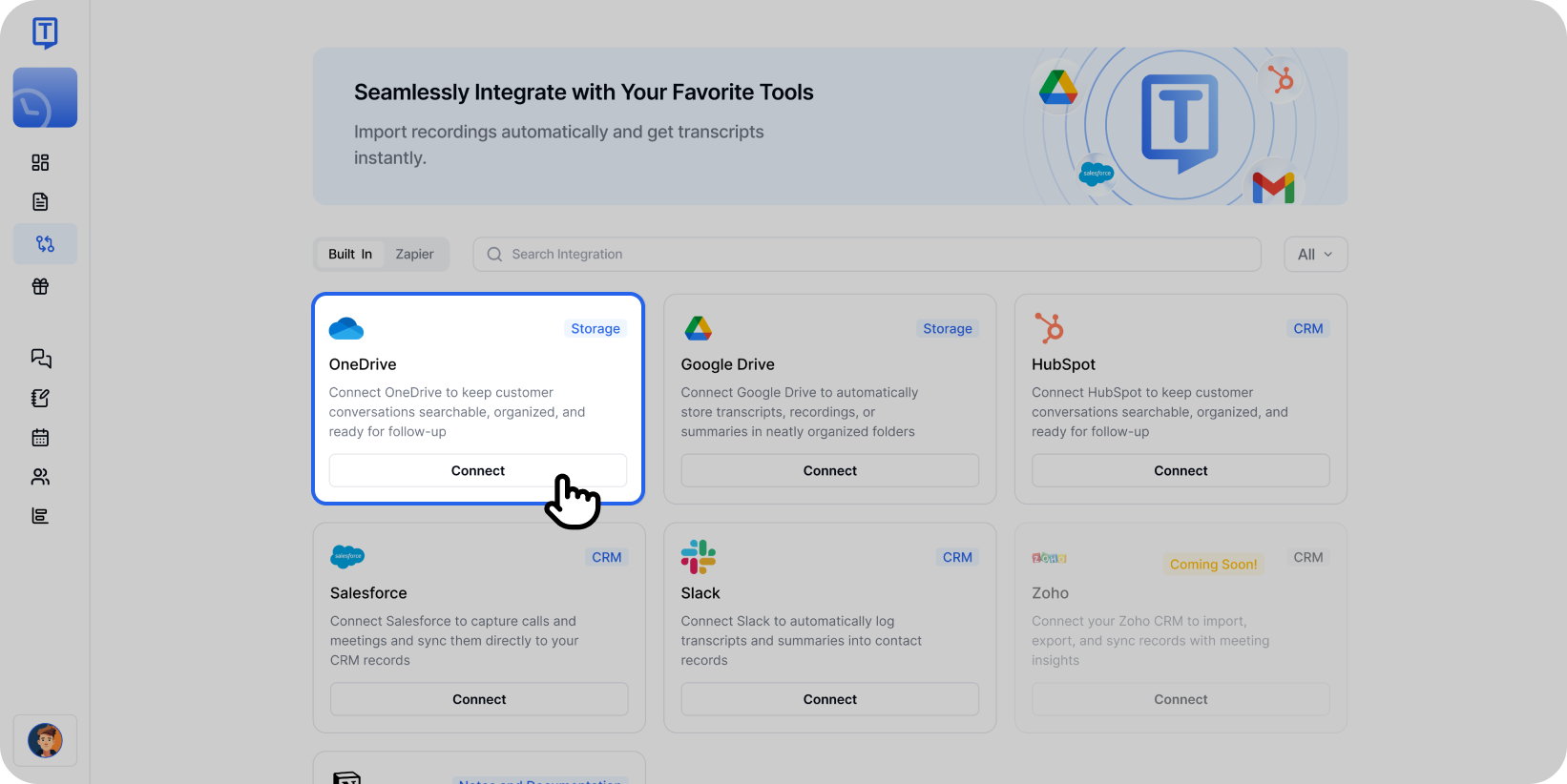
Explore the OneDrive integration with Transkriptor to automate your transcription file management. Click Connect, then sign in with your Microsoft account and approve the necessary permissions.
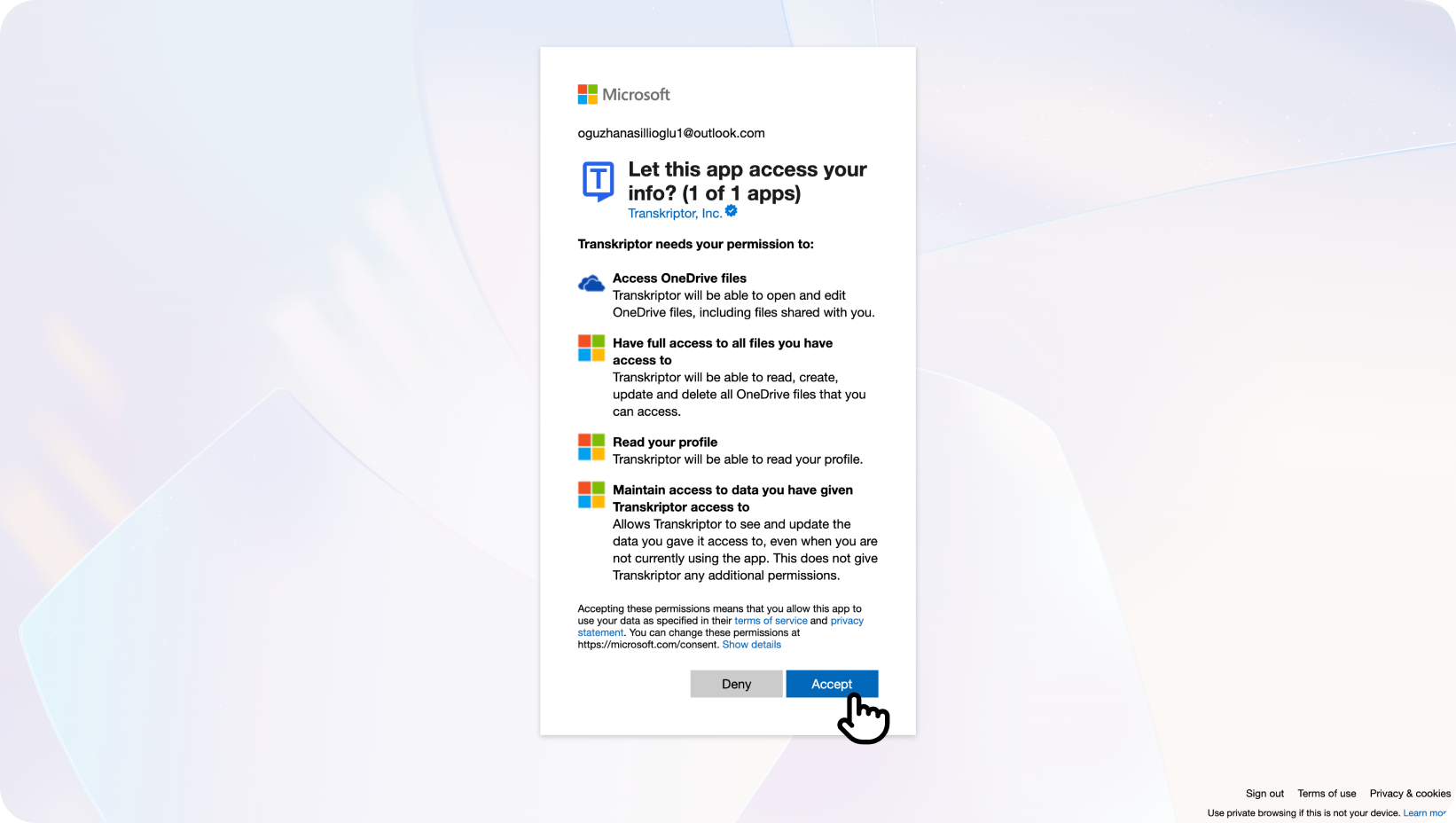
Enable seamless OneDrive integration by allowing Transkriptor app permissions for file access
Note for Workspace Email Users: If you're using a workspace or organization email, you may see an "Admin approval required" message. In this case, your organization's admin needs to grant consent:Navigate to Azure Portal → Enterprise Applications → Transkriptor → Permissions
Click "Grant admin consent" to authorize Transkriptor for your organization
After granting consent, return to Transkriptor and click Connect again to complete the setup
If you encounter similar permission issues, you can refer to the troubleshooting resources provided in the Microsoft error message or contact our support team for additional assistance.
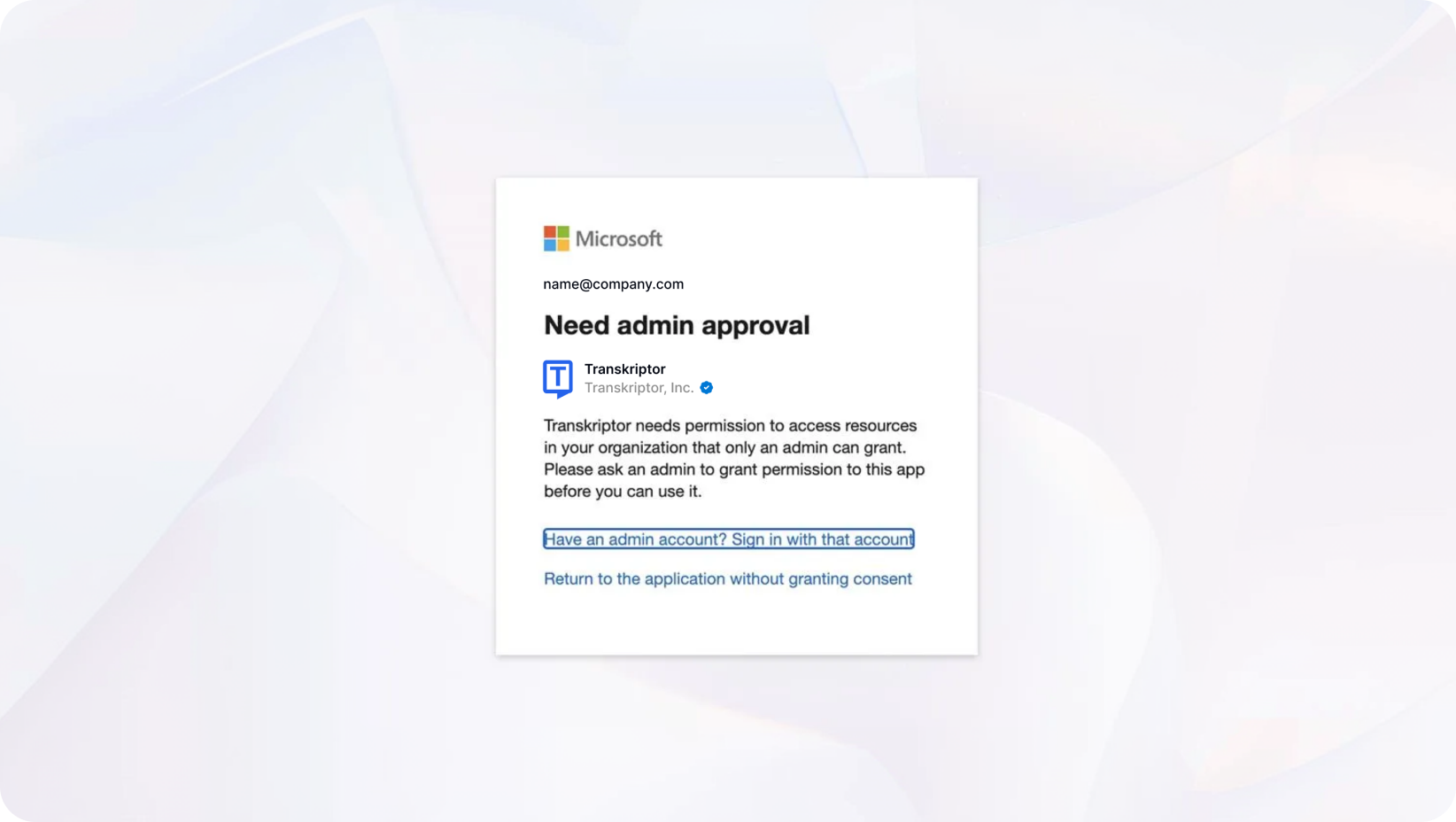
Get started in seconds - authorize Transkriptor to work with your Microsoft tools You'll be redirected back to Transkriptor where you can finalize and configure your integration settings.
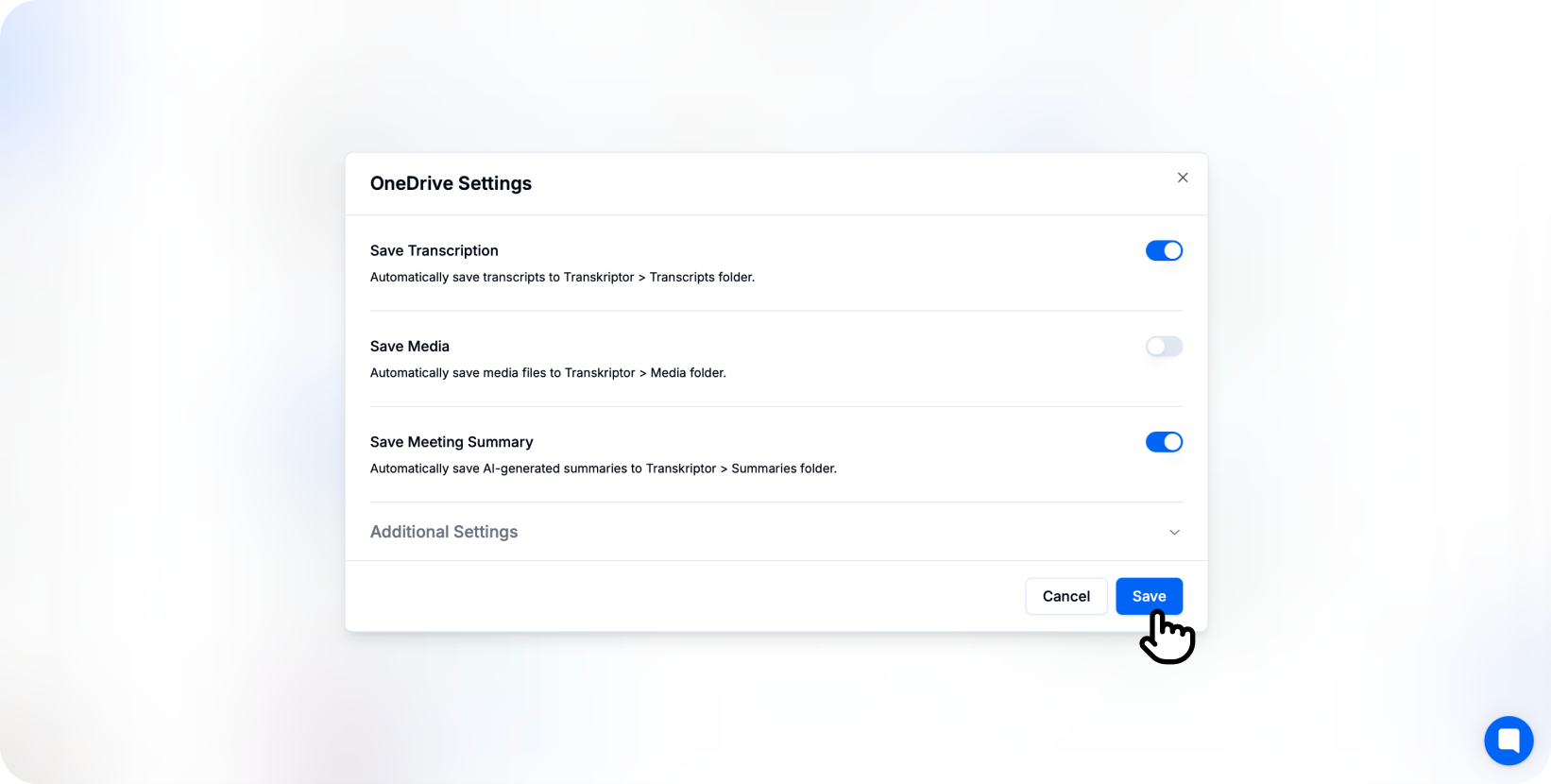
Configure OneDrive integration settings in Transkriptor to customize your file saving preferences and automation options. You’re connected!
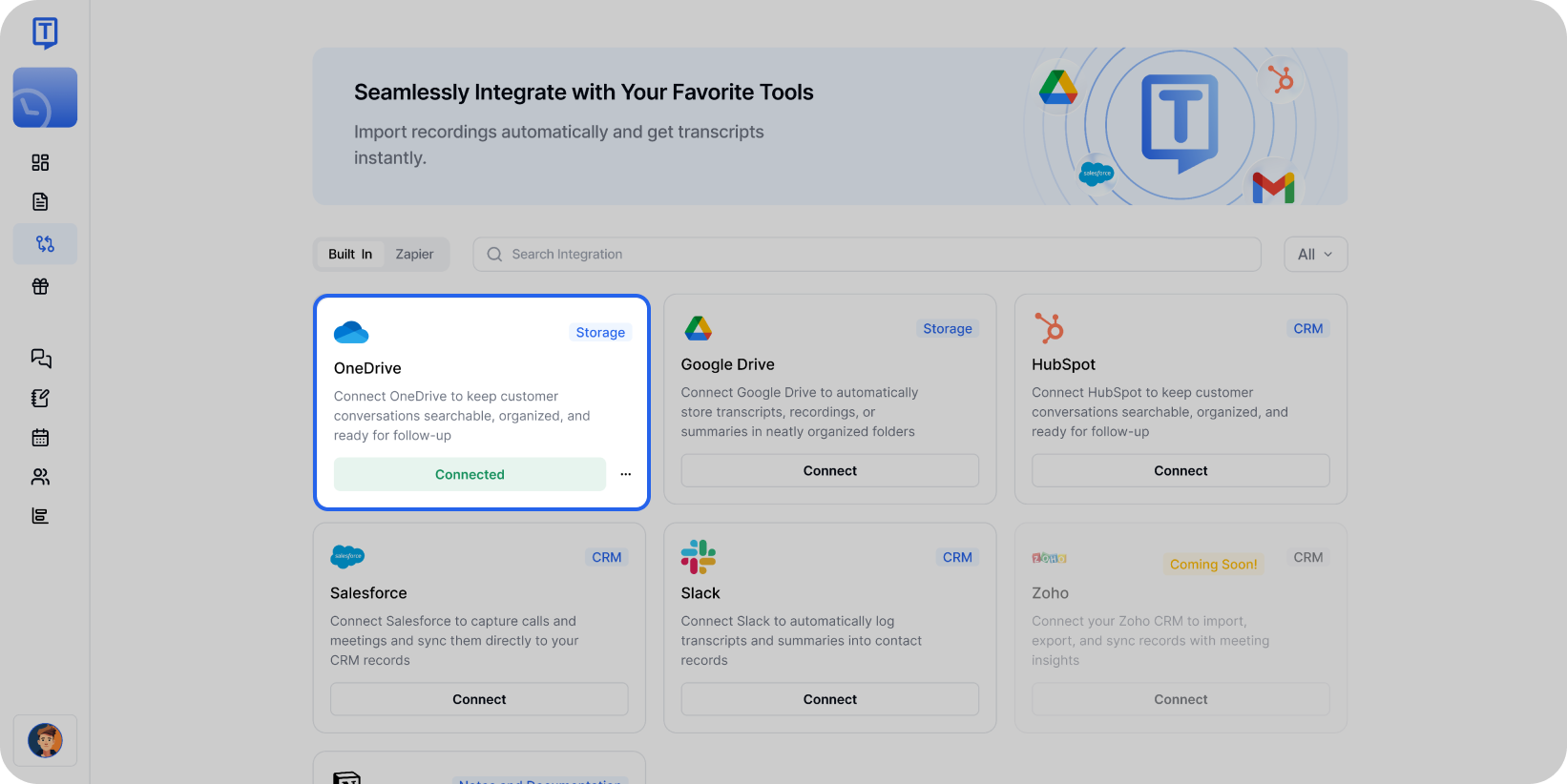
Discover how to connect OneDrive with Transkriptor to streamline transcript storage and organization. Once connected, transcripts will appear in your chosen OneDrive folder including summaries and audio files.
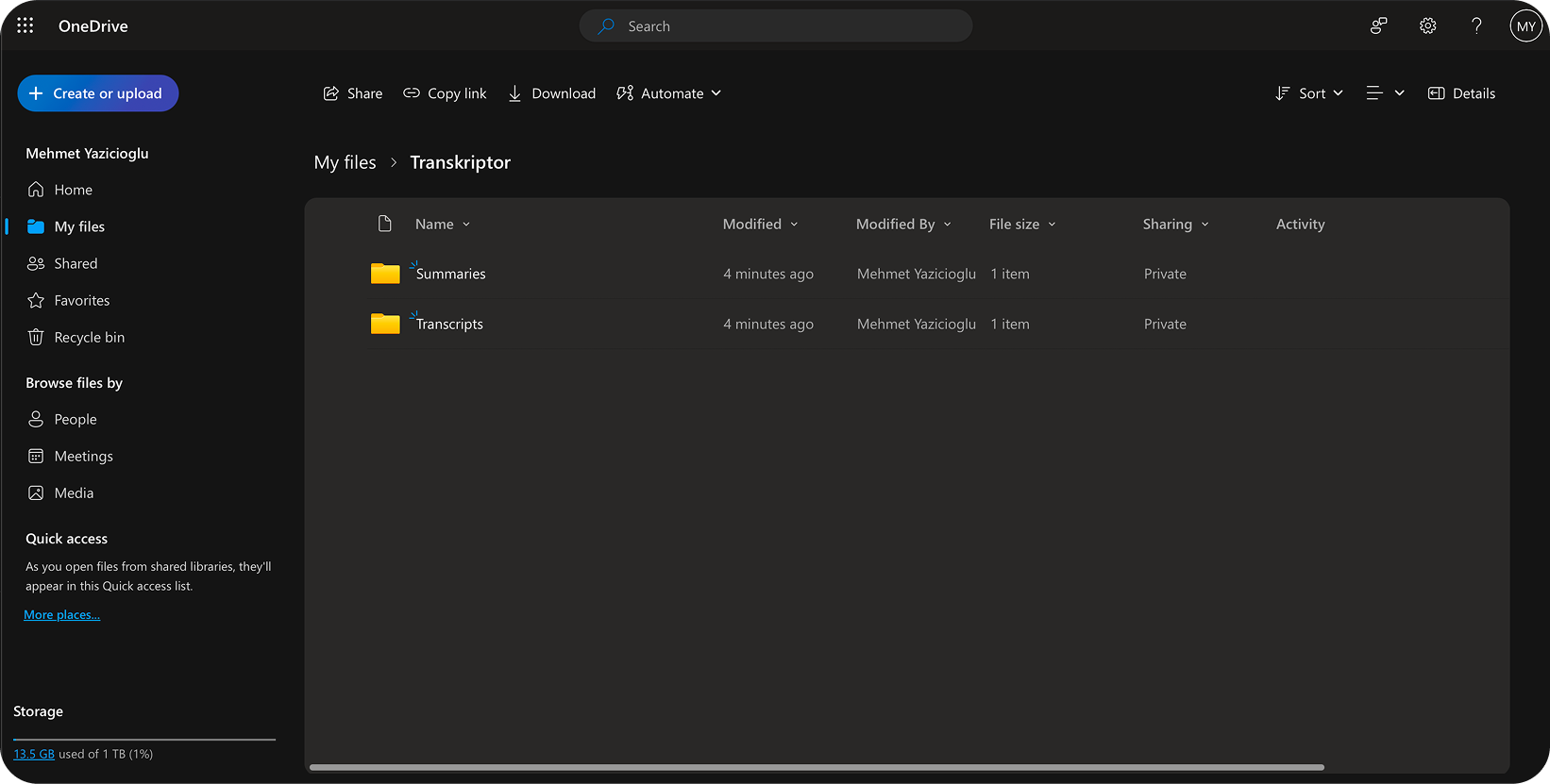
View your organized OneDrive folder structure with automatically saved transcripts and summaries from Transkriptor.
Configure the OneDrive Integration
OneDrive integration allows you to control how and where Transkriptor saves files in your account. Customize folder selection, file format, and automation preferences to fit your team's needs.
Main Settings
Select Account: If you have multiple Microsoft accounts (personal and business), choose the one where you want to save Transkriptor files.
Save Media Files: Toggle this on to automatically save media files (audio/video recordings) to your OneDrive folder immediately after meetings end.
Save Meeting Summary: Enable this option to save a separate AI-generated summary document alongside the full transcript, providing quick access to key points without opening the complete file.
Choose Your OneDrive Folder
Select the specific folder where Transkriptor should save meeting files.
Root folder: Save directly to your main OneDrive directory
Custom folders: Select existing folders (e.g., /Documents/Meetings, /Transcripts, /Projects/TeamAlpha)
Auto-created subfolders: Automatically create dated or project-based subfolders (e.g., /Transcripts/2026/January)
You can also configure different folders for different meeting types or projects directly from the integration settings.
Additional Settings
Transcription Format: Choose your preferred file format for transcripts—.txt, .docx (Word), .pdf, or .srt for subtitles.
Include Speaker Labels: Ensure speaker identification is included in the saved transcript file for clarity.
Include Speaker Timestamps: Add timestamp markers throughout the transcript file to help navigate to specific conversation points.
Additional Options
File Naming Convention: Customize how files are named using variables like meeting title, date, and participant names (e.g., "TeamSync_2026-01-21_Meeting.docx").
Version History: Enable OneDrive's version history feature to track changes and restore previous versions of edited transcripts.
Duplicate Handling: Choose whether to overwrite existing files, create new versions, or skip duplicates when saving.
Office 365 Integration: Automatically open saved transcripts in Word Online for immediate editing and formatting.
How to Disconnect
After connecting OneDrive to Transkriptor, you can click the three-dot icon to either change settings or disconnect the integration.
When you disconnect, Transkriptor will stop saving files to OneDrive. Previously saved files will remain in your OneDrive account and can be accessed normally.
File Organization in OneDrive
Once OneDrive integration is enabled, Transkriptor automatically organizes files for easy navigation and retrieval.
Folder Structure: Files are organized according to your chosen hierarchy (date-based, project-based, or custom structure aligned with company standards).
File Naming: Each file follows your configured naming convention for consistent identification, sorting, and searchability across Microsoft 365.
File Types: Multiple file formats are saved together—transcript documents, summary files, audio recordings grouped by meeting.
Word Integration: .docx files open directly in Microsoft Word or Word Online for seamless editing and collaboration with tracked changes.
This structure ensures your team can quickly locate specific meetings while maintaining organized, searchable documentation that integrates with your Microsoft 365 ecosystem.