Key Benefits of Transkriptor + Microsoft To Do Integration
Personal Task Management: Automatically convert meeting action items into personal To Do tasks with clear descriptions, due dates, and reminders for better individual productivity.
Universal Sync Across Devices: Access your meeting-related tasks on any device through Microsoft To Do's seamless synchronization across desktop, mobile, web, and Outlook integration.
Smart List Organization: Tasks are automatically organized into lists (My Day, Important, Planned) based on urgency and context, helping you prioritize what matters most.
Seamless Microsoft Ecosystem: Integrate with Outlook, Teams, and other Microsoft 365 apps, ensuring your meeting follow-ups are visible wherever you work.
How to Set Up Microsoft To Do Integration in Transkriptor
Easily connect your Microsoft To Do account to Transkriptor in just a few clicks to automatically create tasks with action items, summaries, and meeting insights.
Connect Microsoft To Do
Go to the Integrations tab in your Transkriptor dashboard. Find Microsoft To Do and select it.
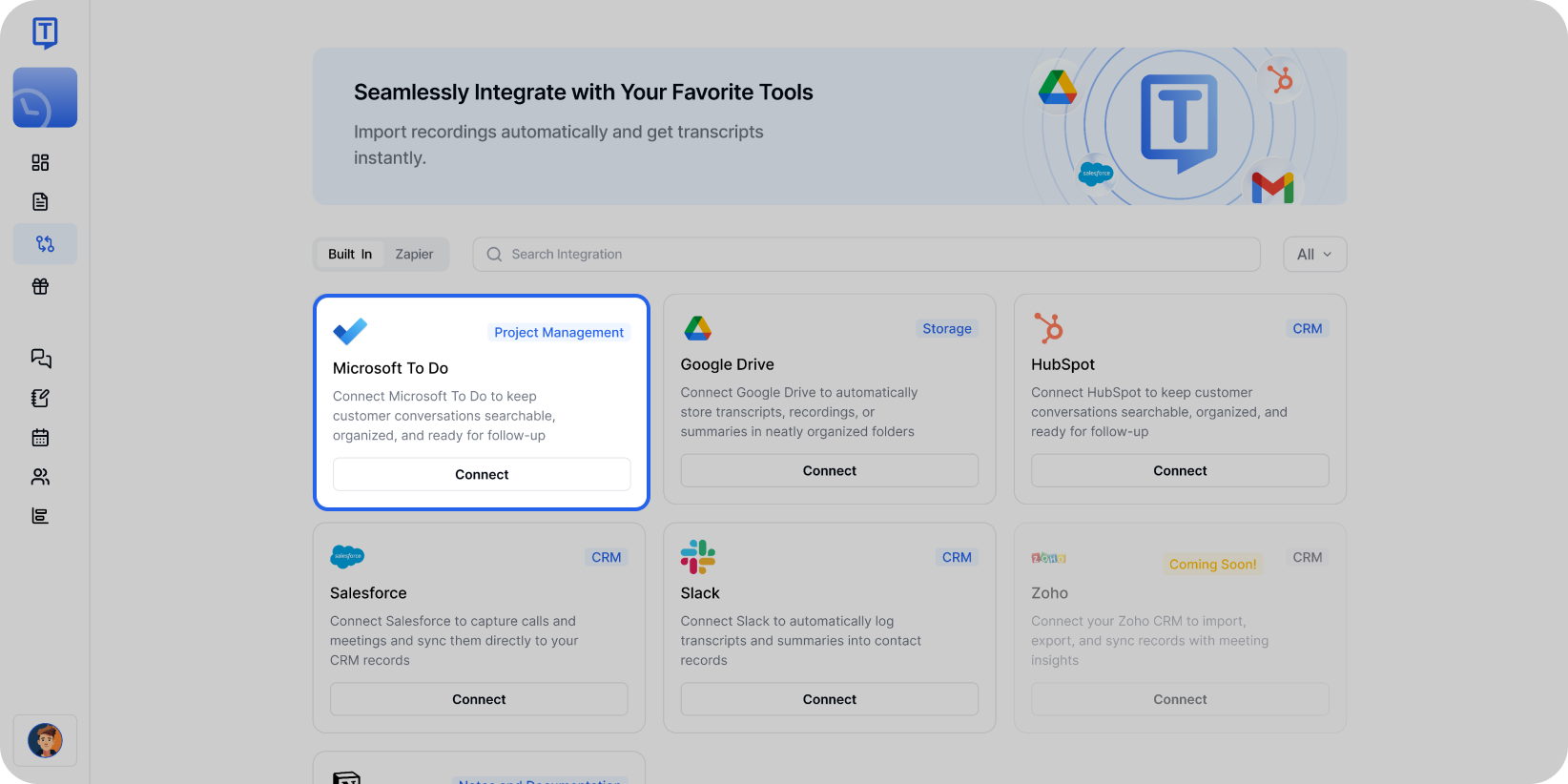
Select Microsoft To Do from the integrations page to begin connecting your account. Click Connect, then sign in with your Microsoft account and approve the necessary permissions.
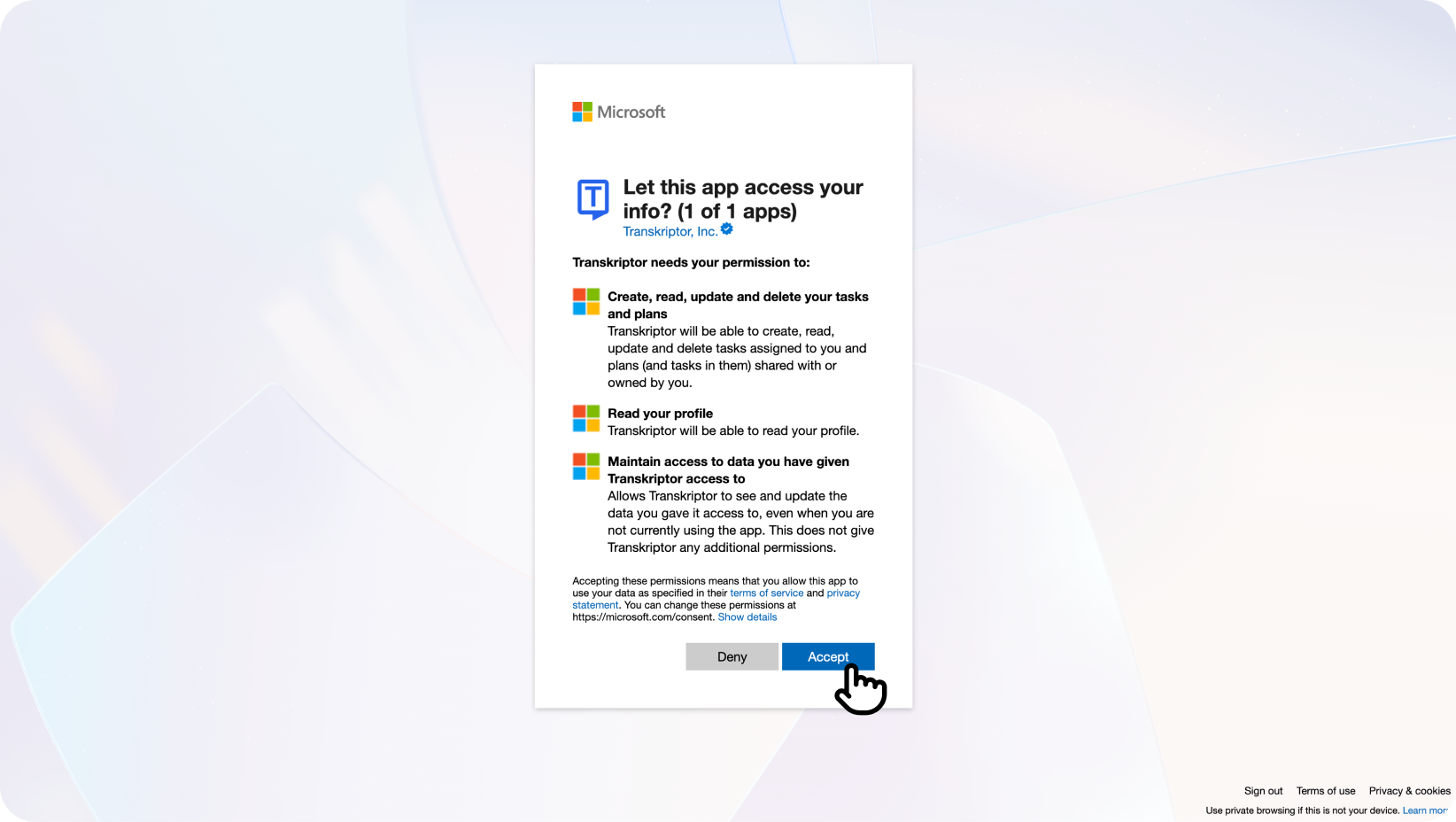
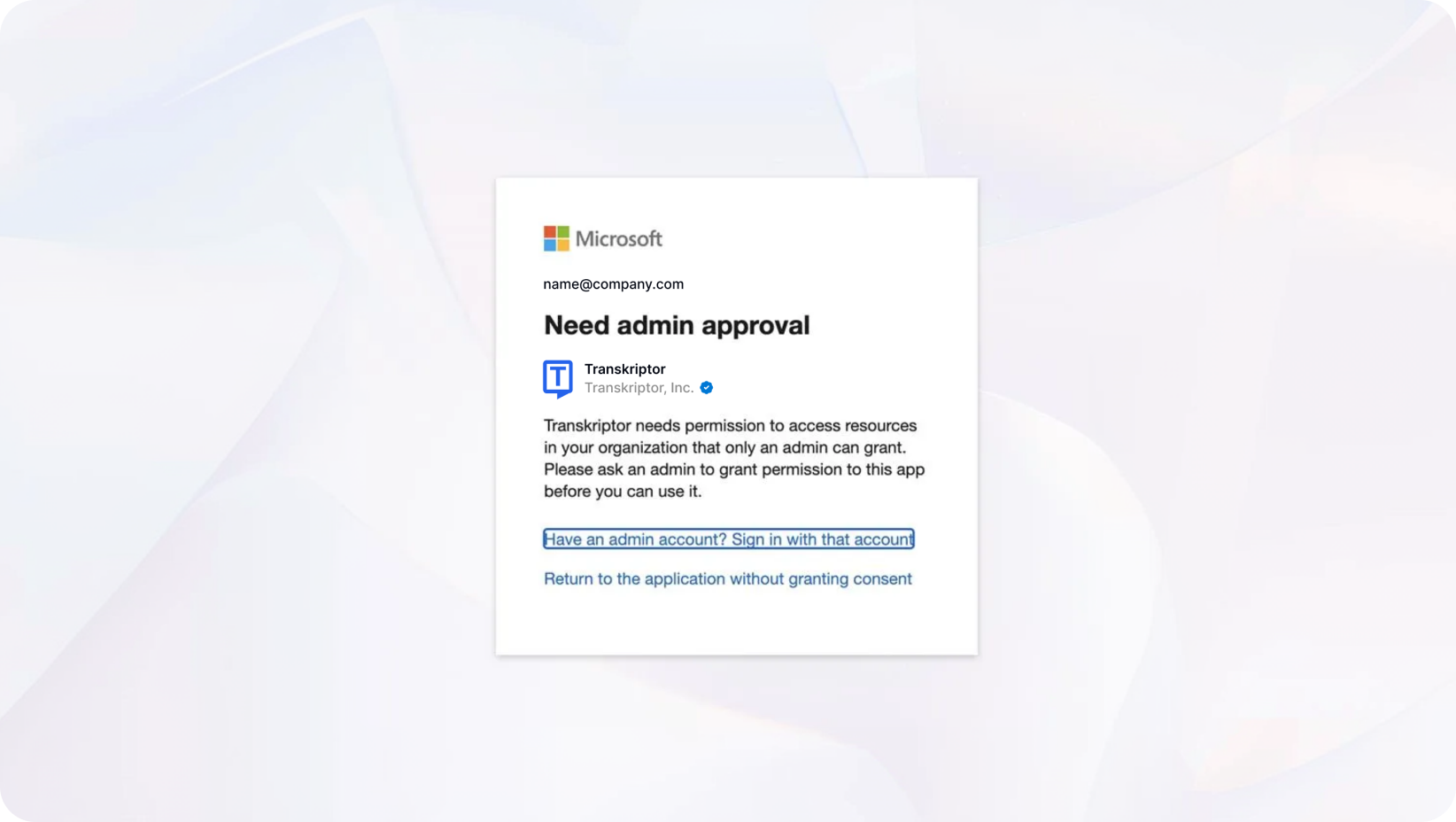
Note for Workspace Email Users: If you're using a workspace or organization email, you may see an "Admin approval required" message. In this case, your organization's admin needs to grant consent:
Navigate to Azure Portal → Enterprise Applications → Transkriptor → Permissions
Click "Grant admin consent" to authorize Transkriptor for your organization
After granting consent, return to Transkriptor and click Connect again to complete the setup
If you encounter similar permission issues, you can refer to the troubleshooting resources provided in the Microsoft error message or contact our support team for additional assistance.
You'll be redirected back to Transkriptor where you can finalize and configure your integration settings.
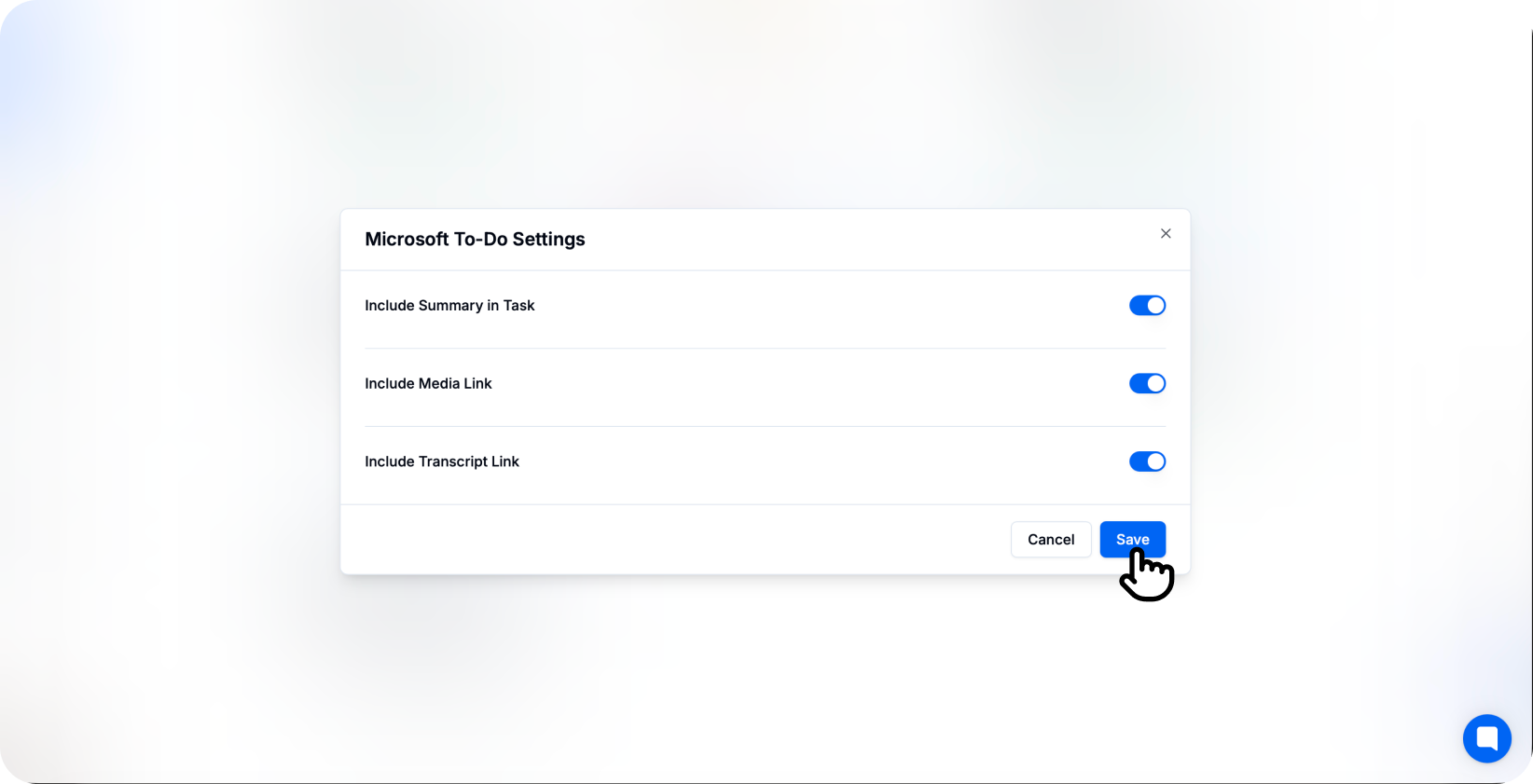
You’re connected!
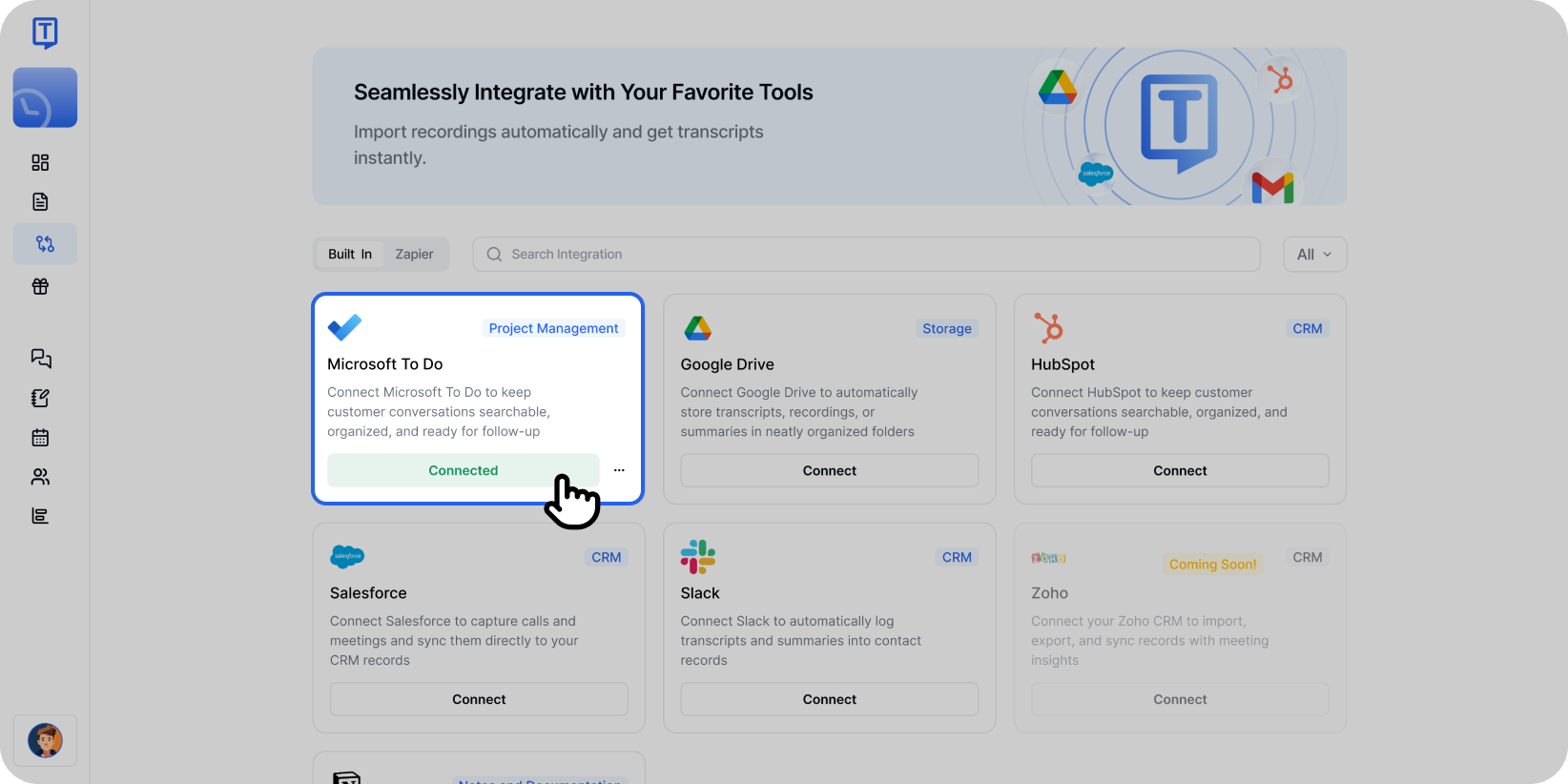
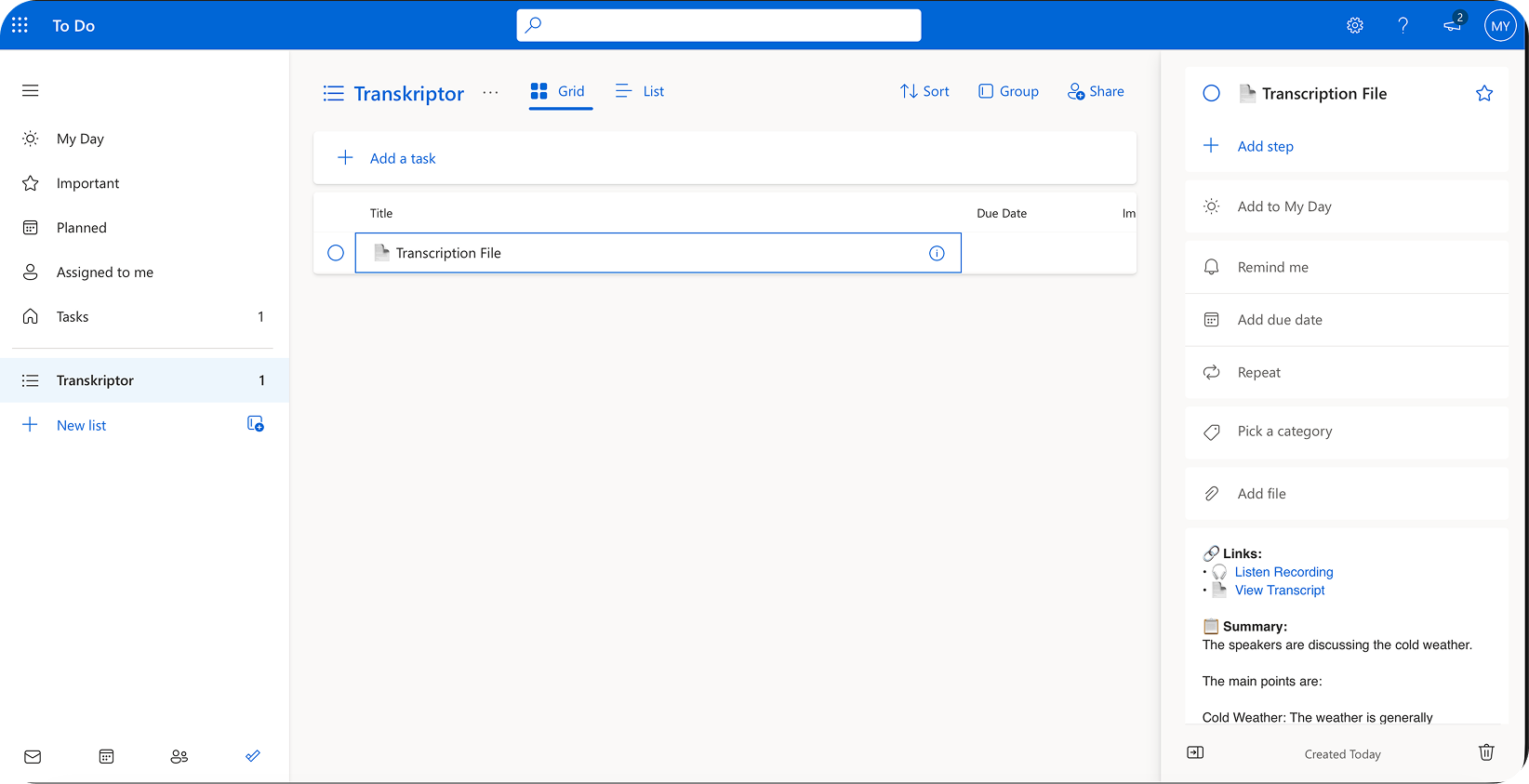
Once connected, tasks will appear in your chosen To Do list including summaries and action items.
Configure the Microsoft To Do Integration
Microsoft To Do integration allows you to control how and where Transkriptor creates tasks in your lists. Customize list selection, task format, and automation preferences to fit your personal workflow.
Main Settings
Select Account: If you have multiple Microsoft accounts (personal and business), choose the one where you want to create Transkriptor tasks.
Auto-Create Tasks: Toggle this on to automatically create To Do tasks immediately after meetings end. When turned off, you can review and manually create tasks from the Transkriptor editor.
Include AI Summary: Enable this option to include an AI-generated summary in the task notes, giving you quick context about the meeting and action item.
Add to My Day: Automatically add urgent tasks to your "My Day" list for immediate visibility and prioritization.
Choose Your Microsoft To Do List
Select the specific list where Transkriptor should create meeting tasks.
Default Lists: Tasks, Important, Planned, Assigned to Me
Custom Lists: Select or create custom lists (e.g., Meeting Follow-ups, Work Tasks, Team Projects)
Smart Lists: My Day, Important (tasks marked with a star)
You can also configure different lists for different meeting types or priorities directly from the integration settings.
Content Preferences
Include Full Transcript Link: Add a link to the complete transcript in the task notes for easy reference.
Include Summary Only: Add just the AI-generated summary with key points and action items in the task description.
Include Meeting Details: Add meeting metadata such as date, participants, and organizer information in task notes.
Create Separate Tasks: Automatically generate individual To Do tasks for each identified action item from the meeting.
Set Reminders: Automatically set reminders based on due dates or urgency mentioned in the meeting.
How to Disconnect
After connecting Microsoft To Do to Transkriptor, you can click the three-dot icon to either change settings or disconnect the integration.
When you disconnect, Transkriptor will stop creating tasks in To Do. Previously created tasks will remain in your Microsoft To Do lists.
Task Formatting in Microsoft To Do
Once Microsoft To Do integration is enabled, Transkriptor automatically formats tasks for optimal clarity and actionability.
Task Title: Displays the action item or meeting topic clearly for easy scanning in your task list.
Task Description: Presents the AI summary with relevant context and meeting details for quick understanding.
Notes Section: Includes link to full transcript and any additional context or meeting details.
This structure ensures you can quickly understand what needs to be done while having access to complete meeting context when needed.