Key Benefits of Transkriptor + Dropbox Integration
Automatic Cloud Backup: Instantly save every transcript and audio file to your Dropbox account, ensuring all meeting documentation is securely backed up and accessible from any device.
Organized File Structure: Automatically organize transcripts into custom folder hierarchies by date, project, or meeting type, maintaining a clean and searchable document archive.
Universal Access: Access your meeting transcripts from desktop, mobile, or web through Dropbox's seamless sync, allowing team members to review content anywhere, anytime.
Version Control & History: Leverage Dropbox's version history to track changes to transcripts over time and restore previous versions if needed, maintaining document integrity.
How to Set Up Dropbox Integration in Transkriptor
Easily connect your Dropbox account to Transkriptor in just a few clicks to automatically save transcripts, summaries, and audio files to your cloud storage.
Connect Dropbox
Go to the Integrations tab in your Transkriptor dashboard. Find Dropbox and select it.
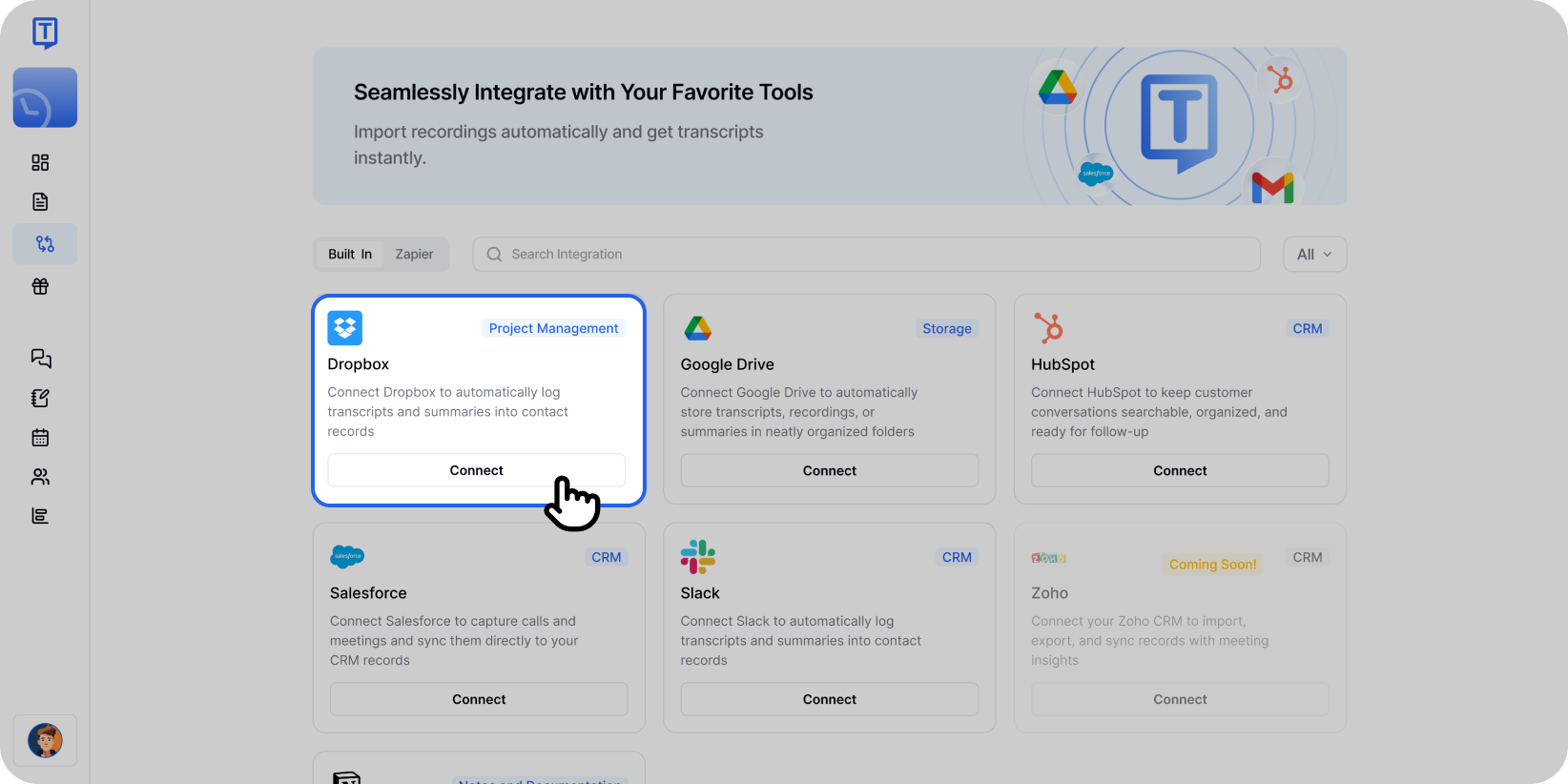
Select Dropbox from the integrations page to begin connecting your account. Click Connect, then sign in with your Dropbox account and approve the necessary permissions.
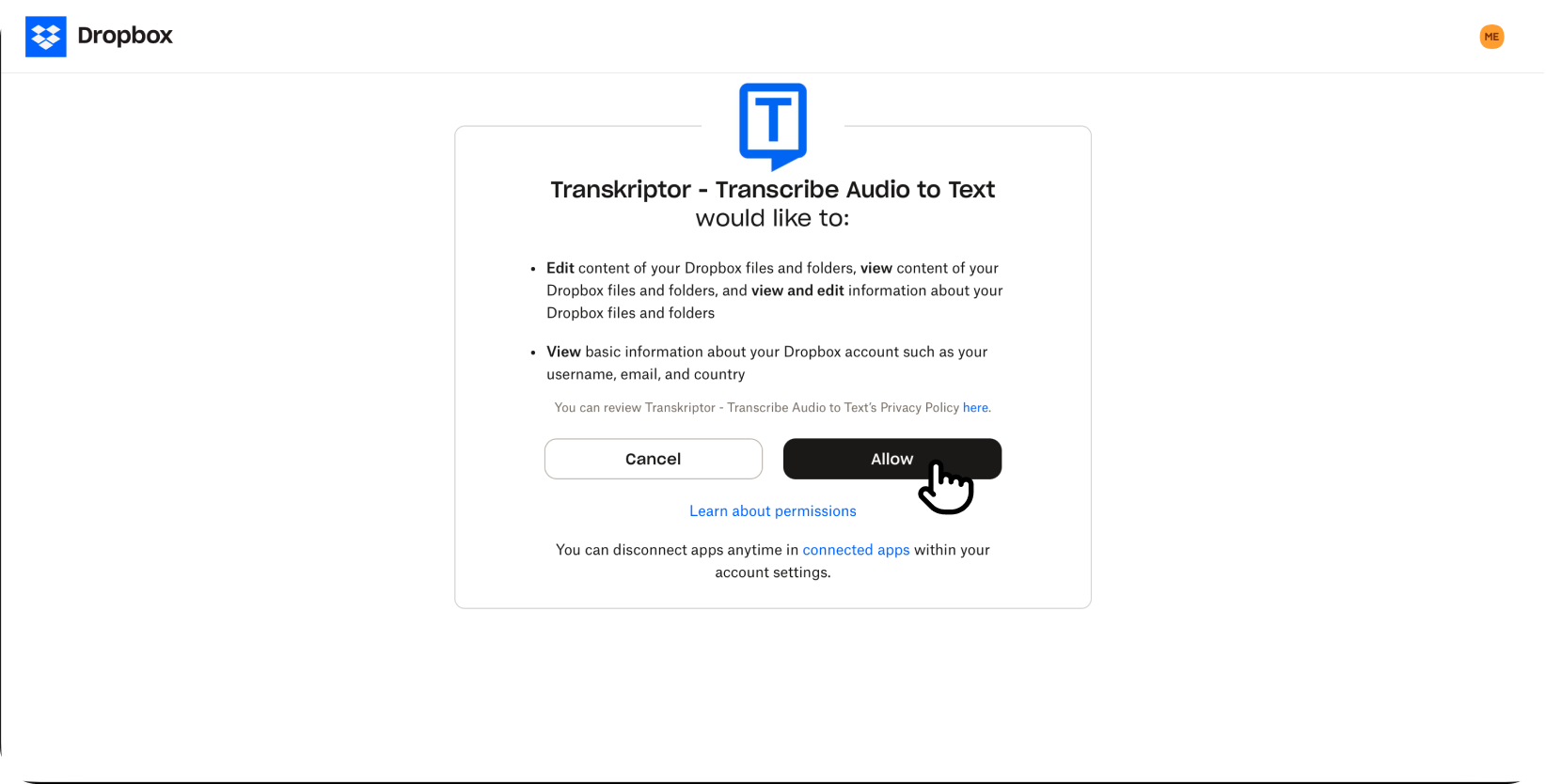
Allow Transkriptor to access your Dropbox account by clicking the Allow button. You'll be redirected back to Transkriptor where you can finalize and configure your integration settings.
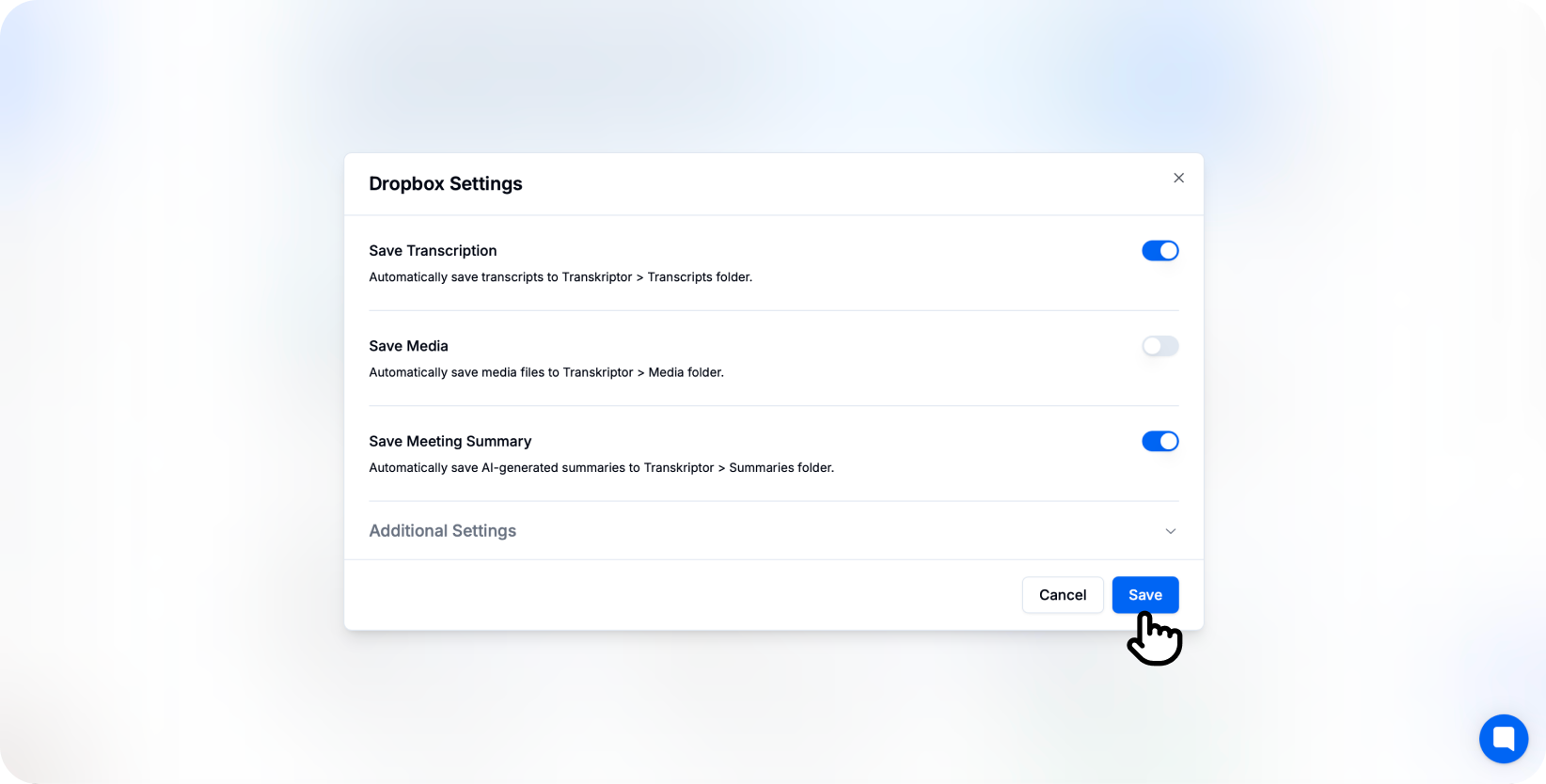
Configure your Dropbox integration settings and choose what content to save automatically. You're connected!
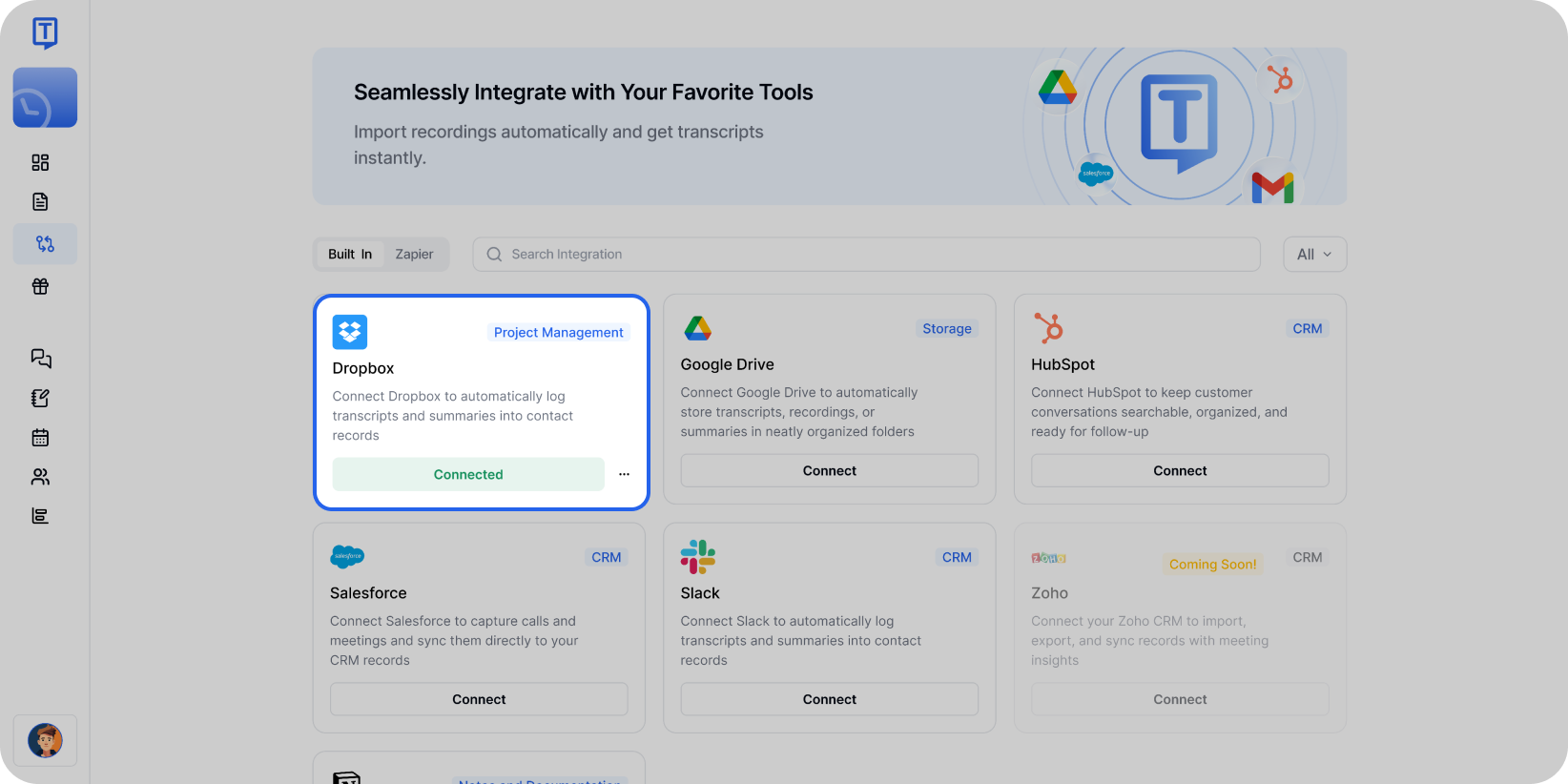
Your transcripts and summaries will be automatically organized in dedicated Dropbox folders. Once connected, transcripts will appear in your chosen Dropbox folder including summaries and audio files.
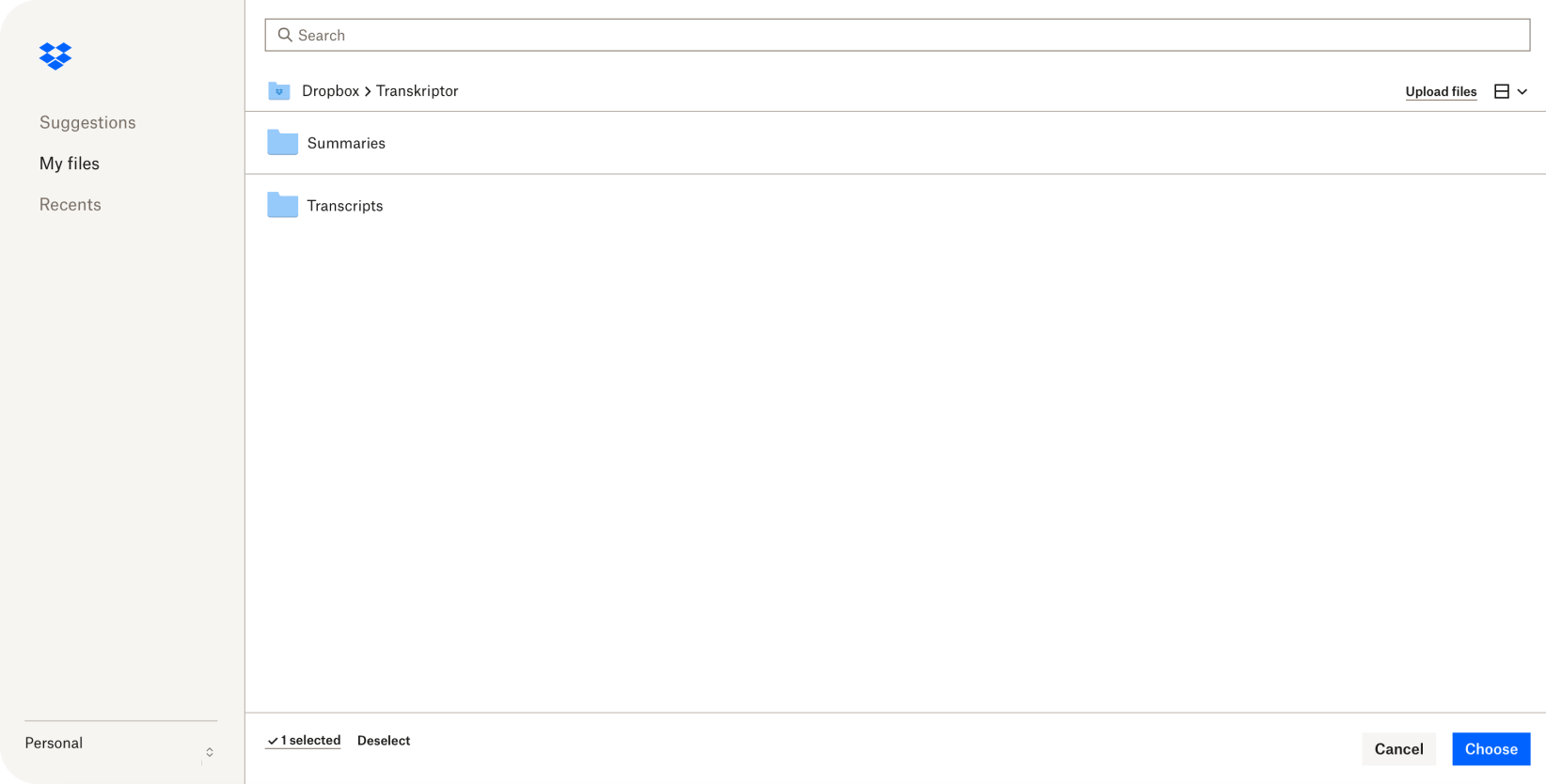
Select your preferred Dropbox folder where transcripts and summaries will be saved.
Configure the Dropbox Integration
Dropbox integration allows you to control how and where Transkriptor saves files in your account. Customize folder selection, file format, and automation preferences to fit your team's needs.
Main Settings
Select Account: If you have multiple Dropbox accounts, choose the one where you want to save Transkriptor files.
Auto-Save Files: Toggle this on to automatically upload transcripts to Dropbox immediately after meetings end. When turned off, you can review and manually save files from the Transkriptor editor.
Include AI Summary: Enable this option to save a separate summary document alongside the full transcript, giving quick access to key points without opening the complete file.
Folder Organization: Choose how files are organized—by date, meeting title, project name, or custom folder structure.
Choose Your Dropbox Folder
Select the specific folder where Transkriptor should save meeting files.
Root folder: Save directly to your main Dropbox directory
Custom folders: Select existing folders (e.g., /Meetings, /Transcripts, /Projects/Team-Alpha)
Auto-created subfolders: Automatically create dated subfolders (e.g., /Transcripts/2026/January)
You can also configure different folders for different meeting types or projects directly from the integration settings.
Content Preferences
Include Full Transcript: Save the complete word-for-word transcription as a text document to Dropbox.
Include Summary Only: Save just the AI-generated summary with key points and action items as a separate file.
Include Meeting Metadata: Create a metadata file with meeting details such as date, duration, participants, and organizer information.
Include Audio File: Upload the original audio or video recording alongside the transcript for reference.
Include Speaker Labels: Ensure speaker identification is included in the saved transcript file.
Include Timestamps: Add timestamp markers throughout the transcript file to help navigate to specific conversation points.
Additional Options
File Format Selection: Choose your preferred file format for transcripts—.txt, .docx, .pdf, or .srt for subtitles.
File Naming Convention: Customize how files are named using variables like meeting title, date, and participant names (e.g., "Meeting_2026-01-21_TeamSync.docx").
Duplicate Handling: Choose whether to overwrite existing files, create new versions, or skip duplicates when saving.
Compression Options: Automatically compress large audio files before uploading to save storage space.
How to Disconnect
After connecting Dropbox to Transkriptor, you can click the three-dot icon to either change settings or disconnect the integration.
When you disconnect, Transkriptor will stop saving files to Dropbox. Previously saved files will remain in your Dropbox account and can be accessed normally.
File Organization in Dropbox
Once Dropbox integration is enabled, Transkriptor automatically organizes files for easy navigation and retrieval.
Folder Structure: Files are organized according to your chosen hierarchy (date-based, project-based, or custom structure).
File Naming: Each file follows your configured naming convention for consistent identification and sorting.
File Types: Multiple file formats are saved together—transcript documents, summary files, audio recordings, and metadata files grouped by meeting.
Summary Files: When enabled, summary documents are clearly labeled and saved alongside full transcripts for quick reference.
Metadata Files: JSON or text files containing meeting details for programmatic access or integration with other tools.
This structure ensures your team can quickly locate specific meetings while maintaining organized, searchable documentation in the cloud.