Key Benefits of Transkriptor + Microsoft Planner Integration
Automatic Task Creation: Instantly convert meeting action items into Microsoft Planner tasks with relevant details, assignments, and due dates, eliminating manual task entry.
Seamless Microsoft 365 Integration: Work within the Microsoft ecosystem you already use, with tasks syncing across Planner, Teams, Outlook, and To Do for unified task management.
How to Set Up Microsoft Planner Integration in Transkriptor
Easily connect your Microsoft Planner workspace to Transkriptor in just a few clicks to automatically create tasks with transcripts, summaries, and meeting insights.
Connect Microsoft Planner
Go to the Integrations tab in your Transkriptor dashboard. Find Microsoft Planner and select it.
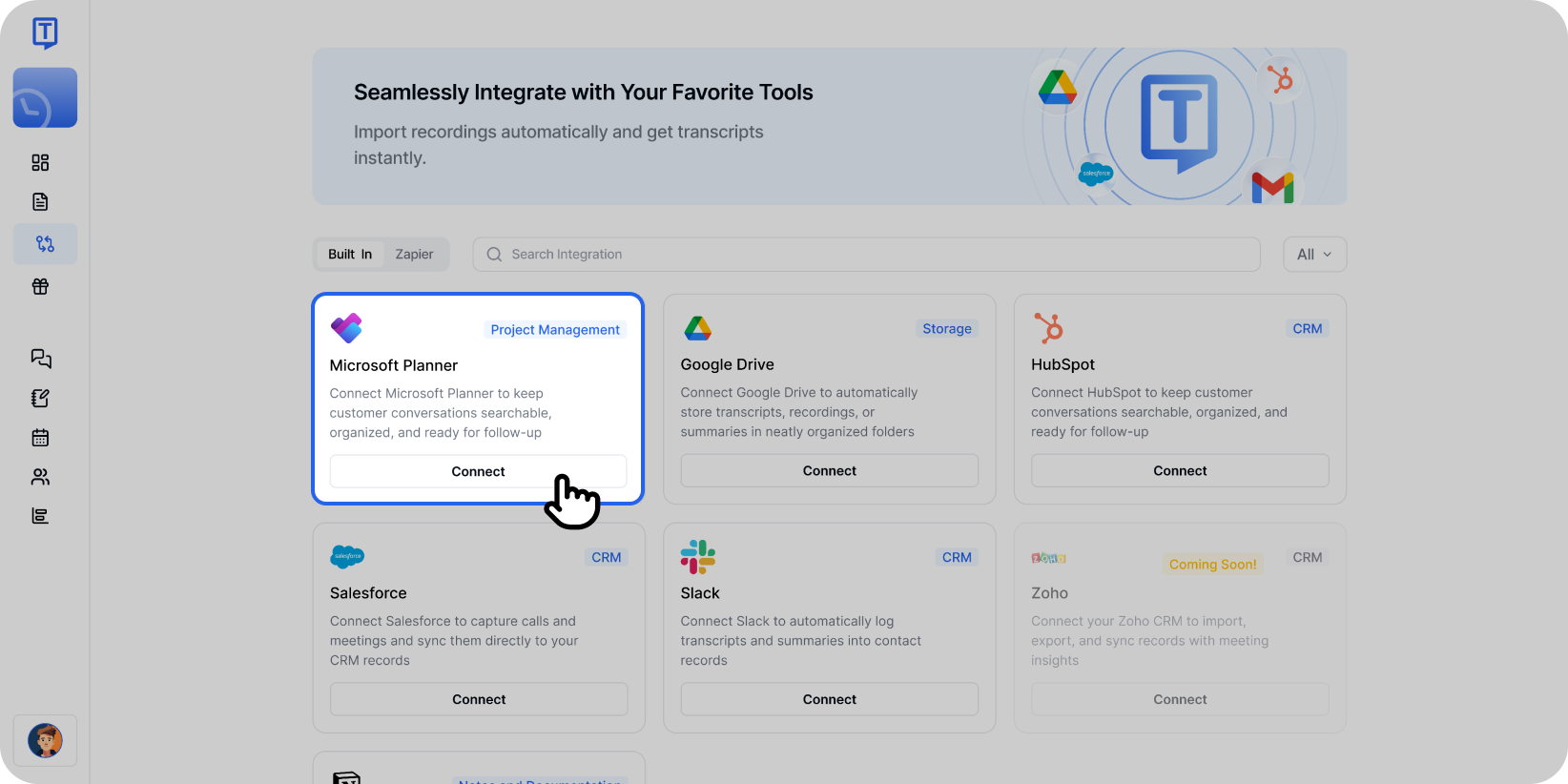
Select Microsoft Planner from the integrations page to begin connecting your account. Click Connect, then sign in with your Microsoft account and approve the necessary permissions.
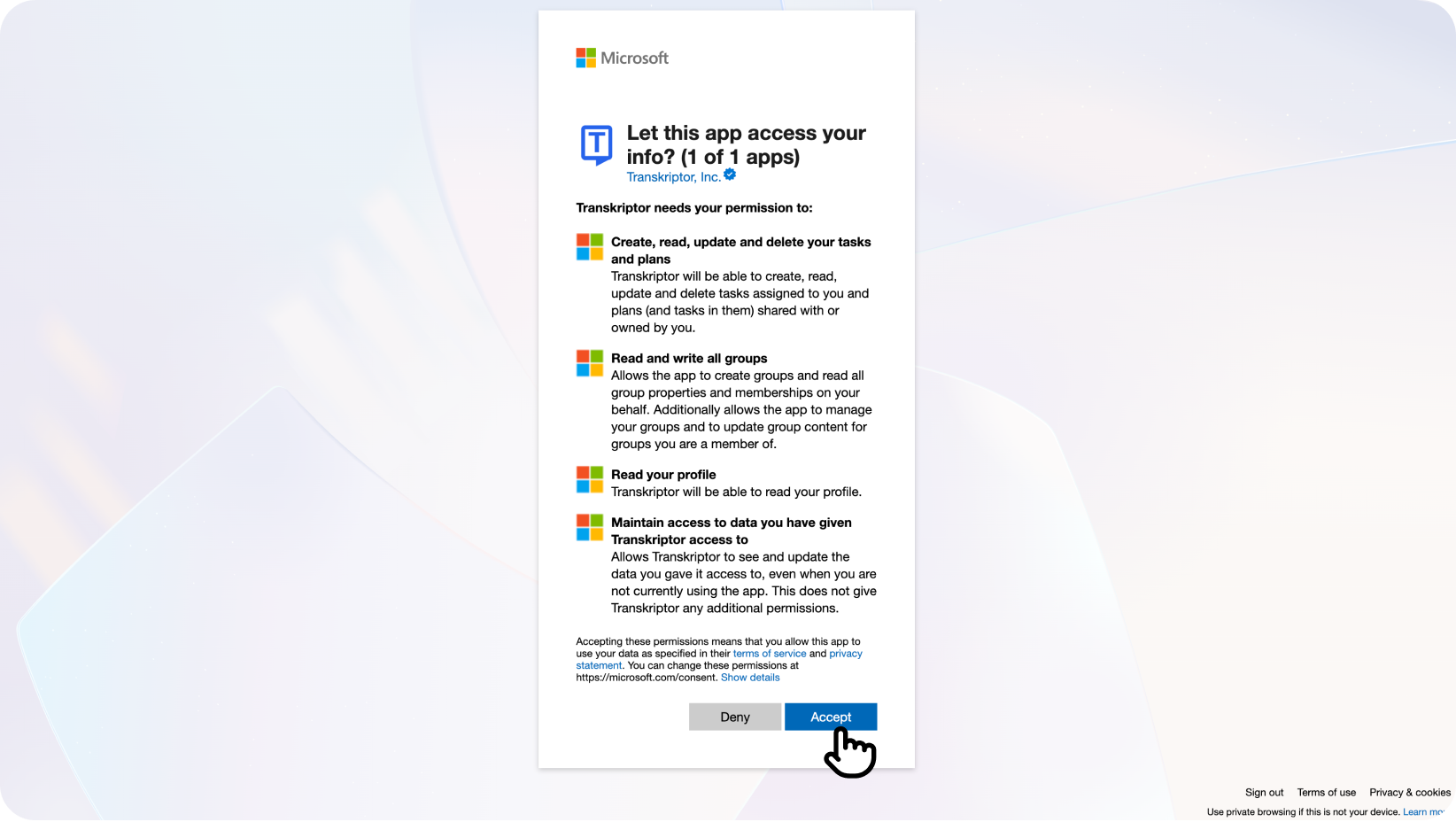
Get started in seconds - authorize Transkriptor to work with your Microsoft tools
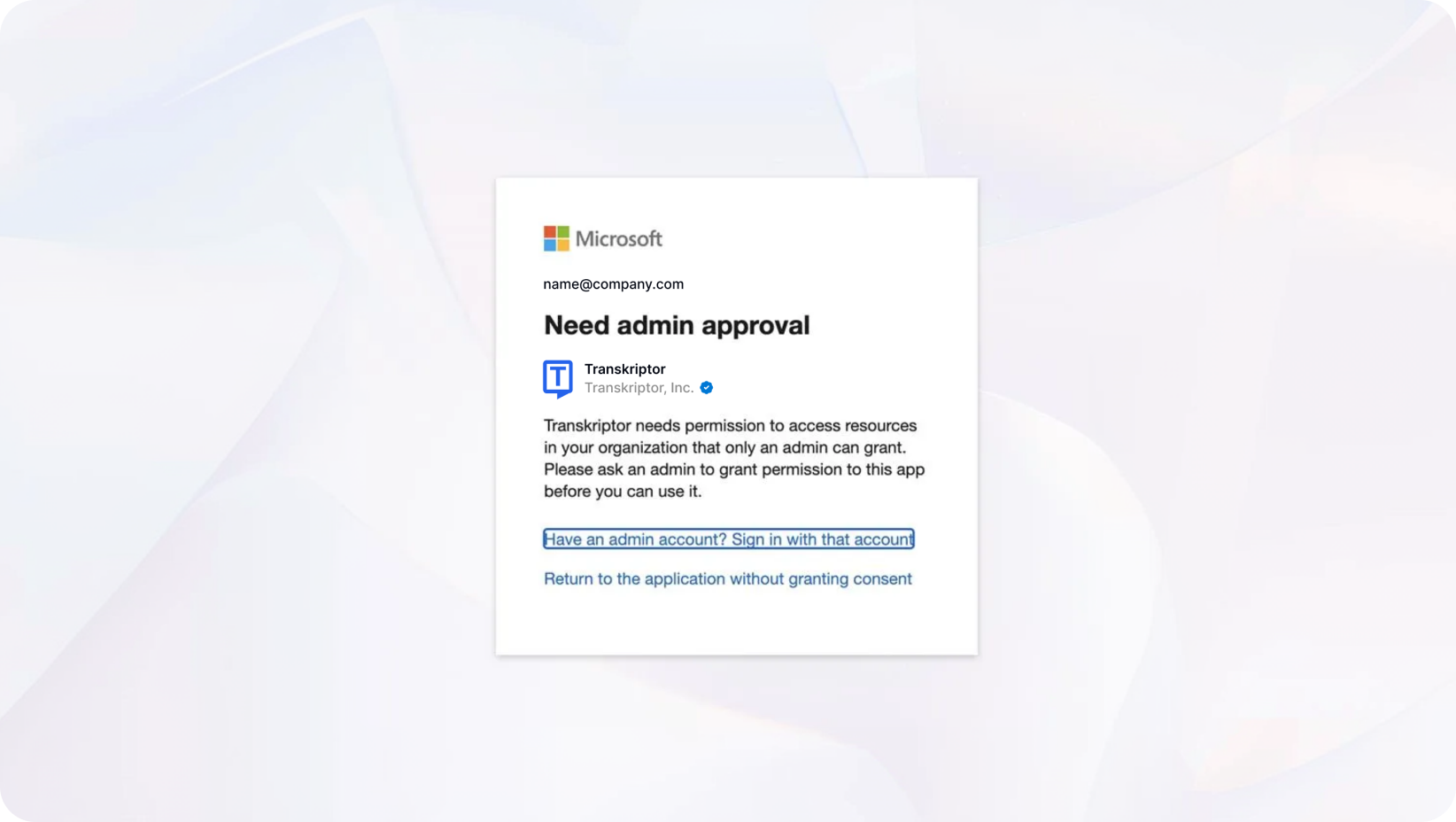
Note for Workspace Email Users: If you're using a workspace or organization email, you may see an "Admin approval required" message. In this case, your organization's admin needs to grant consent:Navigate to Azure Portal → Enterprise Applications → Transkriptor → Permissions
Click "Grant admin consent" to authorize Transkriptor for your organization
After granting consent, return to Transkriptor and click Connect again to complete the setup
If you encounter similar permission issues, you can refer to the troubleshooting resources provided in the Microsoft error message or contact our support team for additional assistance.
Accept the permissions to allow Transkriptor to access your Microsoft Planner account. You'll be redirected back to Transkriptor where you can finalize and configure your integration settings.
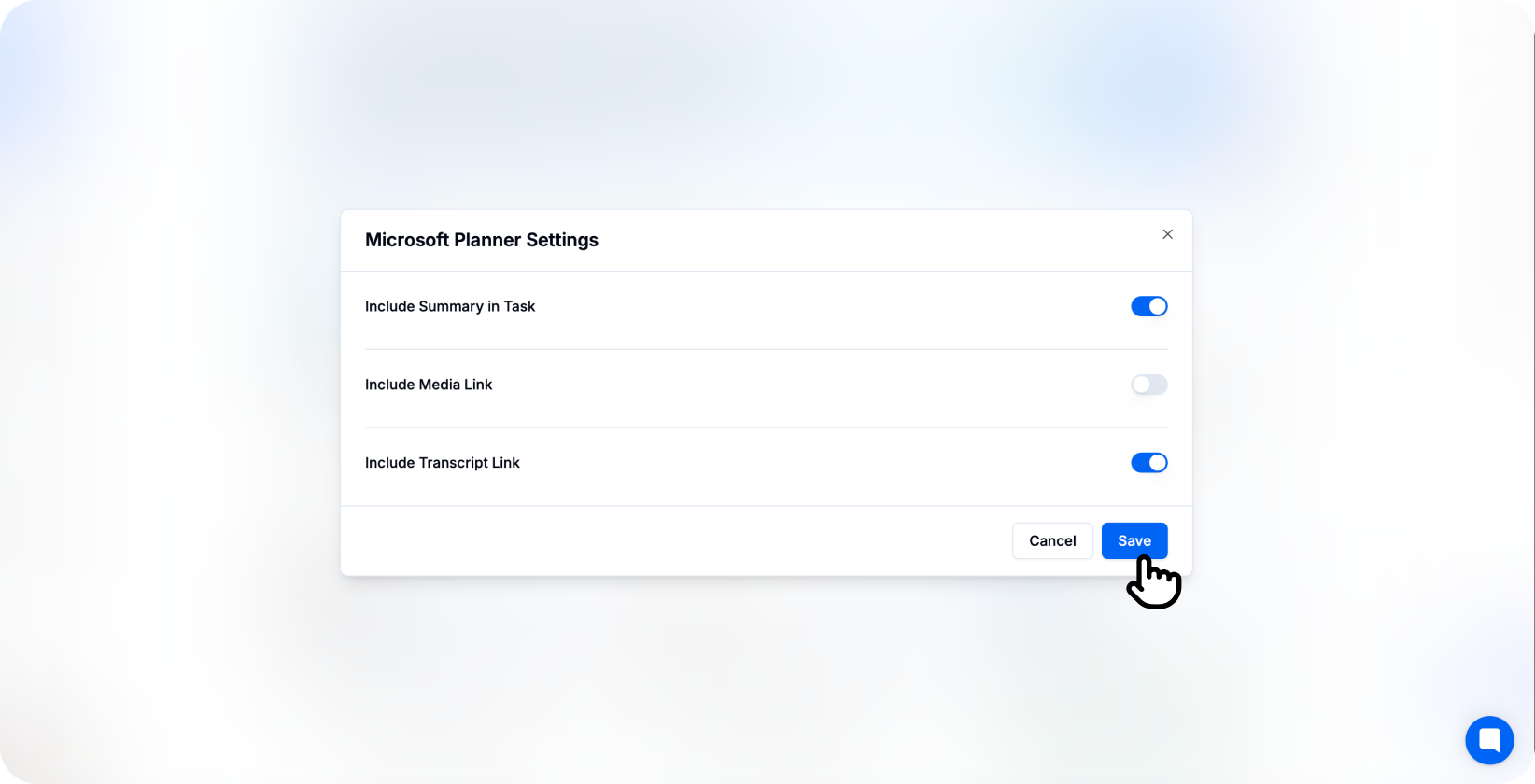
Configure your Microsoft Planner integration settings and choose what content to include in tasks. You’re connected!
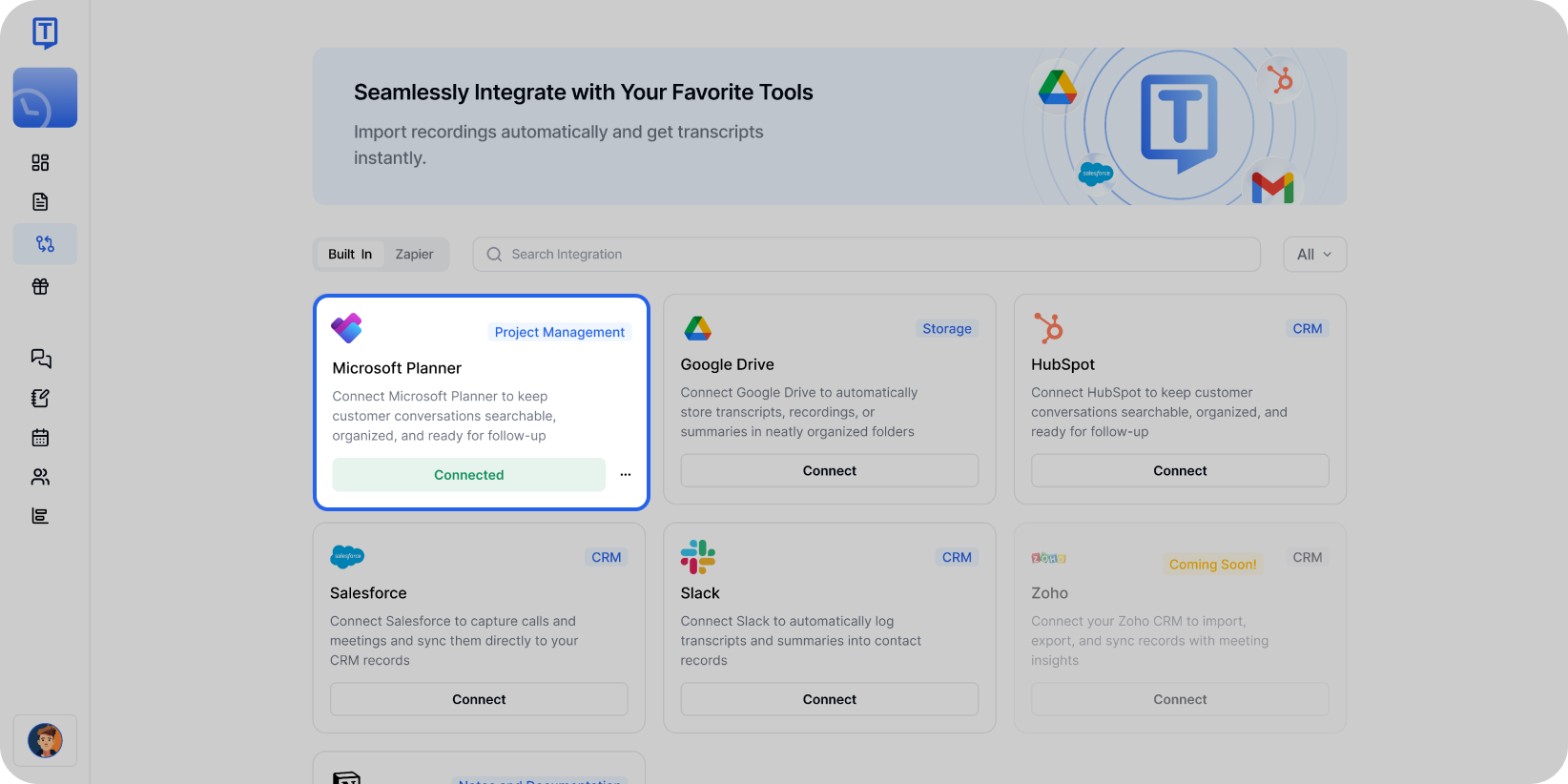
Once connected, your Microsoft Planner integration is active and ready to auto-create tasks. Once connected, tasks will appear in your chosen Planner board including summaries and action items.
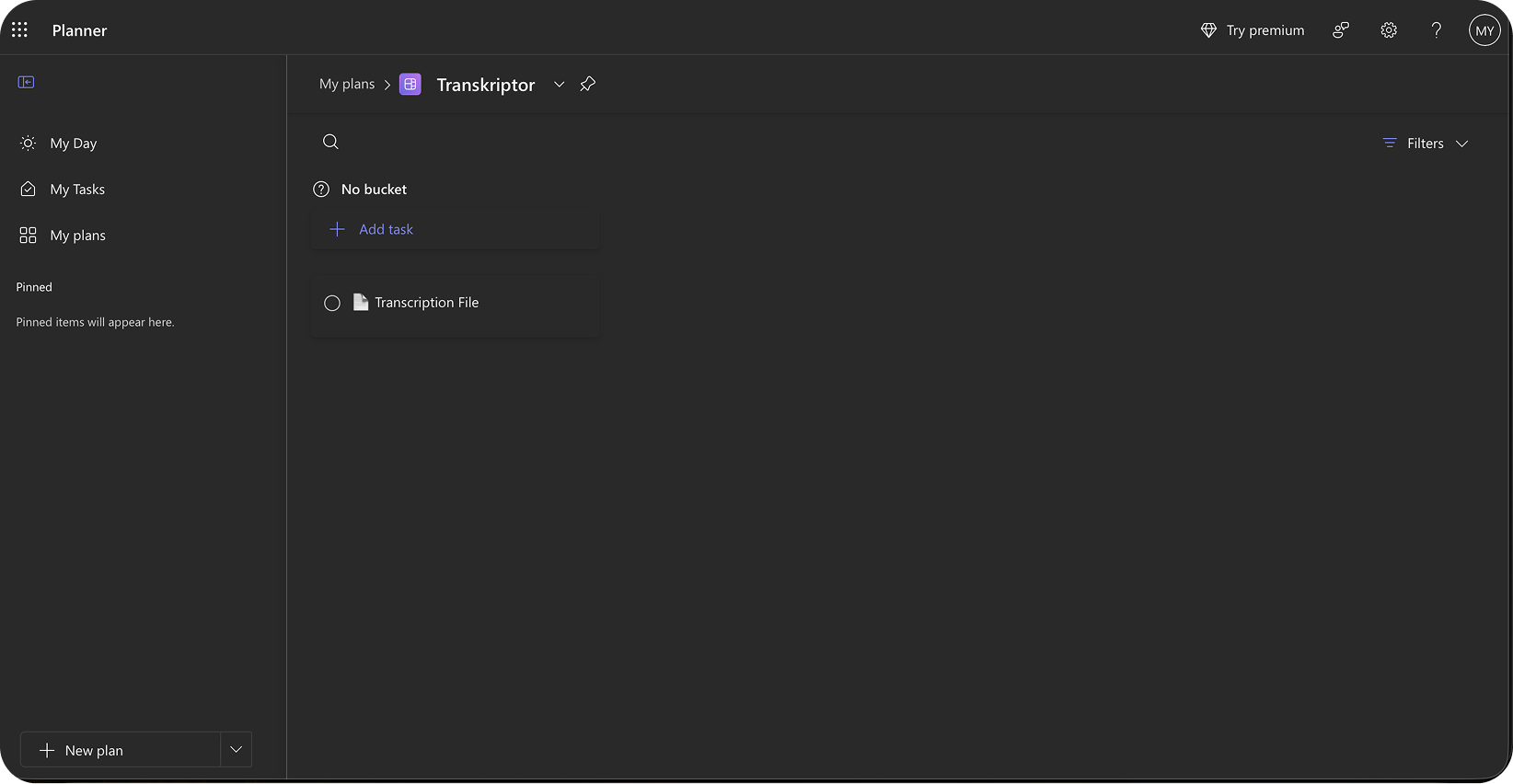
Tasks automatically appear in your designated Microsoft Planner plan ready for organization and assignment.
Configure the Microsoft Planner Integration
Microsoft Planner integration allows you to control how and where Transkriptor creates tasks in your workspace. Customize plan selection, task format, and automation preferences to fit your team's needs.
Main Settings
Select Account: If you have multiple Microsoft accounts (personal and business), choose the one where you want to create Transkriptor tasks.
Include AI Summary: Enable this option to include an AI-generated summary in the task description, giving your team quick context before reviewing the full transcript.
Choose Your Microsoft Planner Plan and Bucket
Select the specific plan and bucket where Transkriptor should create meeting tasks.
Plans: Select from your available Microsoft Planner plans (e.g., Team Projects, Marketing Plan, Q1 Initiatives)
Buckets: Choose the target bucket within the plan (e.g., Meeting Notes, Action Items, To Review)
Labels: Apply color-coded labels to tasks for easy categorization and filtering
You can also configure different plans and buckets for different meeting types directly from the integration settings.
Content Preferences
Include Full Transcript: Attach the complete word-for-word transcription to the Planner task as a note or attachment.
Include Summary Only: Add just the AI-generated summary with key points and action items in the task description.
Include Meeting Details: Populate task notes with meeting metadata such as date, duration, participants, and organizer information.
How to Disconnect from the Integration
After connecting Microsoft Planner to Transkriptor, you can click the three-dot icon to either change settings or disconnect the integration.
When you disconnect, Transkriptor will stop creating tasks in Planner. Previously created tasks will remain in your Microsoft Planner workspace.
Task Formatting in Microsoft Planner
Once Microsoft Planner integration is enabled, Transkriptor automatically formats tasks for optimal organization and clarity.
Task Title: Displays action item or meeting title with date for easy identification in your board view.
Task Description: Presents the AI summary with key context and relevant discussion points for quick understanding.
Attachments: Includes links to the full transcript and any relevant meeting materials when enabled in settings.
Labels and Categories: Applies color-coded labels based on meeting type, priority, or custom categorization rules.
This structure ensures your team can quickly understand task requirements while having access to complete meeting context when needed.