
Key Benefits of Transkriptor + Slack Integration
Instant Team Updates: Automatically post meeting transcripts and summaries to designated Slack channels the moment transcription is complete, keeping everyone in the loop.
Centralized Communication: All meeting notes, action items, and key decisions are shared directly in Slack where your team already collaborates, eliminating information silos.
Searchable Meeting Archive: Every transcript becomes searchable within Slack’s powerful search feature, making it easy to reference past conversations and decisions.
Customizable Notifications: Choose which channels receive transcripts, whether to include summaries or full transcripts, and control notification preferences to match your team’s workflow.
How to Set Up Slack Integration in Transkriptor
Easily connect your Slack workspace to Transkriptor in just a few clicks to automatically share transcripts, summaries, and meeting insights with your team.
Connect Slack
Go to the Integrations tab in your Transkriptor dashboard.
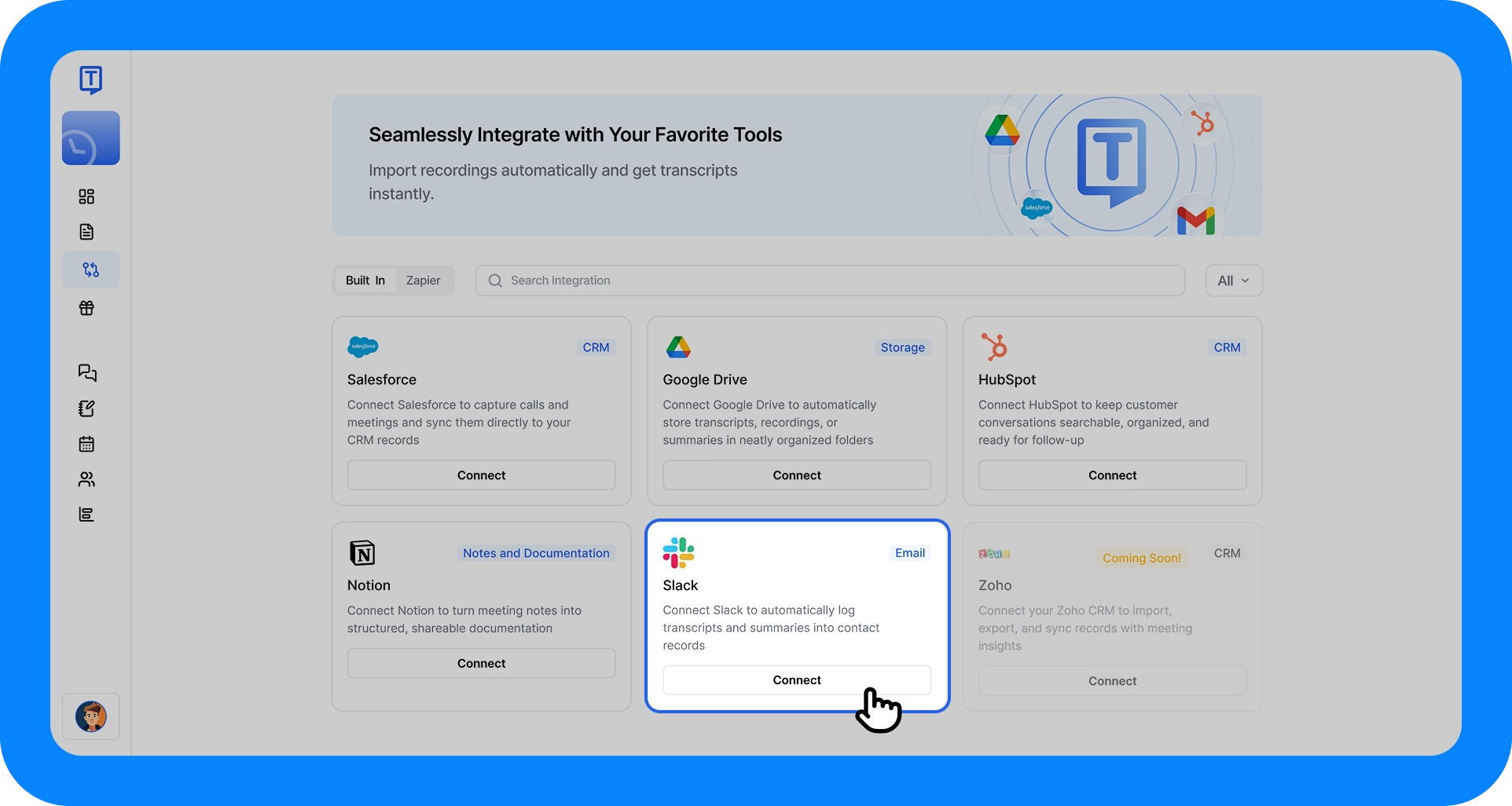
Explore the Slack integration with Transkriptor to automate your transcription processes. Find Slack and select it.
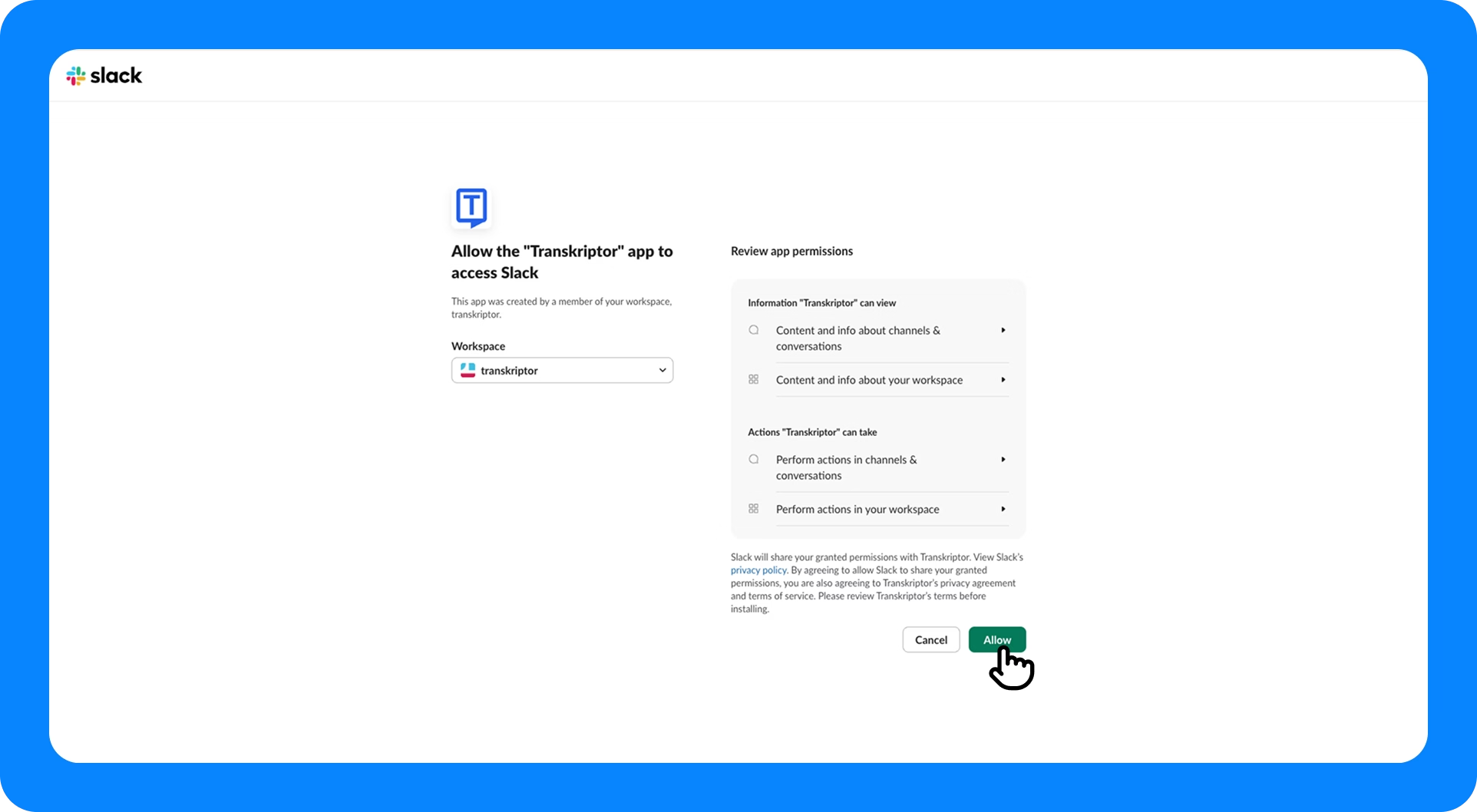
Enable seamless Slack integration by allowing Transkriptor app permissions. Click Connect, then sign in with your Slack workspace and approve the necessary permissions.
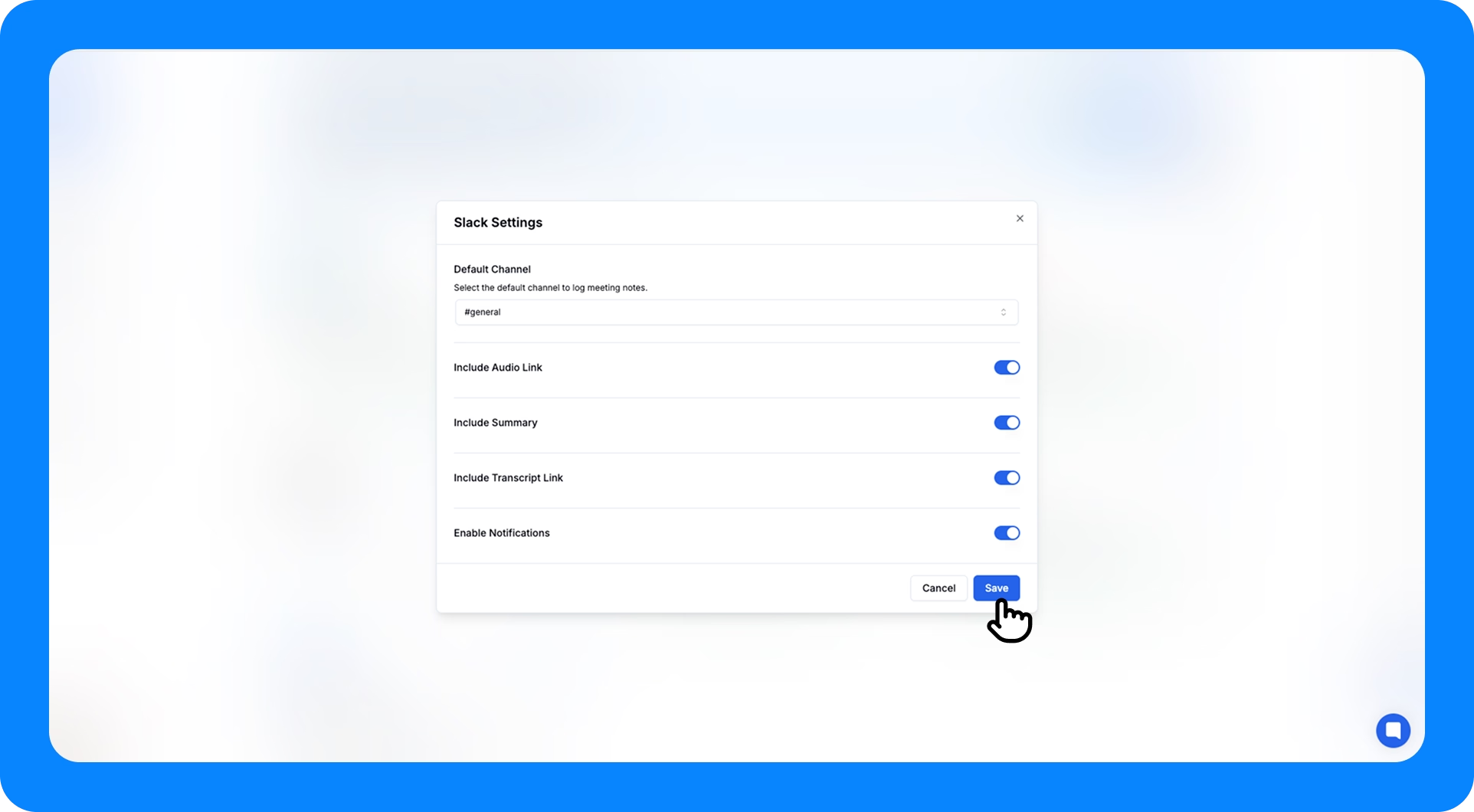
Explore Slack integration settings in Transkriptor to customize your notification preferences. You’ll be redirected back to Transkriptor where you can finalize and configure your integration settings.
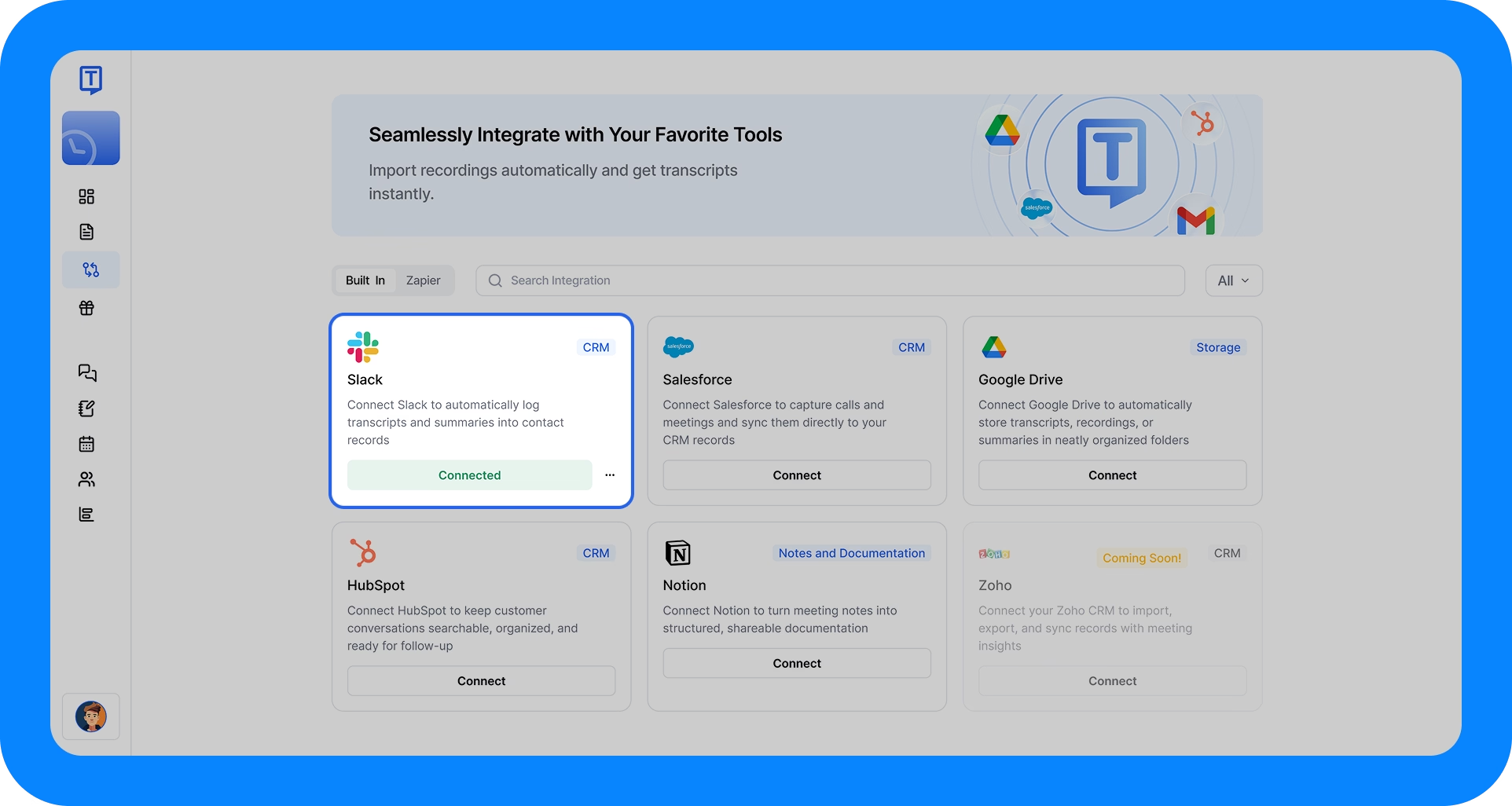
Discover how to connect Slack with Transkriptor to streamline transcript management. Once connected, transcripts will appear in your chosen Slack channel including summaries and action items.
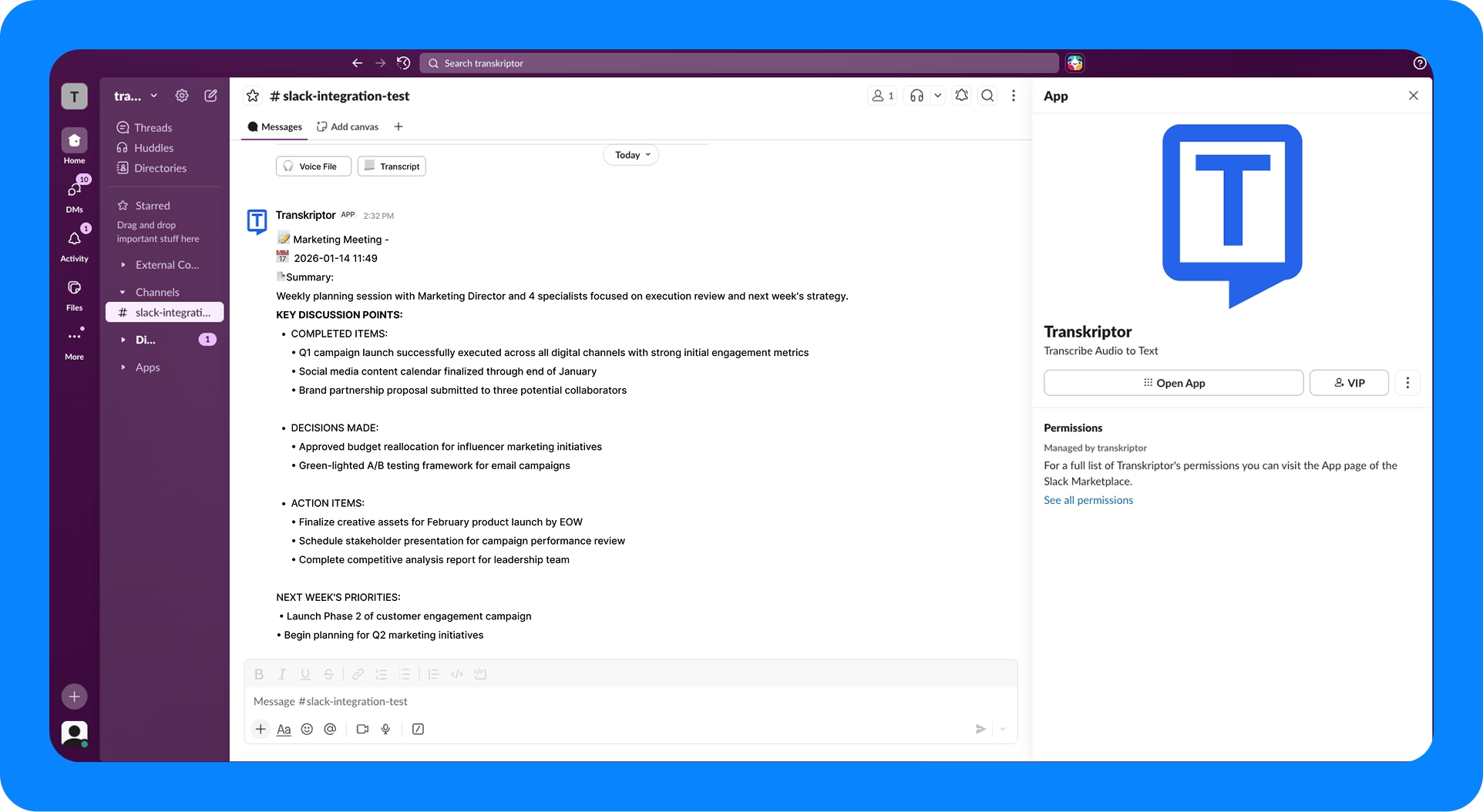
Explore how Transkriptor integrates with Slack to streamline transcription tasks and enhance productivity.
Configure the Slack Integration
Slack integration allows you to control how and where Transkriptor shares meeting content in your workspace. Customize channel selection, content format, and automation preferences to fit your team’s needs.
Main Settings
Select Workspace: If you’re part of multiple Slack workspaces, choose the one where you want to receive Transkriptor notifications.
Auto-Post Transcripts: Toggle this on to automatically send transcripts to Slack immediately after meetings end. When turned off, you can review and manually share transcripts from the Transkriptor editor.
Include AI Summary: Enable this option to include an AI-generated summary at the top of each Slack message, giving your team quick context before reading the full transcript.
Notification Preferences: Choose whether to notify @channel, @here, or post silently without pinging team members.
Choose Your Slack Channel
Select the specific channel where Transkriptor should post meeting transcripts.
- Public channels: (e.g., #meetings, #team-updates)
- Private channels: (if Transkriptor has been added to them)
- Direct messages: To specific team members
You can also configure different channels for different meeting types or projects directly from the integration settings.
Content Preferences
Include Full Transcript: Send the complete word-for-word transcription to Slack.
Include Summary Only: Share just the AI-generated summary with key points and action items.
Include Meeting Details: Attach meeting metadata such as date, duration, participants, and organizer information.
Include Speaker Labels: Show who said what in the transcript with speaker identification.
Include Timestamps: Add timestamp markers to help team members navigate to specific parts of the conversation.
Additional Options
Thread Organization: Choose whether transcripts appear as standalone messages or as threaded replies to keep channels organized.
Custom Message Template: Customize the introductory message that appears before each transcript in Slack.
File Attachments: Optionally attach the transcript as a .txt or .docx file for easy downloading and sharing outside Slack.
Action Items Highlight: Automatically identify and highlight action items or decisions in a separate section at the top of Slack messages.
How to Disconnect from the Integration
After connecting Slack to Transkriptor, you can click the three-dot icon to either change settings or disconnect the integration.
When you disconnect, Transkriptor will stop posting to Slack. Previously shared messages and transcripts will remain in your Slack workspace.
Message Formatting in Slack
Once Slack integration is enabled, Transkriptor automatically formats messages for optimal readability.
Meeting Header: Displays meeting title, date, duration, and participants at the top of each message.
Summary Section: If enabled, shows AI-generated key points, decisions, and action items in a collapsed format.
Transcript Body: Presents the full conversation with speaker labels and timestamps for easy reference.
File Attachments: Includes downloadable transcript files when enabled in settings.
This structure ensures your team can quickly scan important information while having access to complete details when needed.