Otter.ai Review
This Otter AI app review covers key pros and cons, features, pricing, and real-world performance to help you decide if it fits your meeting workflow.


What is Otter AI Desktop App?
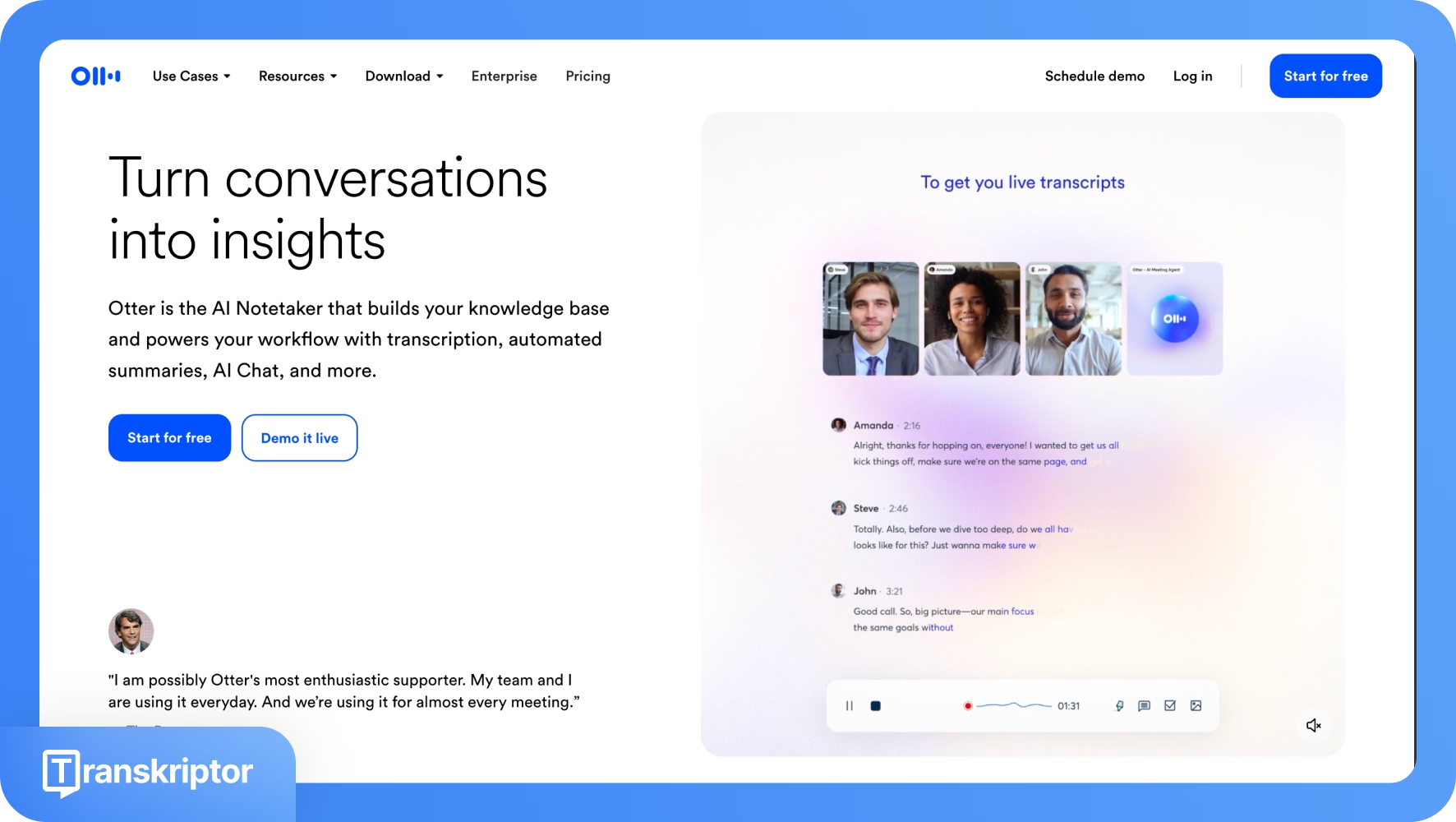
Otter AI desktop app is a macOS client (Windows coming soon) that brings Otter’s meeting recording, live transcription, and AI summaries into a distraction‑free desktop environment. It positions itself as an AI notetaker and transcript generator that complements editors like Adobe Premiere Pro instead of replacing them.
You can use the Otter desktop app to record meetings and audio directly from your Mac, generate live transcripts, use Otter AI Chat, and edit conversations without needing a browser tab open. It connects to your Otter account, so anything you capture on desktop syncs with web and mobile apps, including summaries, highlights, and shared conversations.
Enterprise teams can also use the desktop app to manage “bot‑free” capture of calls, where Otter records audio locally instead of joining the meeting as a visible participant.
What does Otter AI Desktop App do?
Otter AI desktop app is a native macOS application (with Windows planned) that records meetings and desktop audio, transcribes them live, and generates AI-powered notes in a focused desktop workspace. It syncs with your Otter account, so everything you capture on desktop appears on web and mobile with the same transcripts, highlights, and summaries.
- Meeting transcripts: Record Zoom, Teams, Google Meet, or any system audio, get real-time transcripts, auto‑generated summaries, action items, and searchable notes.
- Interview analysis: Capture long interviews, tag speakers, search by keyword, and export cleaned transcripts for analysis or writing.
- Live event highlights: Transcribe live sessions or uploaded audio and video files, then search via timestamps and highlights instead of replaying everything.
- Transcript editing: Use the builtin editor to play back audio with word‑level highlighting, fix misheard words, adjust speaker labels, and annotate key moments.
- Export and captions: Export TXT, DOCX, PDF, and SRT caption files so you can reuse the transcript in documents, blogs, or video editors.
Can Transkriptor do what Otter does?
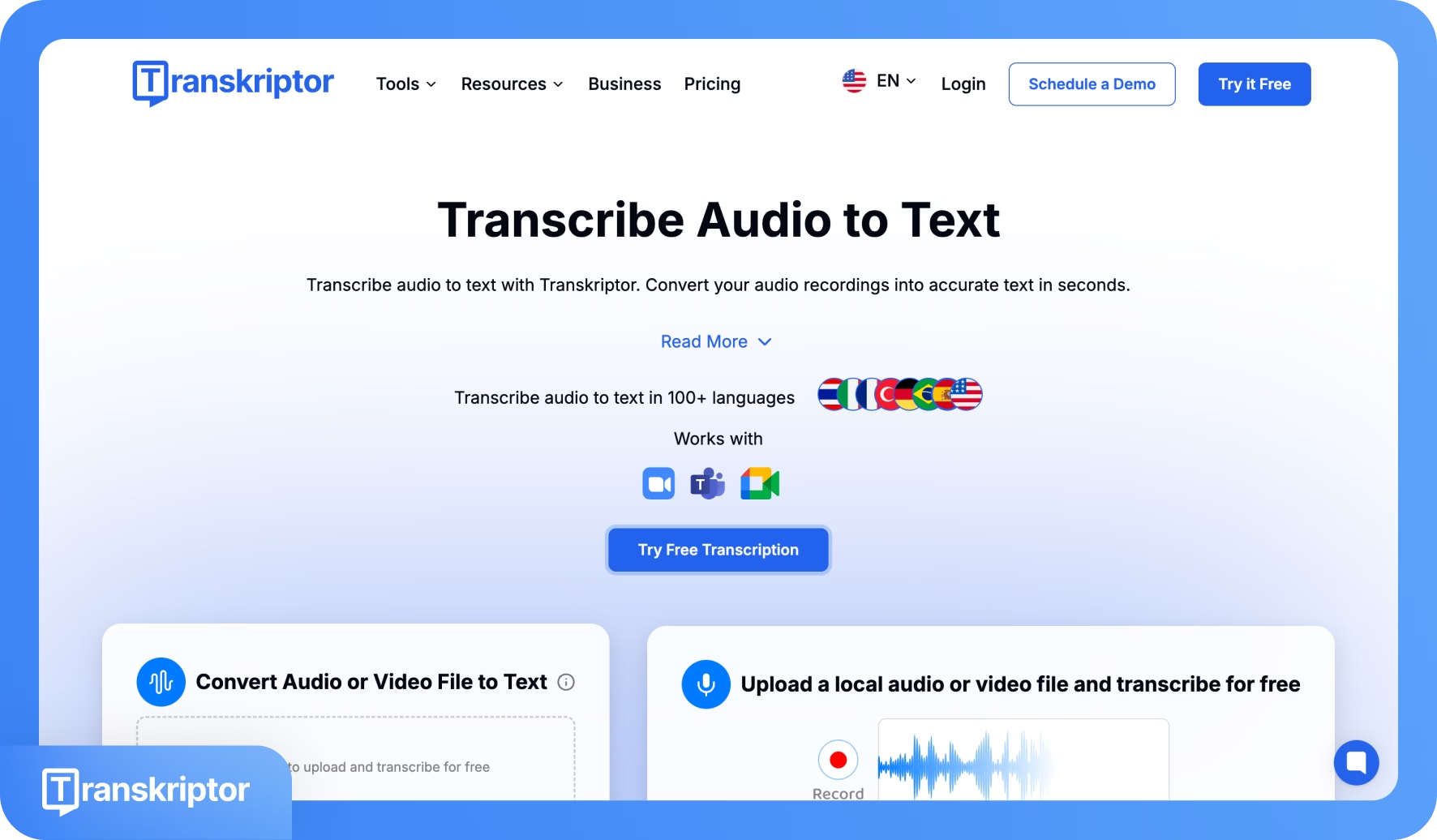
Transkriptor can perform most of the same core tasks, like transcribing meetings, interviews, and media files, and exporting captions at a better price. Otter’s desktop app shines for live events, while Transkriptor leans more toward fast and multilingual transcriptions.
How Does Otter AI Transcribe Audio?
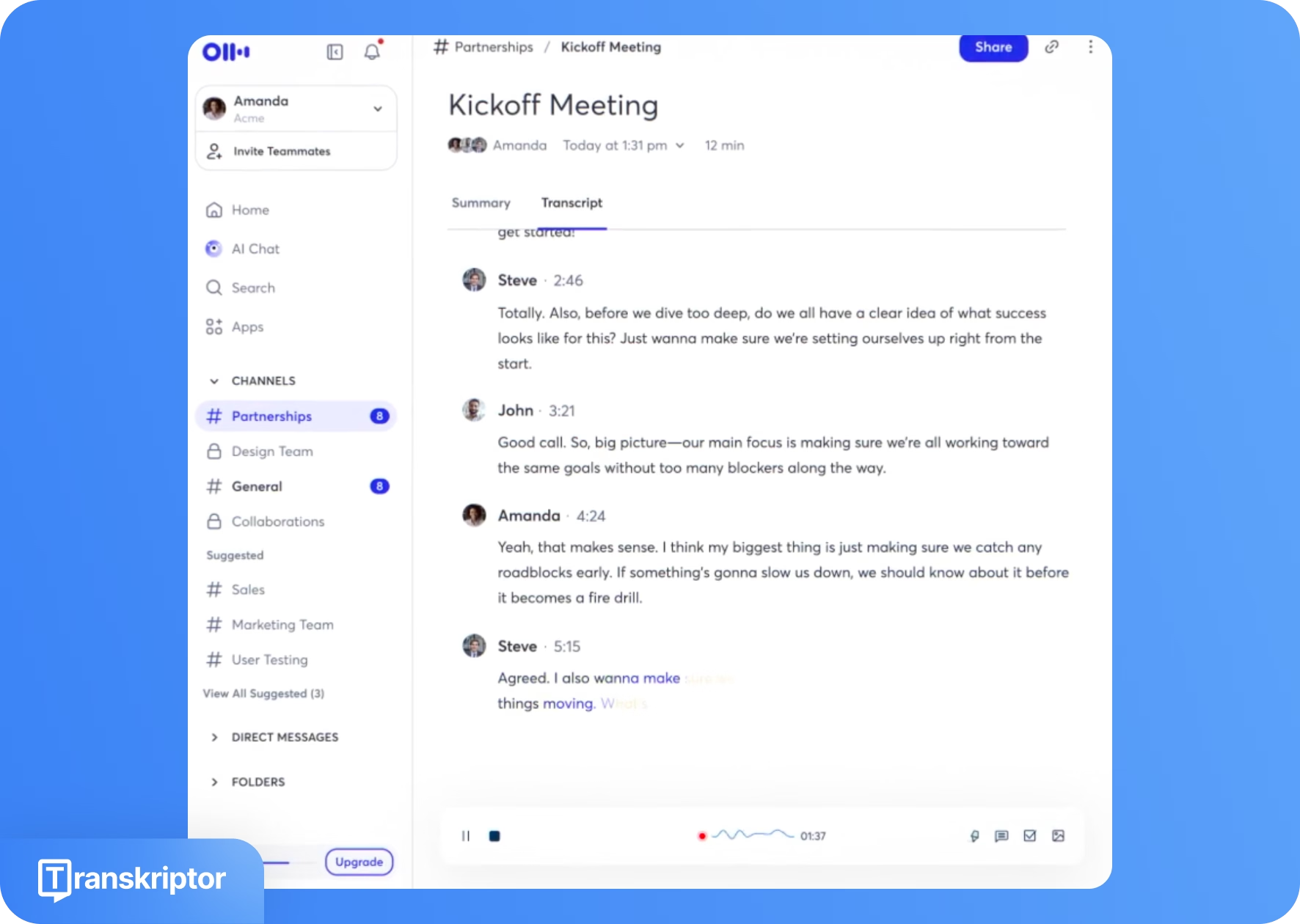
Otter AI transcribes audio to text by streaming your recording to its speech-recognition engine, which converts speech to text in real time and then uses natural language processing (NLP) to clean up the text, add punctuation, label speakers, and insert timestamps. The entire process is automated end-to-end, with no human transcribers, and works for both live conversations and uploaded files.
Once you start recording or upload a file, Otter detects the spoken words, runs them through machine‑learning models trained on large voice datasets, and generates a draft transcript as the conversation unfolds. After the initial pass, additional processing separates the audio into segments by speaker, refines sentence boundaries, and prepares the text for search, highlights, and AI summaries.
What is the Price of Otter AI?
Otter AI offers a free Basic plan and three paid tiers: Pro at $16.99 per user/month, Business at about $30 per user/month, and Enterprise with custom pricing via sales.
Free Basic plan: The Basic plan costs $0 and includes up to 300 transcription minutes per month, with a 30‑minute cap per conversation, plus live transcription, basic search, and limited file imports. It is designed for individuals testing Otter or handling occasional meetings.
Pro and Business plans: The Pro plan ($16.99 monthly) raises limits to roughly 1,200 minutes per month and around 90 minutes per conversation, adding more file imports, advanced search, custom vocabulary, and better export options. Business ($30 monthly) scales to around 6,000 minutes and up to 4 hours per conversation, with shared workspaces, admin controls, integrations, and priority support for teams.
Enterprise plan: Enterprise pricing is negotiated, typically for larger deployments needing SSO, advanced security, HIPAA compliance, and dedicated account support.
What are the Subscription tiers for Otter AI?
Otter AI has four subscription tiers: Basic (free), Pro, Business, and Enterprise, each mainly differentiated by monthly transcription minutes, meeting length limits, and collaboration features.
- Basic: Free forever, with 300 transcription minutes per month and a 30‑minute cap per conversation. Good for light, personal use but limited by low minutes and restricted access to older conversations and advanced features.
- Pro: Paid per user, roughly $8.33/month on annual billing or $16.99 on monthly. It includes 1,200 transcription minutes and 90‑minute per‑meeting limits. Pro plan adds advanced search, much larger custom vocabulary, more file imports, unlimited conversation history, and better export options, but still caps imports and total minutes.
- Business: This plan is at $19.99/user/month on annual billing or $30 monthly, with 6,000 minutes per user and up to 4‑hour meetings. Buisness plan unlocks shared workspaces, team admin controls, centralized billing, and higher import and summary limits, making it suitable for small–mid teams that live in meetings.
- Enterprise: Custom‑priced for larger organizations needing negotiated minutes, longer meeting caps, and tailored security/compliance (SSO, DPA, HIPAA). Exact features and cost depend on contract size and requirements.
Is there a Premium version of Otter AI App?
Yes, Otter AI has premium plans: Pro, Business, and Enterprise, which sit above the free Basic tier. Premium subscriptions increase your monthly transcription minutes, allow longer meetings, and unlock more automation and collaboration features.
On Pro, you get around 1,200 minutes per month, longer recordings, more file imports, advanced search and export, and a larger custom vocabulary for jargon and names. Business adds roughly 6,000 minutes, 4‑hour meetings, team workspaces, admin controls, usage analytics, and higher import limits, plus faster support. Enterprise is a custom premium tier with negotiable limits and advanced security options like SSO, domain control, and dedicated account support.
Are the recording-minute limits reasonable for a paid plan?
The recording‑minute limits are reasonable for light to moderate use, but tight for heavy users. Pro gives 1,200 minutes a month and 90 minutes per conversation, which fits many solo professionals but not daily, multi‑hour meetings. Business raises this to 6,000 minutes and 4‑hour meetings.This is good enough for most customers but minutes are still capped, not unlimited.
Do you need the Business plan to remove recording limits?
You do not get unlimited recording on Business; you just get higher caps. Pro users are restricted to 1,200 minutes a month and 90 minutes per conversation, so anyone needing more can buy the Business plan which comes with 6,000 minutes and 4‑hour conversation limit.
What are the core strengths and weaknesses of Otter AI based on real usage?
Otter AI is widely praised as an easy, low‑friction meeting notetaker with strong live transcription and summaries, but users often flag limits around accuracy, minutes caps, languages, and support as teams scale. The table below distills common patterns:
| Feature | Strengths | Weaknesses | Comments | Workaround |
|---|---|---|---|---|
| Live meeting transcription & summaries | Fast, convenient live notes with auto summaries and action items. | Summaries can be vague or inaccurate, need manual cleanup. | Great for recall, not “set‑and‑forget” for critical meetings. | Pair with manual review or a second tool like, Transkriptor for final records. |
| Ease of use & UX | Very simple to start, clean interface, smooth calendar and meeting integrations. | Library can feel cluttered; weaker organization and smart filters than some rivals. | Strong for individuals and small teams, less so for complex workflows. | Use folders, naming conventions, and exports to Docs/Notion for long‑term organization. |
| Transcription accuracy | Reasonable English accuracy (often around mid‑80% range) in clear audio. | Struggles with accents, crosstalk, technical jargon; fragmented sentences. | Good for notes; not ideal for verbatim, publication‑ready transcripts. | Improve mic quality, record locally, then clean or re‑run key files through a specialist like Transkriptor. |
| Speaker identification | Basic diarization; can separate some speakers. | Frequently mislabels speakers as “Speaker 1/2”, which then confuses summaries and action items. | Pain point for multi‑speaker or stakeholder‑heavy calls. | Train speaker profiles where possible and manually fix speakers on critical transcripts. |
| Limits & pricing | Free plan is generous for testing; paid tiers add more minutes and features. | Strict monthly minutes and meeting‑length caps even on Business; some users feel “metered”. | Works for light–moderate usage; heavy users may outgrow it or face overages. | For high‑volume transcription, offload bulk files to usage‑based tools like Transkriptor. |
| Language support | Optimized for English, Spanish, French and Japanese meetings. | Very limited language range vs modern multilingual tools. | Fine for selected few teams, weak for global or bilingual workflows. | Use Otter for English notes; route non‑English or mixed‑language content through a multilingual service like Transkriptor. |
| Mobile & cross‑platform use | Well‑supported mobile apps, good for on‑the‑go interviews and lectures; works across web, desktop, mobile. | No full video recording/replay for most tiers; some workflows still need other apps. | Strong capture layer, but not an all‑in‑one media system. | Record in Otter for notes, keep primary audio/video in your recorder or editor. |
| Customer support & reliability | Solid self‑serve help center and docs. | Multiple Otter AI reviews cite slow or unhelpful human support responses. | Acceptable for low‑stakes use; riskier for mission‑critical reliance. | Favor tools with stronger support for core workflows, keep Otter as a secondary notetaker. |
What are the Pros of Otter AI?
As an AI-powered note‑taking tool, Otter’s main strengths are real‑time capture, meeting‑centric workflows, and easy sharing across devices. It’s designed to replace manual note‑taking with live, searchable transcripts and AI summaries.
- Real-time transcription: Transcribes Zoom, Teams, Meet, and in‑person conversations as they happen so participants can read along and review instantly.
- AI summaries & highlights: Automatically generates outlines, key points, and action items from each conversation to speed up follow‑ups.
- Searchable conversation archive: Stores transcripts with timestamps, speaker tags, and keyword search so you can quickly find past decisions or quotes.
- Collaboration & sharing: Lets teams share conversations, comment, highlight, and organize notes into folders and channels.
- Cross‑platform apps: Works on web, mobile, and desktop, with calendar integrations to auto‑join and capture scheduled meetings.
- Accessibility benefits: Live captions and transcripts support hearing‑impaired users and anyone who prefers reading over listening.
Transkriptor shares some of these strengths, such as AI transcription, summaries, and search. Transkriptor emphasizes higher‑accuracy file transcription, stronger multilingual support, and more flexible usage‑based pricing, making it better suited when you care less about meeting bots and more about reliable transcripts across many languages and formats
What are the Integrations for Otter AI?
Otter connects to Zoom, Google Meet, and Microsoft Teams so its notetaker can auto‑join and transcribe scheduled calls. It also integrates with Google Calendar and Outlook, Google Drive, and a Chrome extension for capturing browser audio.
- Communication tools (Zoom, Google Meet, Microsoft Teams, JustCall, RingCentral, Dialpad): Auto‑join scheduled meetings, record, and generate live transcripts, summaries, speaker ID and action items inside Otter.
- Calendars (Google, Outlook): Sync events so Otter can detect upcoming meetings and schedule OtterPilot to attend automatically.
- Cloud storage (Google Drive, Dropbox, OneDrive, Amazon S3): Sync and back up transcripts and meeting content directly for access and sharing.
- Zapier: Use Zapier or similar platforms to push Otter transcripts into CRMs, task tools, or documentation systems.
- CRM and collaboration (Asana, Airtable, Slack, Jira, Notion, Salesforce, Outreach, Snowflake, Monday.com, Hubspot): Automtially sync transcripts with CRM and enrich databases with meeting insights
How integrations work
Once you connect your calendars and meeting apps in Otter’s settings, OtterPilot can automatically detect scheduled meetings and join them as an AI notetaker. During the call it records audio, runs live speech‑to‑text, and then syncs transcripts and summaries back into Otter and, where configured, into storage or downstream tools.
What are the supported languages for Otter AI?
Otter AI officially supports transcription in English, Spanish, Japanese and French, with the app interface and support still provided in English only. It performs transcription, so speakers must talk in the same language they want transcribed; there is no automatic language detection.
- English (US/UK variants): Default and most mature language; optimized for meetings, lectures, and interviews, with live transcription, summaries, and AI Chat all working in English.
- Spanish: Users can switch their account language to Spanish, after which Otter transcribes and summarizes new meetings in Spanish, using the same real‑time pipeline as English.
- French: Similarly, selecting French in settings enables French‑language transcription and summaries for new recordings across web and mobile apps.
- Japanese: A recent introduction, Japanese language switching isn’t available in mobile apps yet
How language support works
To use a specific language, you change the transcription language in account settings and Otter then processes all future recordings in that language until you switch again. The underlying workflow is the same: audio is streamed to Otter’s servers, transcribed in the chosen language, then processed for punctuation, summaries, and AI Chat in that same language.
What are the supported operational systems for Otter AI?
Otter AI runs on the web in modern browsers and as apps for iOS, Android, and macOS, with a Windows desktop app still in development.
On desktop, you can use Otter in Chrome, Firefox, Safari, or Edge on Windows, macOS, or Linux, as long as the browser is up to date. There is also a native macOS desktop app that requires macOS 12.3 or later. On mobile, Otter offers apps for iOS/iPadOS 15 or later and Android 5.0 or later, synced with your web/desktop account.
Does Otter AI have a limit?
Yes. Every Otter AI plan has transcription‑minute and per‑recording limits, including the paid tiers. The free Basic plan offers about 300 minutes per month with a 30‑minute cap per conversation and just a few lifetime file uploads, while Pro and Business raise (but do not remove) monthly and per‑meeting caps.
Is Otter AI better than Transkriptor?
No in most general‑purpose transcription cases; yes only if live, in‑meeting notes are the priority.
If we run real-world comparisons of Transkriptor vs Otter, Transkriptor wins for accuracy, multilingual coverage, YouTube and file workflows, and minutes per price, while Otter leads for live meeting bots and in‑call collaboration.
20. Is Otter AI really free?
Yes, Otter AI has a free Basic plan you can use indefinitely, but it is heavily capped. You get a limited pool of monthly minutes, short maximum recording length, and strict import/export limits; once those are hit, meaningful everyday use effectively requires upgrading to a paid plan.
What are the cons of Otter AI?
Otter AI’s main drawbacks show up around accuracy, limits, and language coverage, especially once you move beyond light, English‑only meeting notes.
- Transcription accuracy: Errors with accents, crosstalk, and technical terms mean transcripts often need manual cleanup before publishing.
- Minute and meeting caps: Strict monthly minutes and per‑meeting limits apply on every tier, including paid plans, which can feel restrictive for heavy users.
- Limited languages: Otter is still heavily optimized for English, with only a small set of additional languages supported compared with modern multilingual tools.
- Privacy and data use: By default, recordings can be used to improve Otter’s models, which has raised concerns in privacy reviews and legal commentary.
What are the biggest pain points when using Otter AI day-to-day?
The biggest day‑to‑day pain points with Otter AI come from accuracy quirks, strict usage limits, and small UX/friction issues that add up over time, especially for heavy or team-based use.
- Inconsistent accuracy: Names, acronyms, and technical terms are often wrong, and crosstalk or accents can break sentences, so you might spend more time editing instead of just reading.
- Minute and import caps: Hitting monthly minutes, per‑meeting length limits, or free‑plan import ceilings interrupts workflows and forces manual workarounds or upgrades.
- Speaker labeling: Misassigned or generic speaker tags (“Speaker 1/2”) make it harder to scan who said what in multi‑stakeholder meetings.
- Bot and join glitches: Occasional failures where the bot doesn’t join or audio isn’t captured mean important meetings end up without notes.
- Support responsiveness: Slow or limited support responses create friction when billing, data, or reliability issues arise.
How often do transcription errors slow down the workflow?
Otter AI transcription errors are frequent enough that many users budget time for cleanup on most important recordings, especially with diverse speakers or noisy audio.
Common errors include misheard names, acronyms, and technical terms that must be manually corrected to avoid confusion in notes or minutes. Strong accents and overlapping speech can also slow down Otter. Finally, generic “Speaker 1/2” tags and misassigned lines obscure who decided or promised what.
These issues slow workflows by requiring line‑by‑line review, re‑listening to audio, and manual relabeling before teams can safely share or act on the transcript.
Are automatic summaries too generic or buzzword-heavy?
Yes. Many users find Otter AI’s automatic summaries helpful but often too generic or padded with buzzwords for high‑stakes documentation. Things like vague phrasing, missed nuances, and overemphasis on generic takeaways ruin the experience. Otter forces teams to re‑read the full transcript or re‑listen to audio to confirm what was actually agreed.
What is the app security level of Otter AI?
Otter AI’s app security level is solid for a SaaS tool: it is SOC 2 Type II attested and uses encryption in transit and at rest, but its data‑use model is not “zero‑knowledge” or fully data‑isolated.
Otter implements technical and organizational controls like TLS, encrypted storage, access controls, and security monitoring, and positions itself as aligned with GDPR requirements through data‑subject rights and deletion options. However, recordings and transcripts can be de‑identified and used for model training, and data is stored on US cloud infrastructure, which raises compliance questions for highly regulated or EU‑based organizations that need strict data residency or data‑minimization guarantees.
Is Otter AI legit?
Yes, Otter AI is a legitimate, established SaaS company used by universities, enterprises, and millions of individual users for meeting transcription and note‑taking. It has raised venture funding, achieved SOC 2 Type II certificate, and is listed and reviewed on major software directories like G2 and Capterra. Most independent reviews treat it as a serious tool with clear pros, cons, and documented security practices.